How to embed the radio player on your website (ready-made widgets)
Six ready-made codes to paste on the website: HTML5 player, player with controls, now playing, recent songs, TuneIn links and the JavaScript API. How to test and copy each one.
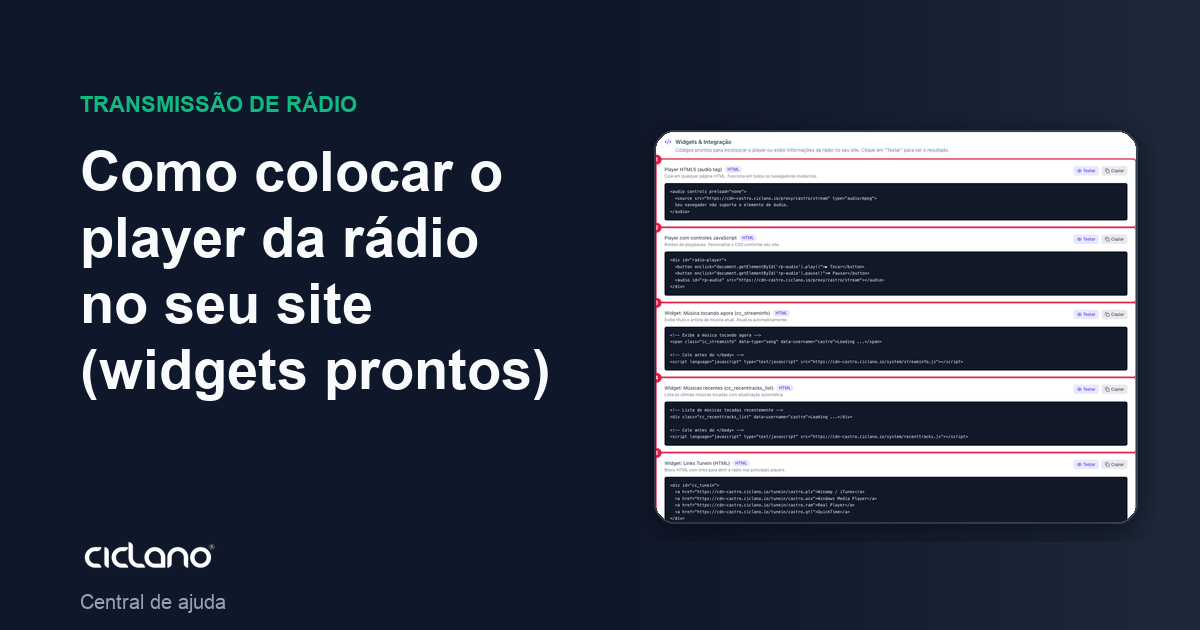
You do not need a programmer to put the radio on the website: the Widgets and integration section has ready-made codes. You test them here in the panel, copy and paste them on your website's page. For a complete, customized player (colors, logo, show on air, sharing), use the Web Player; widgets are the quick option.
Where it is: Applications › your radio › Links & Widgets › Widgets and integration.
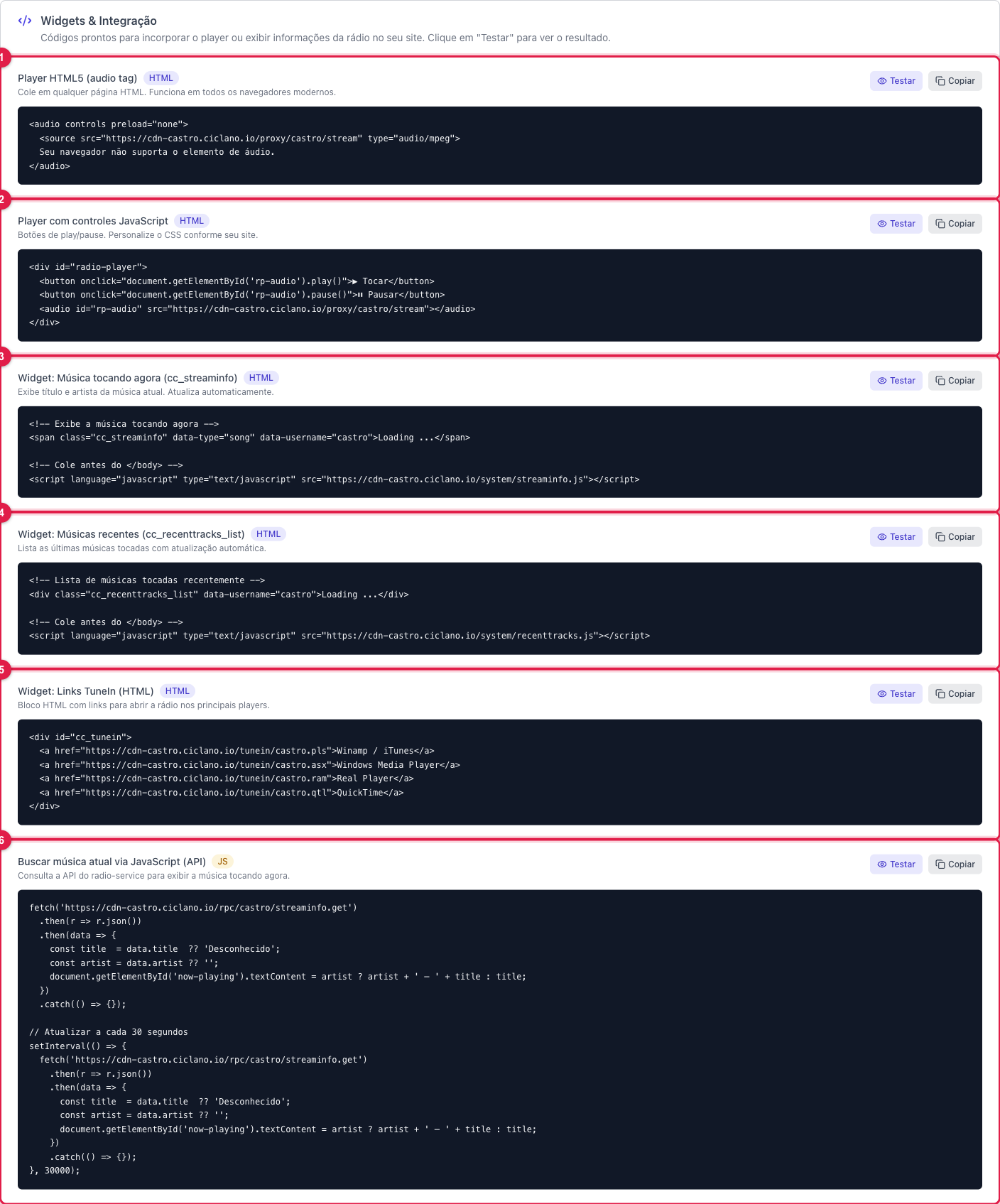
The numbers in parentheses refer to the image.
The six widgets
- HTML5 Player (audio tag) (1) — the browser's native player, the simplest and most compatible. One line of HTML.
- Player with JavaScript controls (2) — play/pause and volume with its own look, for whoever wants to style it.
- Now playing (3) — shows the current title and artist, refreshing by itself.
- Recent songs (4) — the list of the last songs played.
- TuneIn links (5) — the ready "listen on Winamp / Windows Media Player" buttons.
- Fetch current song via JavaScript (6) — not a visual widget: it is the code snippet that queries the API and returns the current song, for the developer to build whatever they want.
Test before copying
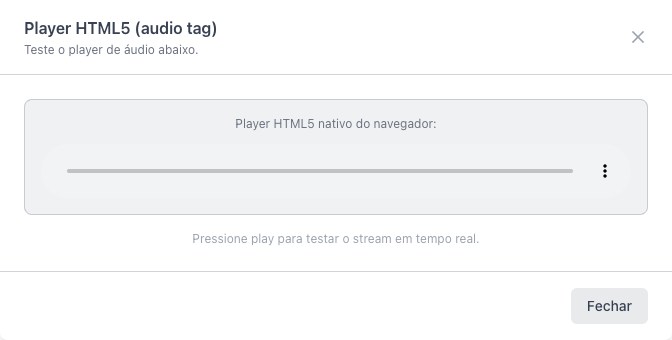
- Click Test on the widget. A window opens with it really working — in the player, press play and check the sound.
- Click Copy. The code goes to the clipboard with your radio's addresses already filled in.
- In your website editor (WordPress, Wix, plain HTML), paste the code where the player should appear. In site builders, use the "custom HTML" or "code" block.
What to do if…
- On the website the player shows but does not play. If the site is HTTPS and the widget has an HTTP link, the browser blocks it. All widgets use the universal (HTTPS) link; check that the code was not changed when pasting.
- "Now playing" stays blank. The title comes from the encoder or AutoDJ. See whether it shows in Now Playing on the Home screen.
- I want colors, logo and sharing. That is the Web Player, which generates its own embed code.