How to organize music automatically and remove duplicate songs
Two Library helpers: one reorganizes the collection into folders by genre and artist, the other finds repeated songs and frees disk space.
A radio collection grows over years, from many sources, and at some point nobody knows what is where. The Library has two features for that, and both work on the server, in the background — you can close the page and come back later.
Where it is: Applications › your radio › AutoDJ › Library.
Organize music automatically
We read each song's tags (genre, artist and title), the file name and the folder, and reorganize the files into folders by music style and, within each style, by artist: Music/Genre/Artist/Song name - Artist.mp3. Nothing is deleted, and playlists are not lost: each song stays in place in every playlist it is in.
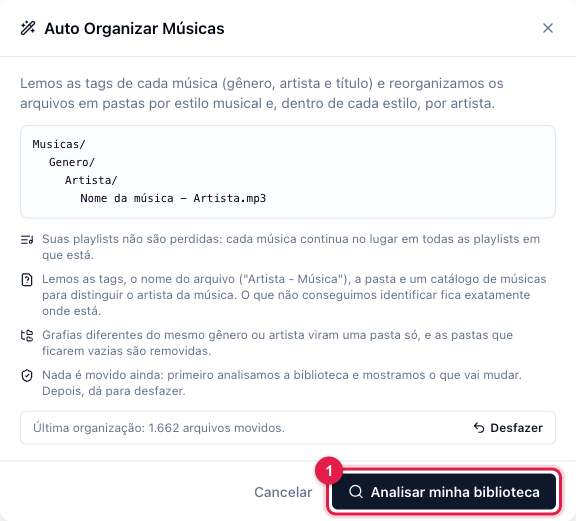
The numbers in parentheses refer to the image.
- Click the Auto Organize Music card, at the top of the Library.
- Click Analyze my library (1). The analysis can take a few minutes on a large collection; the bar shows the step.
- Review the preview: for each file the destination folder and the identification confidence show. If artist and song came swapped, use the swap button on that item. Tracks we could not identify stay where they are.
- Click Apply. When it finishes, the Library shows the new folder structure.
Regret it? The last run has Undo (in the same window, next to "Last organization"): the files go back to their previous folders.
Remove duplicate songs
The duplicates counter, next to the total tracks at the top of the Library, opens the Duplicate files window. There are two kinds, in separate tabs:
- Identical files — the same file, byte for byte, saved twice (in different folders, for example).
- Same song — different files with the same title, artist and duration (an MP3 at 128 and another at 320 kbps, a copy with a different name).
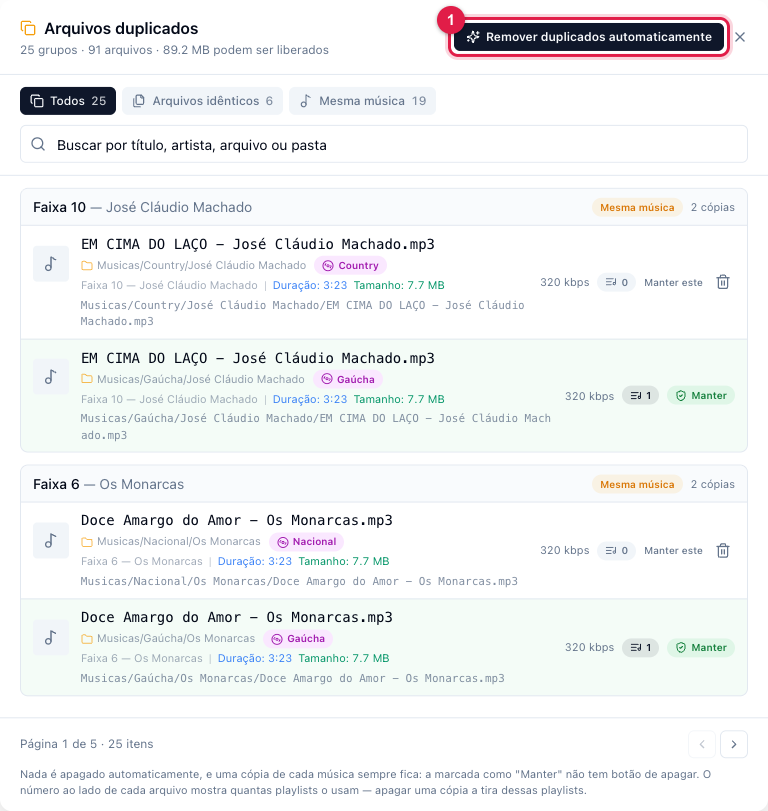
You can review group by group and delete copy by copy (the trash icon on each file), or use Remove duplicates automatically (1): we keep one copy of each song (the one marked "Keep") and delete the rest. The cleanup runs on the server and, if interrupted, resumes from where it stopped when you open the window again.
What to do if…
- "The organization did not finish". Open the card again: it shows which step it stopped at and lets you continue.
- The card does not show. Your radio's server does not have this feature yet; contact support.
- A song went to the wrong genre. Fix the genre in Edit metadata and move the track to the right folder; on the next organization it already goes to the right place.