How to upload music by FTP to the radio (FileZilla)
For large collections, upload by FTP with FileZilla or another client. Where the access details are, how to connect and what happens after the upload.
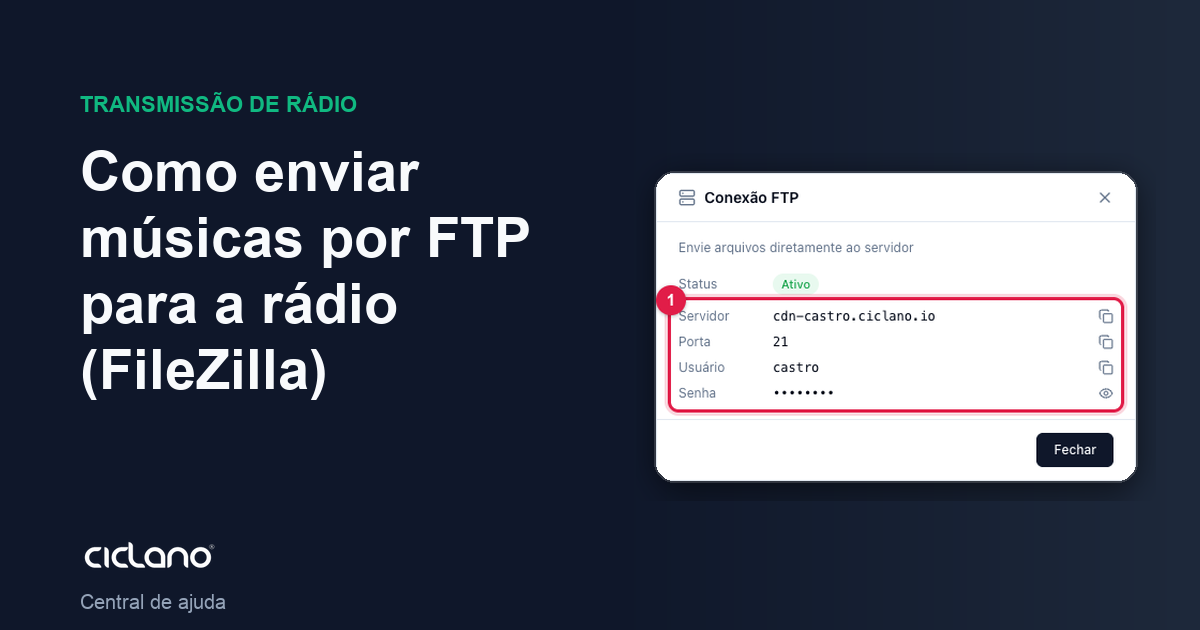
When it is hundreds of songs, FTP is the way: you connect with a program like FileZilla, drag whole folders and let it upload. The AutoDJ library updates on its own when the files arrive.
Where it is: Applications › your radio › AutoDJ › Dashboard › View FTP details button.
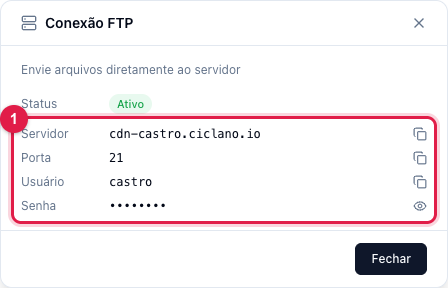
The numbers in parentheses refer to the image.
1. Get the access details
- Open AutoDJ › Dashboard and click View FTP details, in the top-right corner.
- The FTP Connection window shows, in block (1), Server, Port (21), User (your radio's name) and the Password. Use the eye icon to reveal the password and the copy icon to copy each value.
- The status must be Active. If it shows disabled, contact support.
2. Connect with FileZilla
- Download and open FileZilla (free, for Windows, Mac and Linux).
- At the top, fill in Host with the server, Username and Password with the details from block (1), and Port with 21. Click Quickconnect.
- On the right side your library's folders appear. On the left, the files on your computer.
- Drag the songs (or whole folders) from left to right. FileZilla shows the queue and the progress at the bottom.
Tip: create the folders on the FTP with the same names you want to see in the Library (for example Music/Country, Commercials, Jingles). Folders are the fastest way to build playlists later: the Library has "Add all" for the open folder.
3. After the upload
Go back to AutoDJ › Library: the new files show by themselves, with title and artist read from the tags. From there it is the same as uploading from the panel — add the tracks to playlists for them to play.
What to do if…
- "Incorrect password" or "login failed". Copy the password from the FTP Connection window (the copy icon avoids extra spaces). The FTP password is not the panel password.
- It connects but does not list the folders. In FileZilla, go to Edit › Settings › Connection › FTP and choose Passive mode. Corporate firewalls and antivirus also block port 21; try another network.
- I uploaded and the file does not show. Wait a few minutes with the upload already finished and reload the Library. Check that the extension is one of the accepted ones (MP3, AAC, OGG, FLAC, WAV).
- The upload got slow. That is normal with large collections; FileZilla keeps going on its own. If it drops, it resumes from where it stopped.