How to organize the radio's music: folders, cover art and track details
Everything you do with a track in the AutoDJ Library: create folders, fix title and artist, upload cover art, rename the file, download, delete and send to a playlist.
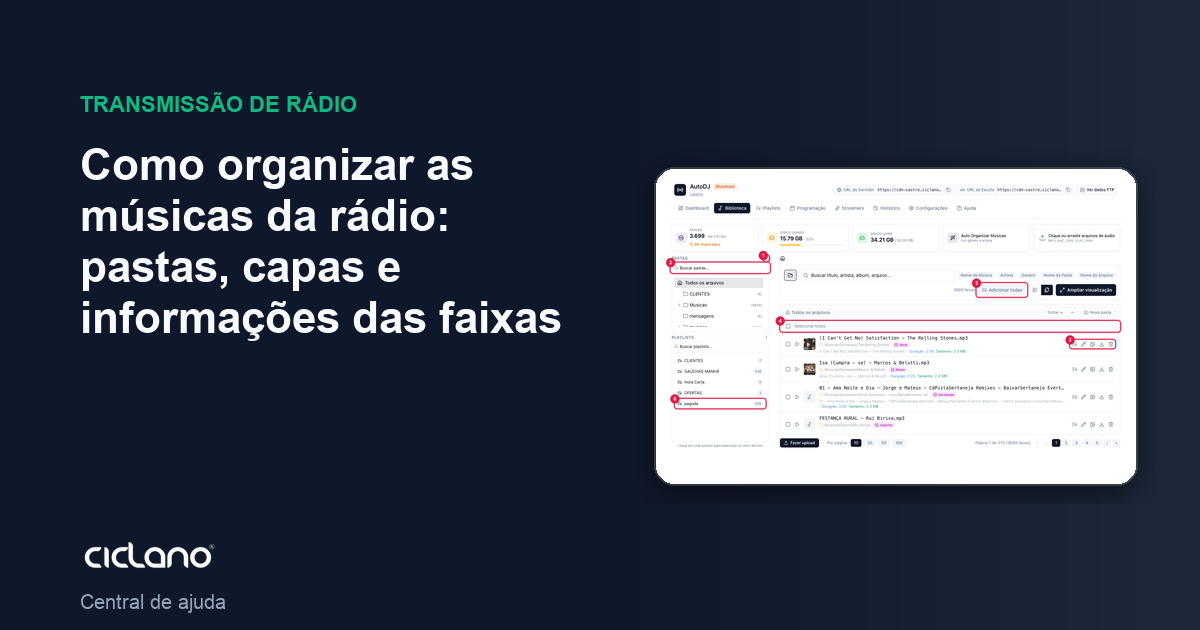
The Library is your radio's collection. A library organized in folders, with correct title and artist, makes building playlists easier and makes "now playing" look good to the listener.
Where it is: Applications › your radio › AutoDJ › Library.
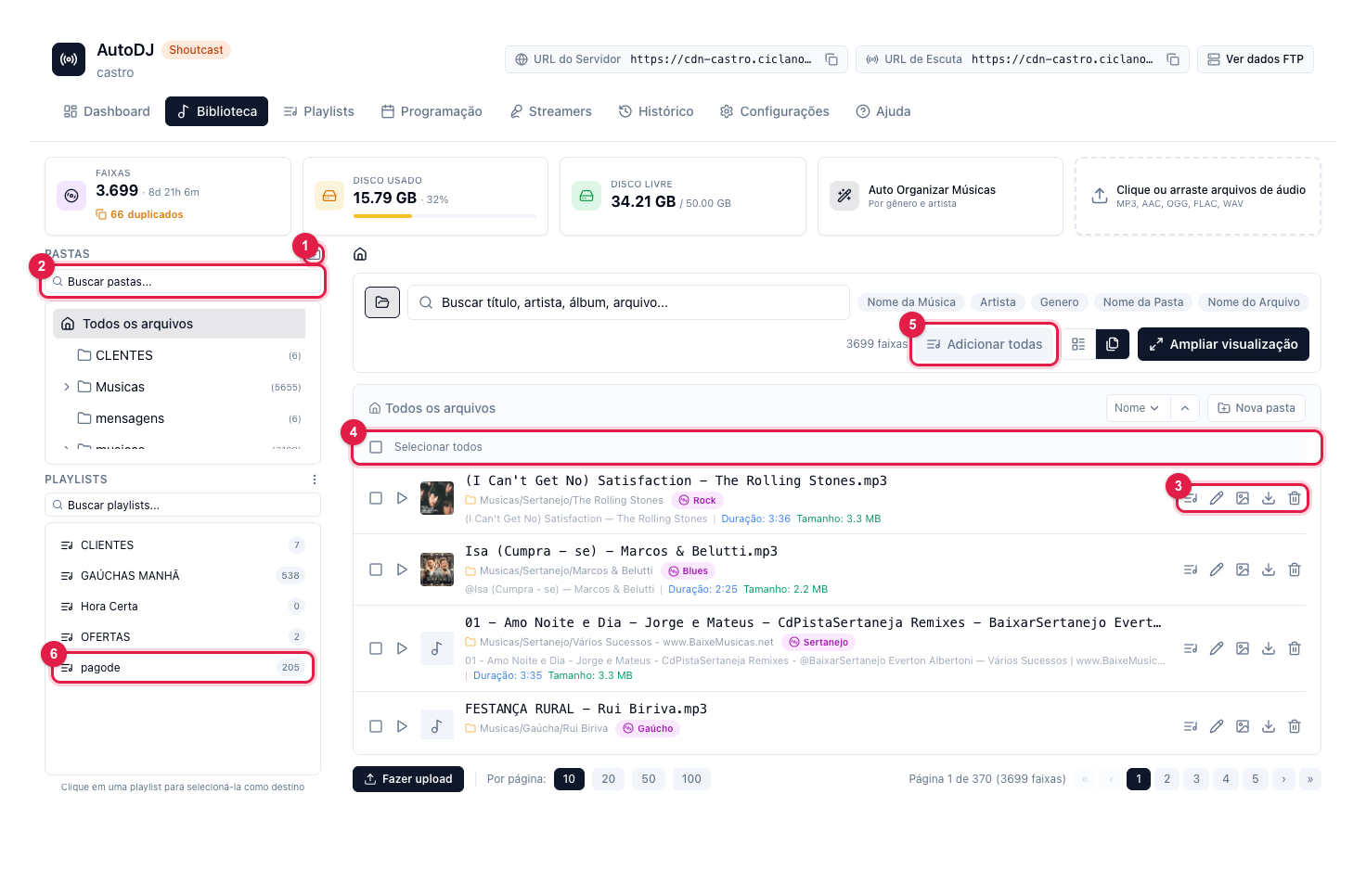
The numbers in parentheses refer to the image.
Folders
- New folder (1) creates a folder at the root; with a folder selected, its menu offers New subfolder, Rename folder and Delete folder.
- Click a folder to see only its tracks; All files shows everything. With many folders, use the folder search (2).
- Use folder names that make sense for the schedule (Music/Gospel, Commercials, Jingles, Rush Hour): the whole folder can go to a playlist at once.
Finding a track
Use the Search title, artist, album, file... box above the list, and the sort buttons next to it (Song Name, Artist, Genre, Folder Name, File Name). There are two views: table (the list) and explorer (by folders). The Expand view button opens the library full screen.
What you can do with each track
The buttons are on the right of each track (3), in this order:
- Add to playlist — sends the track to the playlist chosen in the list on the left (6).
- Edit metadata — fixes Song Name, Artist, Album, Genre and Year. It is what shows in the player and in the history. It is also where you rename the file: the physical file is renamed on the server, and the playlists that use the track keep working.
- Upload cover — JPEG, PNG or WebP image up to 5 MB. It shows in "Now Playing" and in the Web Player.
- Download — downloads the original file.
- Delete — removes the file from the server and from every playlist. There is no undo.
In bulk
- Click the destination playlist in the list on the left (6).
- Check the tracks' boxes, or Select all (4) for the whole page.
- Use Add selected to playlist or Delete selected, which appear when tracks are checked.
The Add all button (5), at the top of the list, sends every listed track (respecting the search and the open folder) to the chosen playlist — it is the quick way to take a whole folder into a playlist.
What to do if…
- Title and artist came swapped or empty. Use Auto Organize Music: it identifies the songs by catalog and file name and reorganizes them into folders by genre and artist (see how). For a single track, edit the metadata by hand (3).
- The cover does not show in the player. The cover belongs to the track; check that you uploaded it to the right track and reload the player.
- I deleted a song by mistake. There is no trash in the library: upload the file again.