How to play an announcement or a song right now in AutoDJ (Once playlist)
An urgent notice, a special that has to go in right away: the Once playlist plays in full now and stops. How to create it, wait for the current song and repeat it.
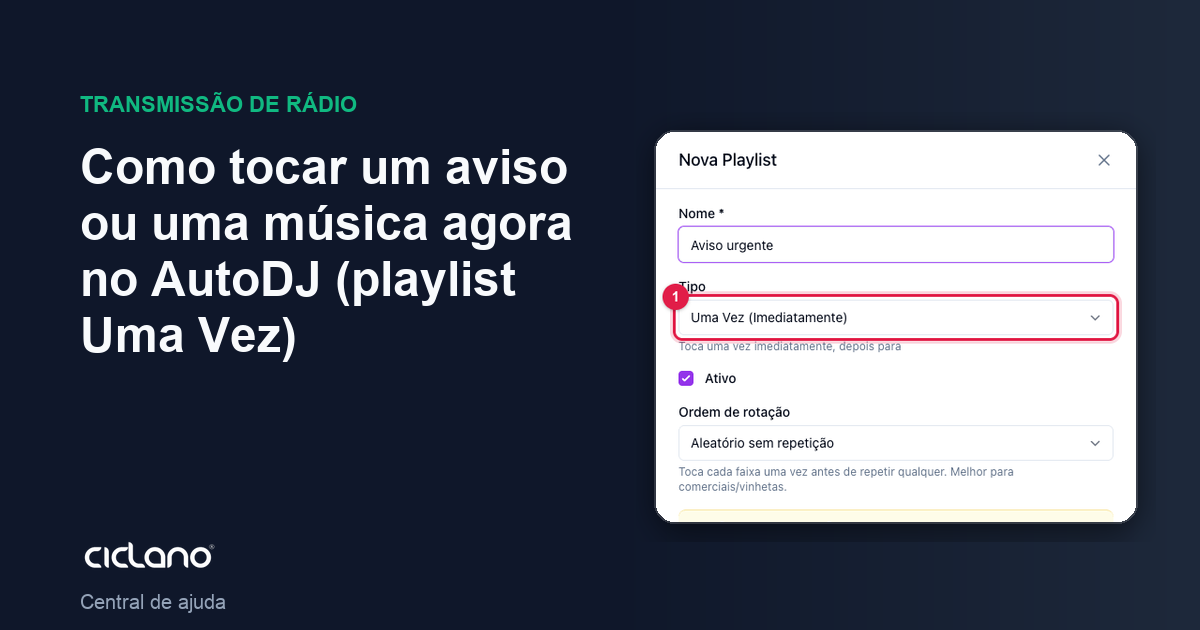
Need to put a notice on air right now, without touching the schedule? The Once (Immediately) playlist plays all its tracks once, starting now, and then gives the air back to the normal rotation.
Where it is: Applications › your radio › AutoDJ › Playlists › New Playlist › type Once (Immediately).
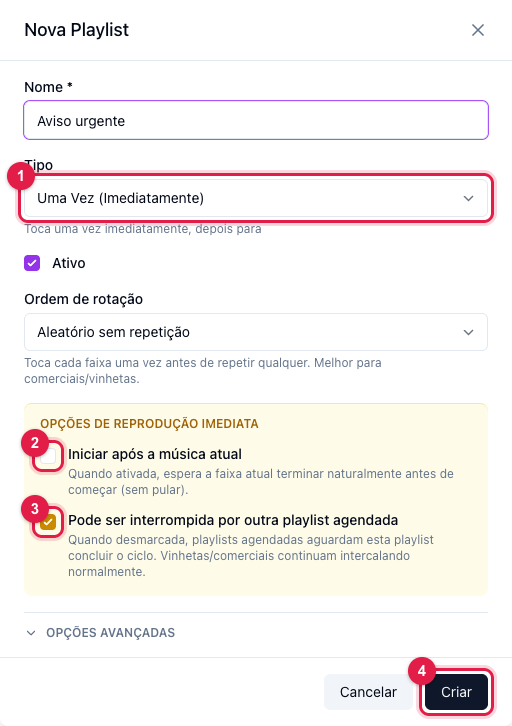
The numbers in parentheses refer to the image.
Step by step
- New Playlist › Name (Urgent notice) › Type Once (Immediately) (1).
- In Immediate playback options:
- Start after the current song (2) — checked, it waits for the playing track to end (no cut). Unchecked, it comes in right away.
- Can be interrupted by another scheduled playlist (3) — unchecked, a scheduled show waits for this notice to end; jingles and commercials keep interleaving normally.
- Click Create (4) and add the track(s) on the Tracks tab. As soon as the playlist has tracks and is active, it comes in.
Play it again
After playing, the playlist goes quiet. To repeat the notice, open the playlist and save it again (Settings tab › Save): that puts it back in the queue. For a notice that needs to repeat every so often, prefer an Interval playlist (see how).
What to do if…
- It did not come in. Check that it is Active and has tracks. The time announcement has priority over it: if both fall on the same moment, the time announcement goes first.
- It came in mid-song. Start after the current song (2) was unchecked.