Banners in Live Studio: notices, name on screen and scrolling ticker
A banner is the text shown over the video: the interviewee's name, a notice, a call to the link, or a scrolling ticker. Create it with position, scrolling, timer and style, and show or hide it with one click during the live.
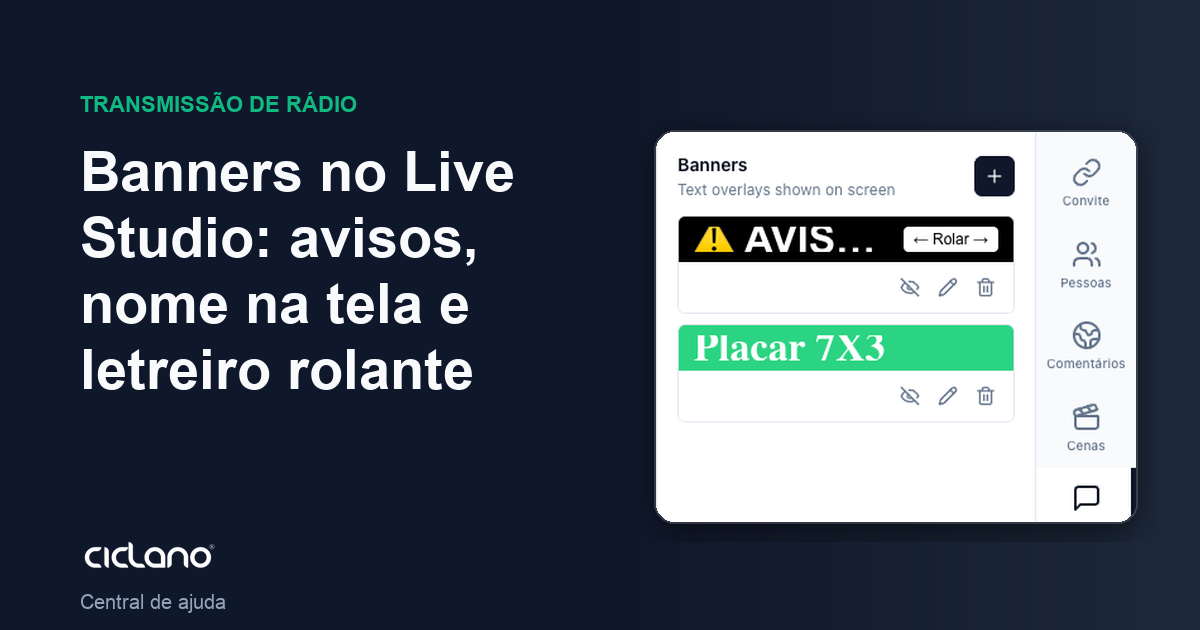
The banner is the text strip over the video — TV's "lower third". It serves for the name and title of whoever is speaking, a notice ("Sign up by Friday"), the website link, or a scrolling ticker with the latest news.
Where it is: Live Studio › Banners tab.
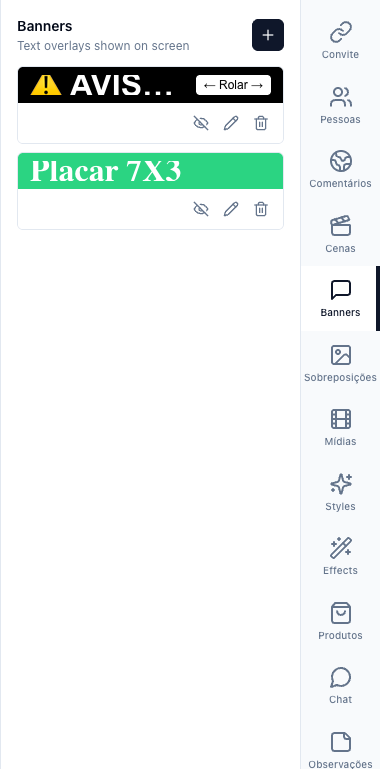
The numbers in parentheses refer to the image.
Create a banner
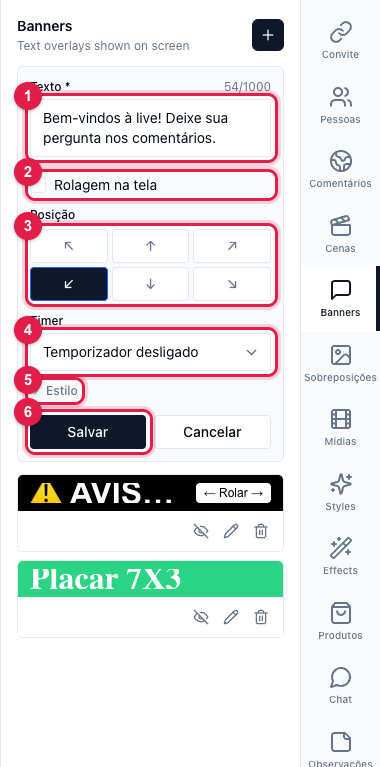
- In the Banners tab (1), click Add banner.
- Text (1) — up to 1,000 characters. For name and title, one short line; for a notice, one sentence.
- Scroll on screen (2) — checked, the text becomes a ticker and scrolls from one side to the other (good for long text or news). Unchecked, it stays still.
- Position (3) — the six corners and centers: bottom left is the classic for names; top for notices.
- Timer (4) — off, the banner stays until you hide it; from 5 s to 5 min, it disappears by itself after the time.
- Style (5) — color, font and size; the default follows the brand color from Styles.
- Save (6).
Use during the live
In the list, Show puts the banner on air (and the active banner is marked Active); clicking again hides it. Only one banner is visible at a time — showing another replaces it. Edit changes the text without losing the position; Delete removes it.
Banners are saved in the application for the next lives, and a scene can keep which banner is active. See Scenes.