Background, overlays and opening and closing videos in Live Studio
The Overlays tab has three things: the canvas background (solid color, gradient or image), image overlays (logo, watermark, frame) in three layers, and the opening and closing videos of the live.

Everything that sits behind or over the cameras lives in the Overlays tab: the background, the images (logo, watermark, frame, countdown art) and the clips that open and close the live.
Where it is: Live Studio › Overlays tab.
The numbers in parentheses refer to the image.
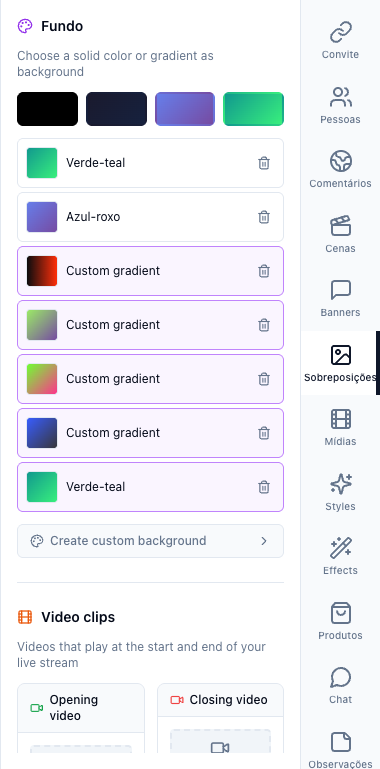
Background
Pick one of the ready-made backgrounds (black, dark blue, blue-purple, green-teal) or click Create custom background for your own color, gradient or image. The background shows where the camera does not cover — in layouts with more than one source, at the edges and when the camera is off. Only one is active.
Image overlays
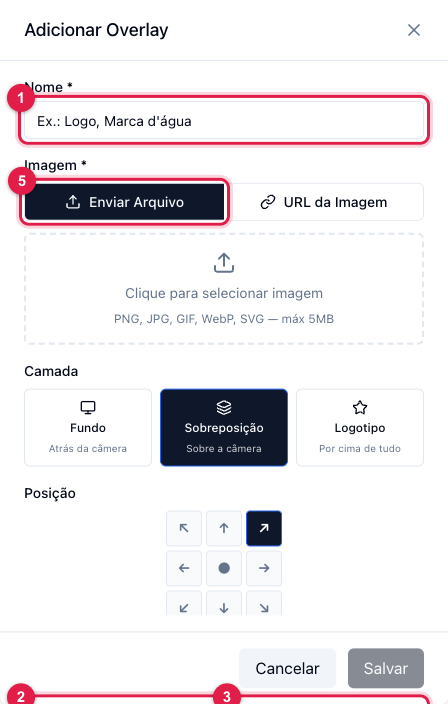
- Click Add overlay.
- Name (1) — "Logo", "Watermark", "Frame".
- Image (2) — upload a file (PNG, JPG, GIF, WebP or SVG, up to 5 MB; PNG with transparency for a logo) or paste an image URL.
- Layer — Background (behind the camera), Overlay (over the camera) or Logo (on top of everything, including banners).
- Position — the nine points of the screen, or Full screen for frames and art that cover everything.
- Width (3) and Height (4) in pixels (Auto keeps the image size) and Opacity (5) — 30 to 50% for a watermark.
- Save (6).
In the list, Show/Hide turns each overlay on and off live; several can be active at once (logo + frame). Edit and Delete as usual. Uploaded files show in Storage.
Opening and closing videos
In Video clips, choose a video already added in Media as the opening (it plays when you click Go Live, before the cameras) and another as the closing (it plays when you click Stop, before cutting). It is the live's bumper, with nothing to operate at the moment.