Live Shop: how to show products in the live with Live Studio
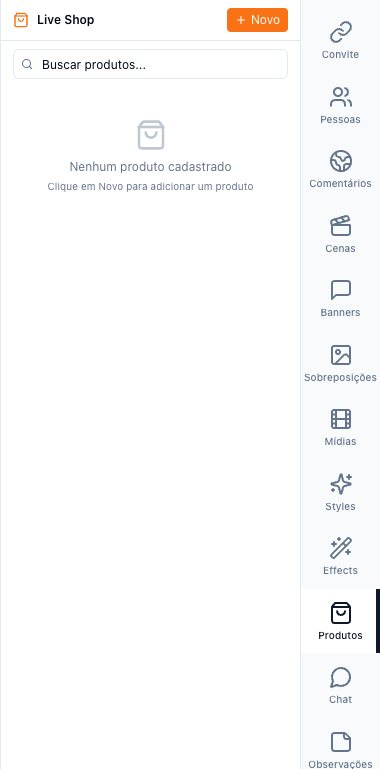
Add products with name, description, price, purchase link and image in the Products tab and show each one on screen during the live, with a QR code of the link. Stores connected in Live Shop import the catalog automatically.
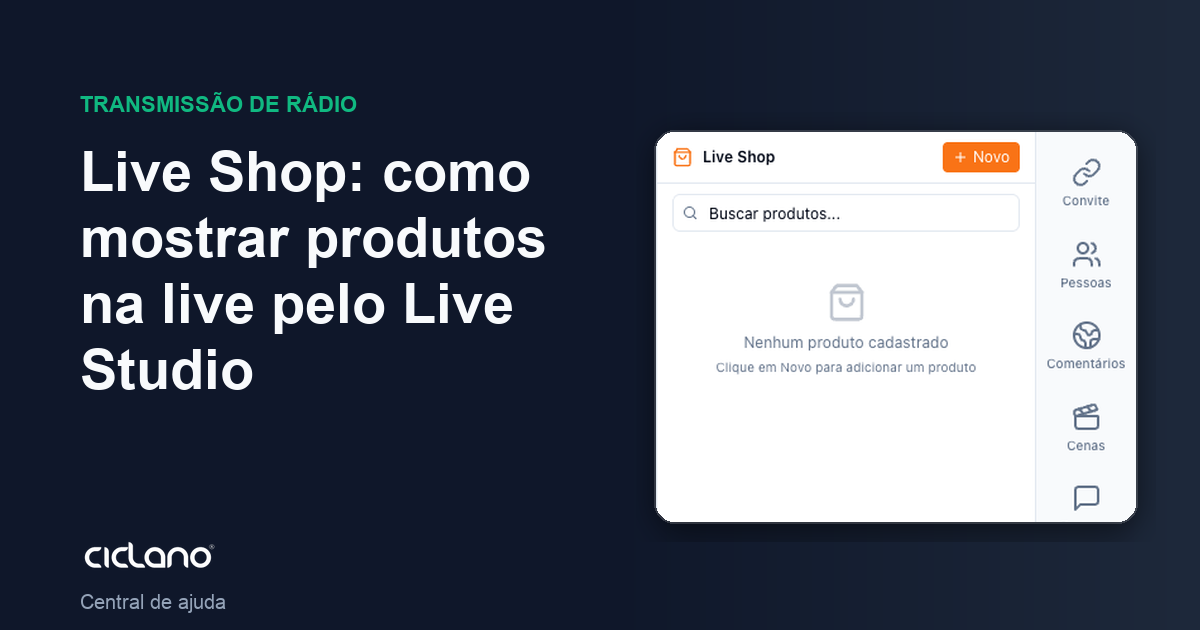
Sales live: the product appears on screen with the price and a QR code that leads to the purchase link while you present. Products live in the Products tab; connected stores (Live Shop in the application menu) bring the catalog ready.
Where it is: Live Studio › Products tab; imported catalog in Applications › Live Shop.
The numbers in parentheses refer to the image.
Add a product
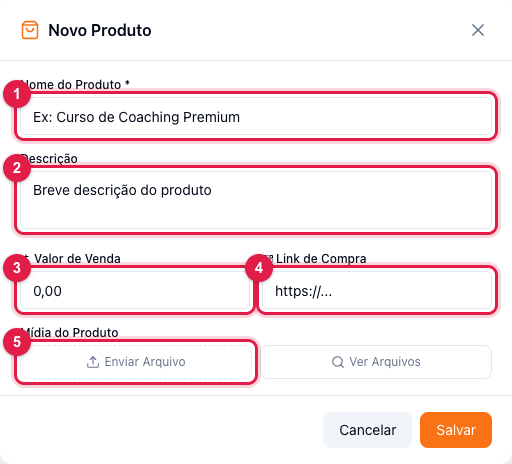
- Click New.
- Name (1) and Description (2) — what appears on screen; keep the description short.
- Sale price (3) — the price displayed.
- Purchase link (4) — the checkout page, the store's WhatsApp, the marketplace listing. It becomes a QR code on screen.
- Product media (5) — upload a photo or pick one already uploaded.
- Save (6).
Show in the live
In the list, click the product to display it on screen; click again to hide it. The search helps when the catalog is large. Only one product is featured at a time.
Import from a store
In the application menu, Live Shop connects your account on a platform (Hotmart, Shopify and others Ciclano has enabled) and syncs the products to the Products tab, with name, price, image and link. Click Sync products to update. If the page says no integration is available, the feature is not enabled for your account.