How to build the radio program schedule in the AutoDJ calendar
The Schedule tab is the radio's calendar: events with date and time on a playlist, recurrence, the day's timeline and the time conflict warning.
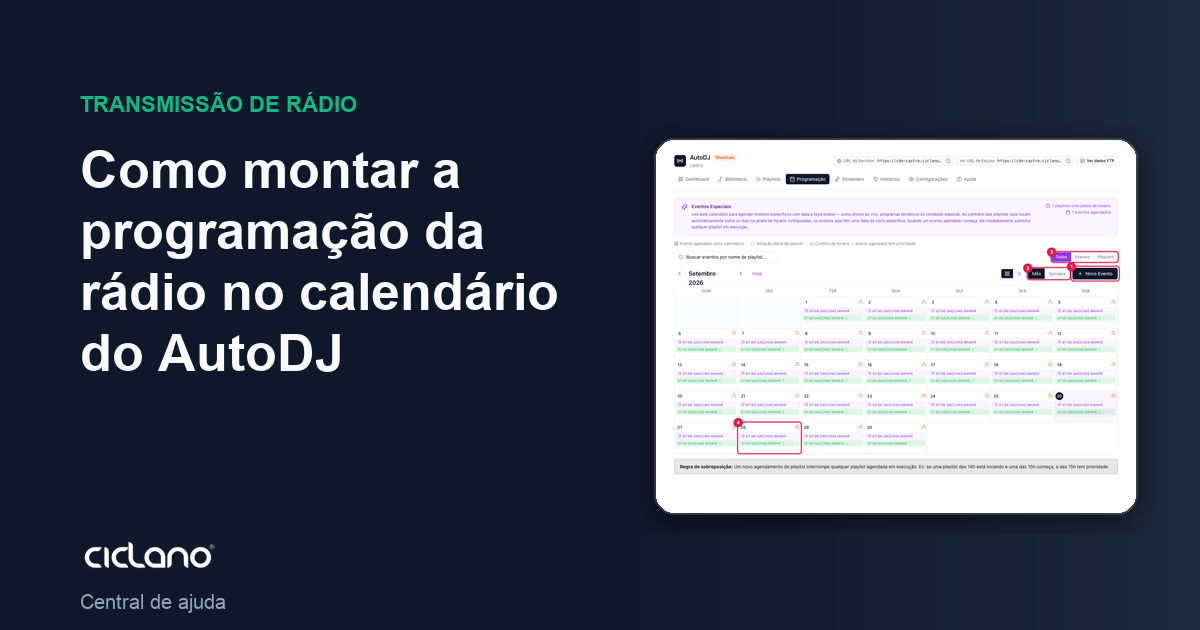
The Schedule tab is your radio's calendar. In it you schedule events: a playlist that comes in on an exact date and time (a recorded concert, a special show, a coverage), repeating or not. When the event starts, it takes the air over whatever is playing.
Where it is: Applications › your radio › AutoDJ › Schedule.
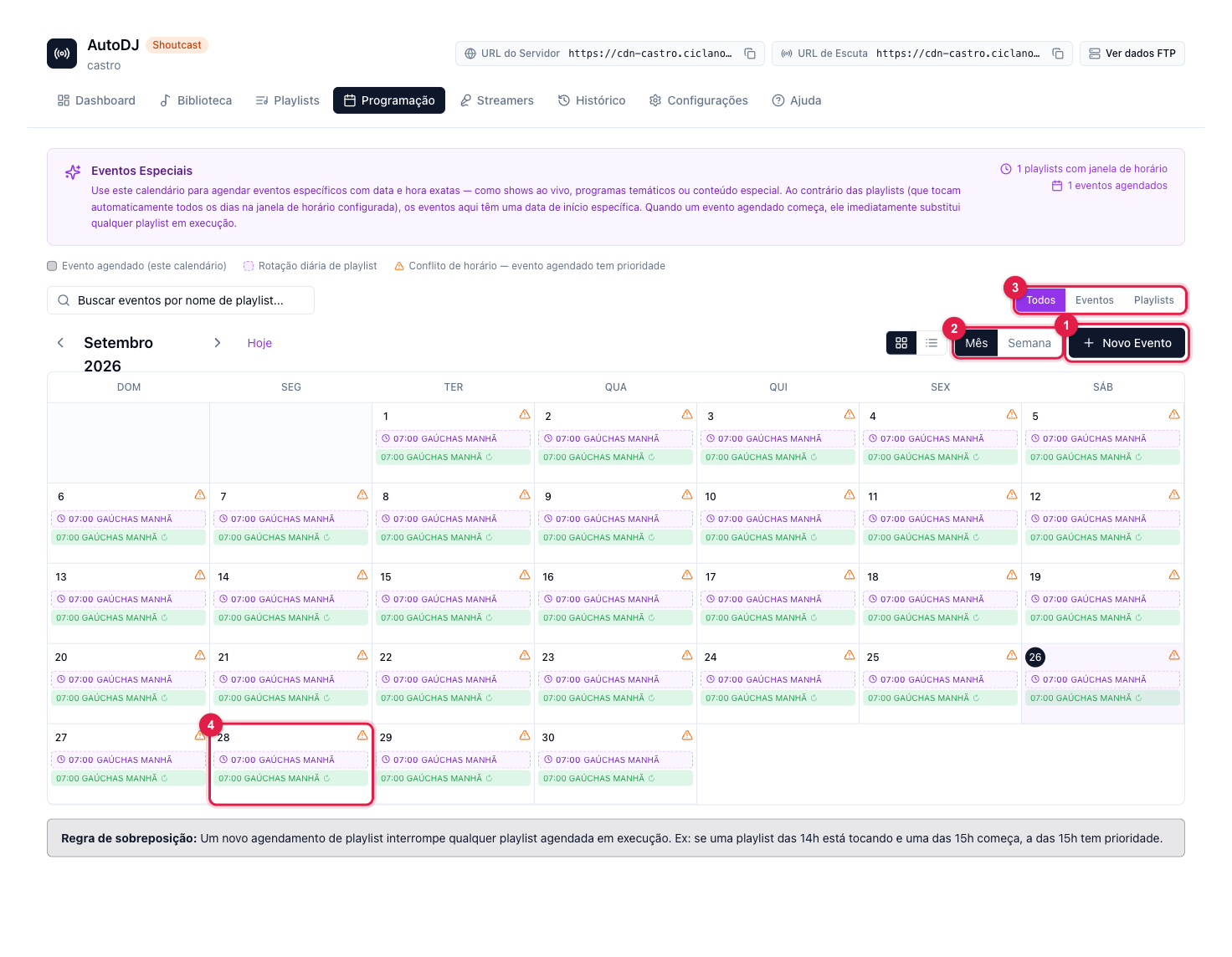
The numbers in parentheses refer to the image.
Schedule × Scheduled playlist: which to use?
- Scheduled playlist — the fixed show, which repeats every week at the same time. The time is set on the playlist itself (see how).
- Event in Schedule — something with a date: "Saturday the 12th, at 8 pm, play the Anniversary Special playlist". You pick an existing playlist (of any type) and set when it comes in.
The calendar shows both: the events you created here and the daily windows of playlists that have an active time (those are edited in the Playlists tab). The filter (3) shows only one or the other.
Create an event
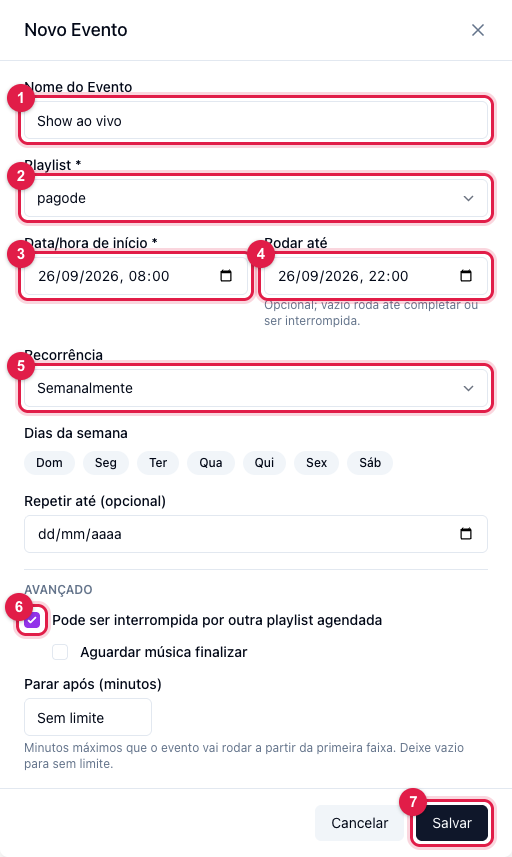
- Click New Event (1 in the calendar) or the desired day (4 in the calendar).
- Event Name (1): how it will show in the calendar.
- Playlist (2): the playlist that will play.
- Start date/time (3).
- Run until (4): the time the event ends. Stop after (minutes), further down, is a limit in minutes from the first track.
- Recurrence (5): only once, daily, weekly (choose the days), monthly or yearly. Repeat until ends the repetition on a date.
- Can be interrupted by another scheduled playlist (6): if another event starts in the middle, it comes in on top or waits. Wait for the song to finish, just below, makes the event wait for the current track to end before coming in (no cut).
- Click Save (7).
Views and conflicts
- Month and Week (2 in the calendar), and the List view (the icon next to them) with every event in order and a playlist search.
- Two events at the same time show as a conflict: the scheduled event has priority, and the one that starts later comes in over the previous one (if it is interruptible). Adjust one of the times.
- The Timeline, in the Playlists tab, shows the time windows of every playlist stacked by priority — good for finding gaps and overlaps.
What to do if…
- The event did not come in on time. Check the time zone in AutoDJ Settings and run the History Audit for the day.
- It came in and cut the song halfway. Check Wait for the song to finish on the event.