How to schedule a show on the radio with day and time (Scheduled playlist)
The Scheduled playlist takes the air at the set time and gives it back to the rotation when it ends. Weekly, daily, monthly, yearly or once, with several times on the same playlist.
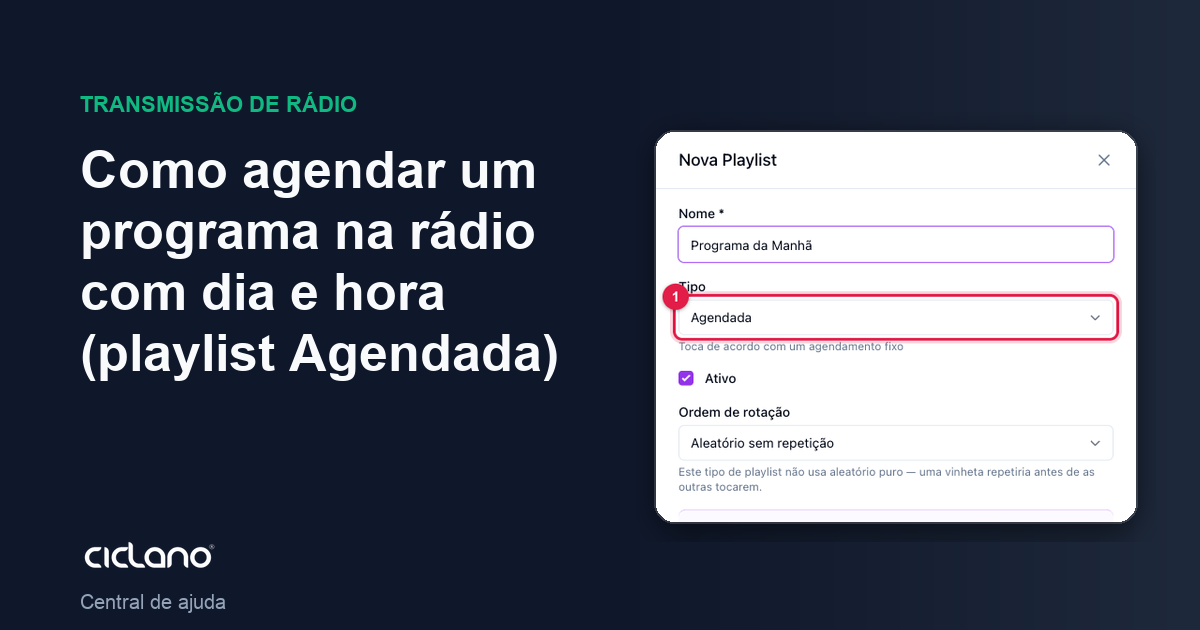
A show with a fixed time is a Scheduled playlist: on the day and time you set, it takes the air over the General playlist; when it ends (or when the slot is over), General comes back. Commercials and jingles keep interleaving during the show.
Where it is: Applications › your radio › AutoDJ › Playlists › New Playlist › type Scheduled.
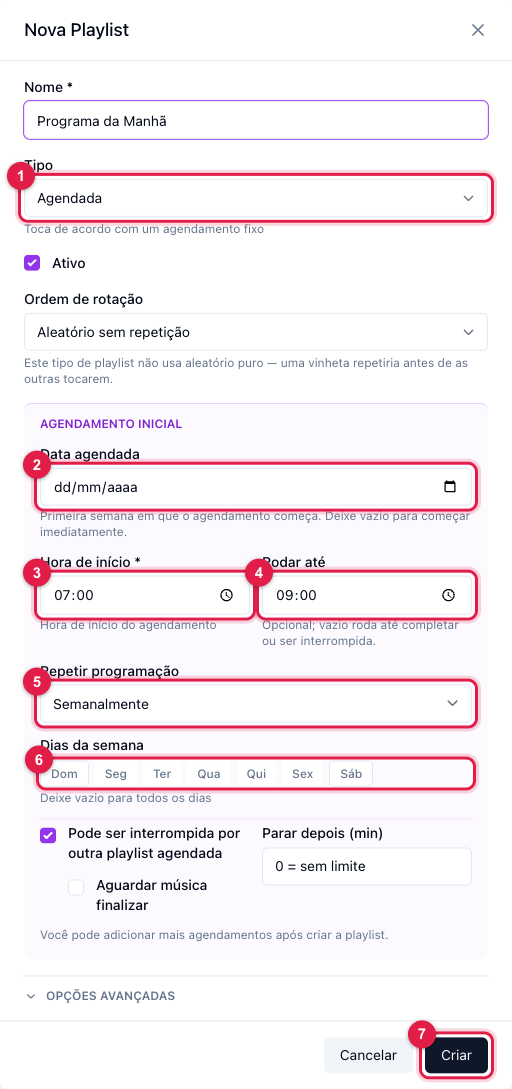
The numbers in parentheses refer to the image.
Step by step
- New Playlist › Name with the show's name (Morning Show) › Type Scheduled (1).
- In Initial Schedule, the Scheduled date (2) is the first week the schedule applies; leave it empty to start right away.
- Start time (3): when the show comes in (07:00).
- Run until (4): the time the show ends (09:00). If left blank, it plays until it runs out of tracks or is interrupted.
- Repeat schedule (5):
- Weekly — check the Weekdays (6), Monday to Friday, for example.
- Daily — every day.
- Monthly — on the day of the month of the start date (day 7 plays every 7th).
- Yearly — on the same day and month, every year.
- Once — only on the set date.
- Can be interrupted by another scheduled playlist: checked, a show that starts later comes in over this one. Unchecked, the other waits for this one to finish. Stop after (min) is an optional limit in minutes from the first track.
- Click Create (7) and, on the Tracks tab, build the show's content.
More than one time
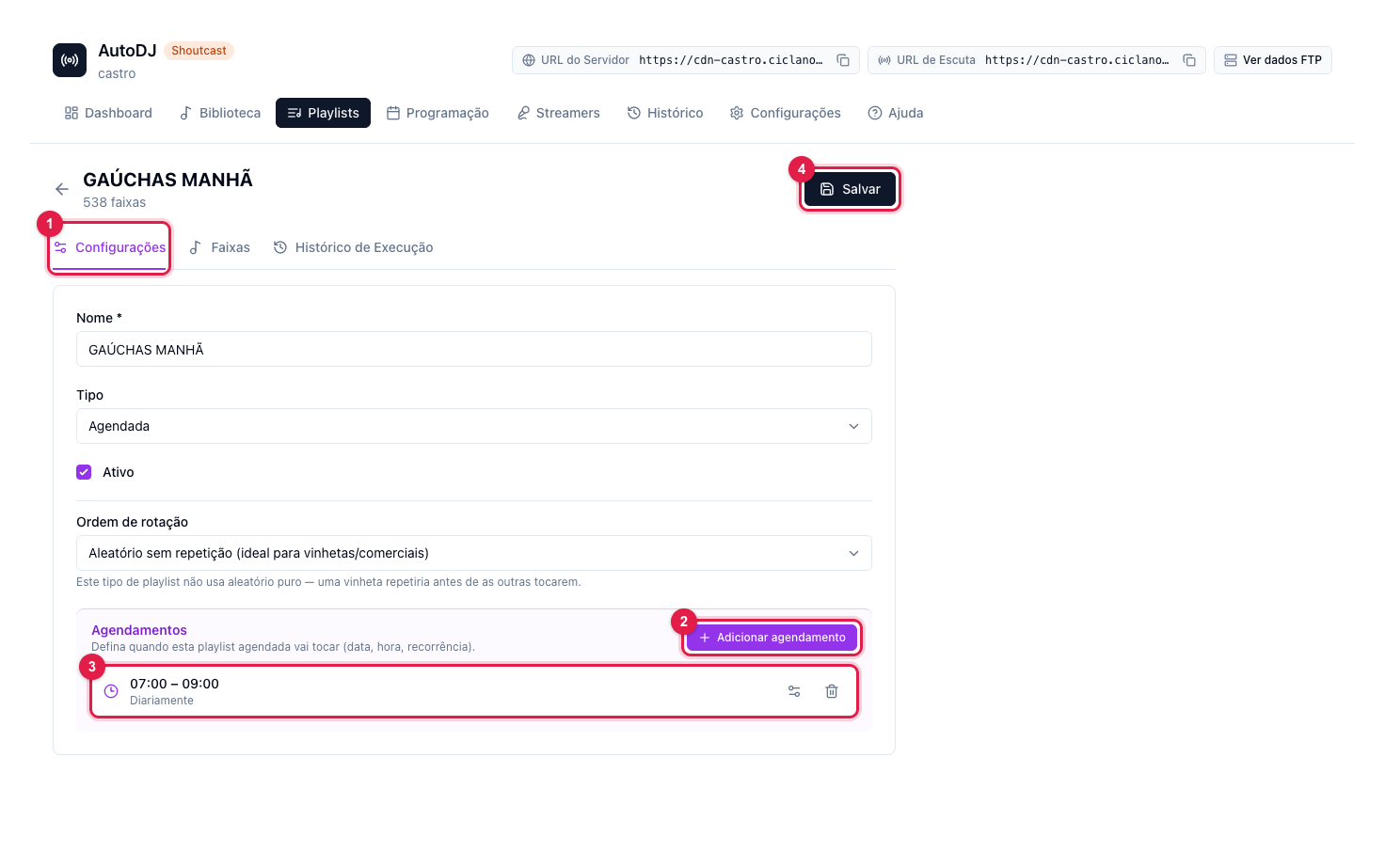
Open the playlist, Settings tab (1), Schedules section: Add schedule (2) creates another time for the same playlist (Monday at 7 and Saturday at 9, for example). Each schedule (3) has its own days, start time and "run until", and can be edited or deleted with the icons on the right. Click Save (4) when done.
Tips
- Content shorter than the slot: if the show has 40 minutes of music and the slot is 2 hours, it ends and General comes back before the end of the slot. Use Limit total duration on the Tracks tab to build the show to the size of the slot, or make the playlist longer than the slot.
- Time zone: every time uses the zone set in AutoDJ Settings › Time Zone. Check it before complaining that "it came in at the wrong hour".
- One-off event (a concert, a coverage): use the Schedule tab, which schedules an event with date and time on an existing playlist (How to build the radio program schedule).
What to do if…
- The show did not come in. Run the Audit in AutoDJ › History: it shows "Scheduled without schedule", "activated playlist that did not play" and the day/time the engine saw.
- It came in but stopped halfway. Another Scheduled playlist started and this one was set as interruptible — or the playlist ran out (content shorter than the slot).