How to see what played on the radio and why a show did not air (History and Audit)
Recent plays, history by playlist, period report (scheduled × played) and the audit, which explains why something did not come in and how to fix it.
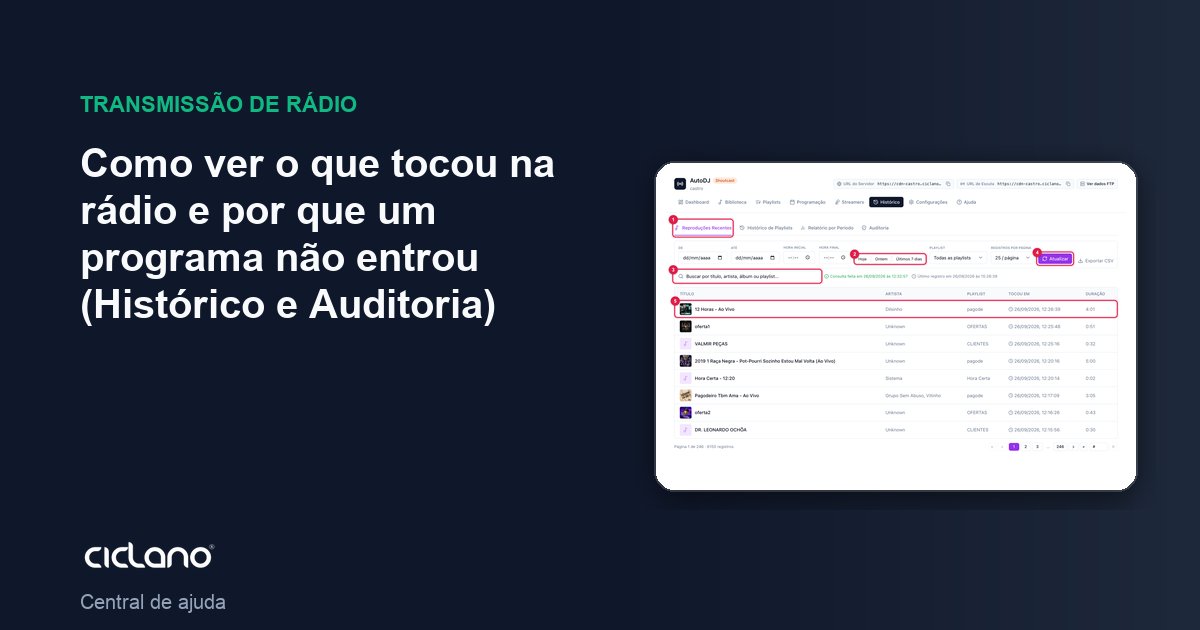
The History tab answers two questions: "what played?" and "why did it not play what I scheduled?". The second is the job of the Audit, which compares your configuration with what actually went on air and suggests the fix.
Where it is: Applications › your radio › AutoDJ › History.
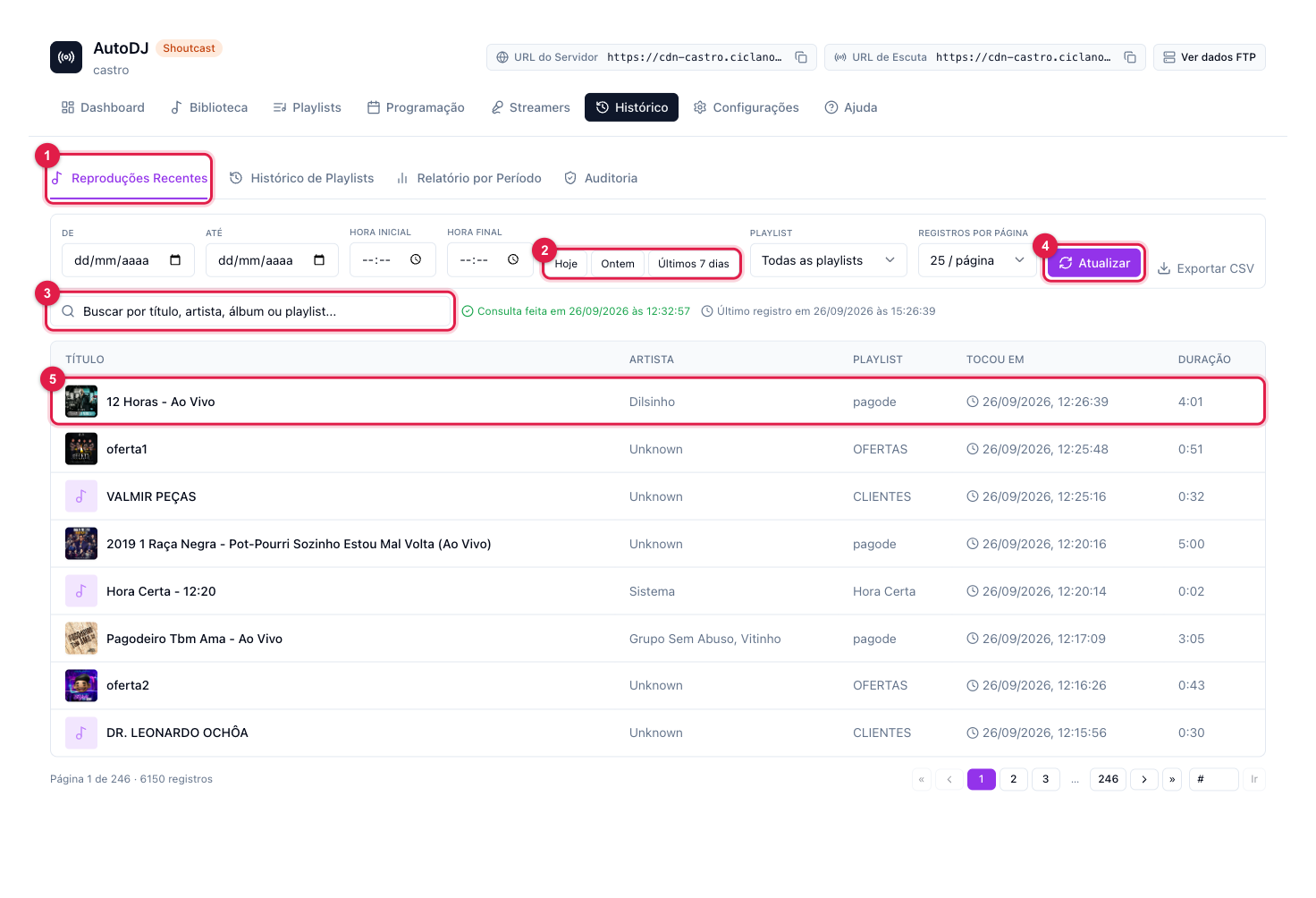
The numbers in parentheses refer to the image.
The four tabs
- Recent Plays (1) — track by track (5), with the source playlist and the time. Choose the period with the shortcuts (2) or with the dates and times next to them, search (3) by title, artist, album or playlist and click Refresh (4). Export CSV generates the spreadsheet.
- Playlist History — when each playlist went on and off air. It is where you see each firing of the commercial break.
- Period Report — a calendar of the period with the scheduled (schedules and events) and the executed; each item shows as played, partial (another playlist played) or missed.
- Audit — the findings of the period, with the explanation and the How to fix of each one.
Running the audit
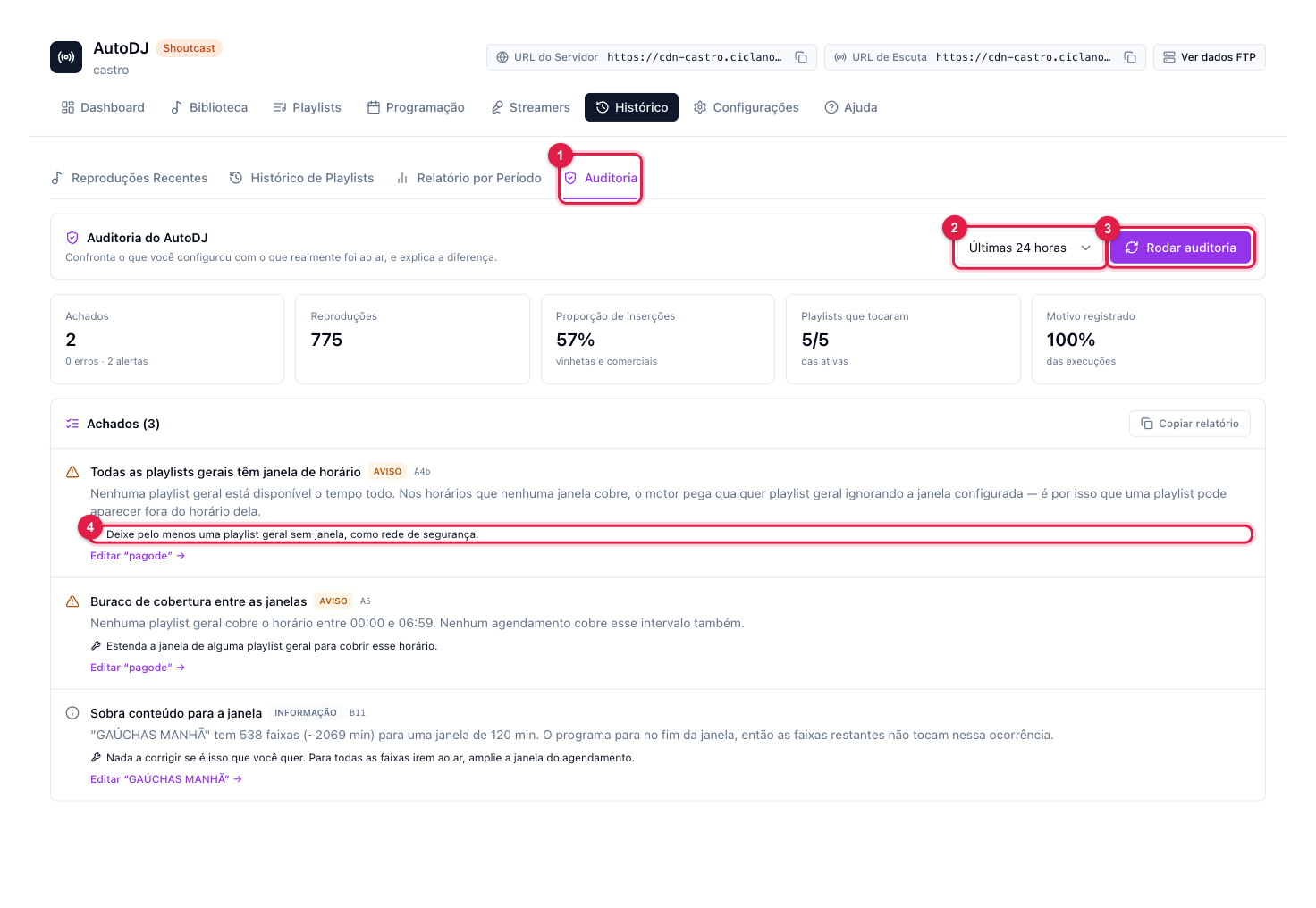
- Open the Audit tab (1) and choose the period (2): last 24 hours, 7 days or 30 days.
- Click Run audit (3).
- Read the Findings. Examples of what it detects: hours with no plays, enabled playlist without tracks, missing General playlist, Scheduled without schedule, Interval without rule (or with two), time announcement enabled that never played, show with less content than the slot, playlist playing outside the window, two schedules at the same time.
- Each finding brings the fix (4) and a shortcut to edit the playlist involved. Copy report generates a text to send to whoever runs the schedule (or to our support).
Proving commercials to the advertiser
Use Playlist History filtered by the commercials playlist, or the Period Report, and export. In Statistics › Music & Commercials there is the per-advertiser report, with the time on air added up.
What to do if…
- "AutoDJ silent all day". The engine was stopped or the server was unavailable. Check the Dashboard; if the engine is running now, the next day already shows normal.
- "Playlist played outside the window". There is no General playlist without a window: in uncovered hours the engine picks any General. Leave one General without a window as a safety net.
- Nothing shows for the period. The history comes from the radio's server; very old periods may no longer be available.