How to choose camera and microphone and enter Live Studio
The first Live Studio screen tests camera and microphone: you see the preview, choose the devices, check the audio level, type the name shown on screen and enter. See what to do when the camera is "in use" or the browser denies permission.
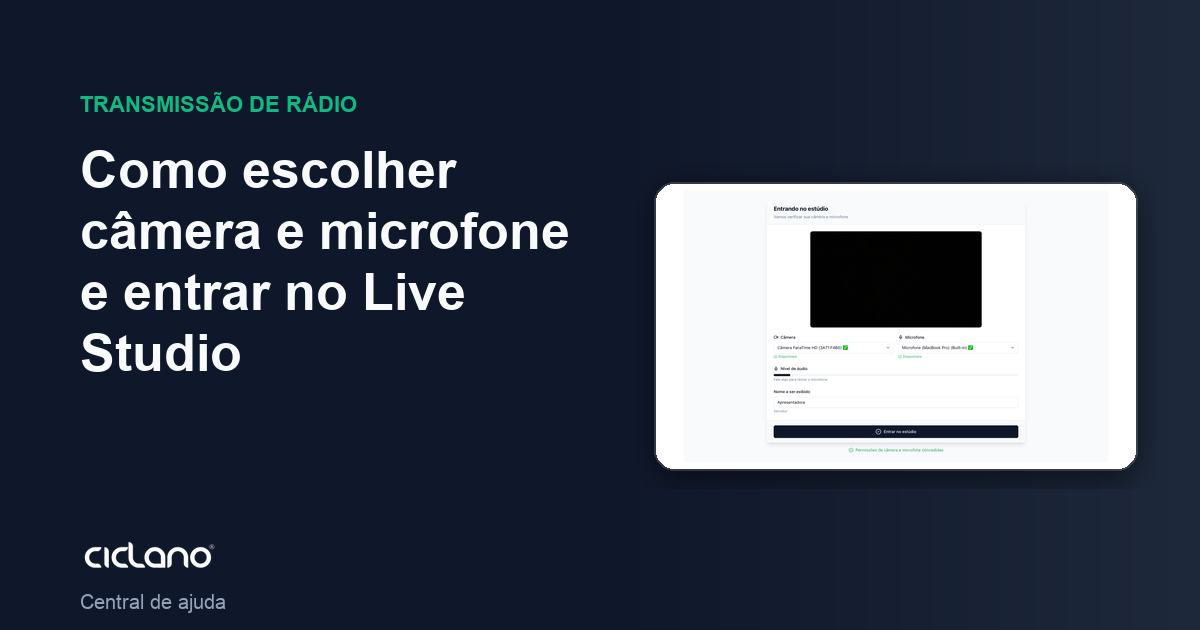
Every time you open Live Studio you go through the Entering the studio screen. It exists so you do not find out on air that the wrong microphone was selected.
Where it is: Applications › your video application › Live Studio.
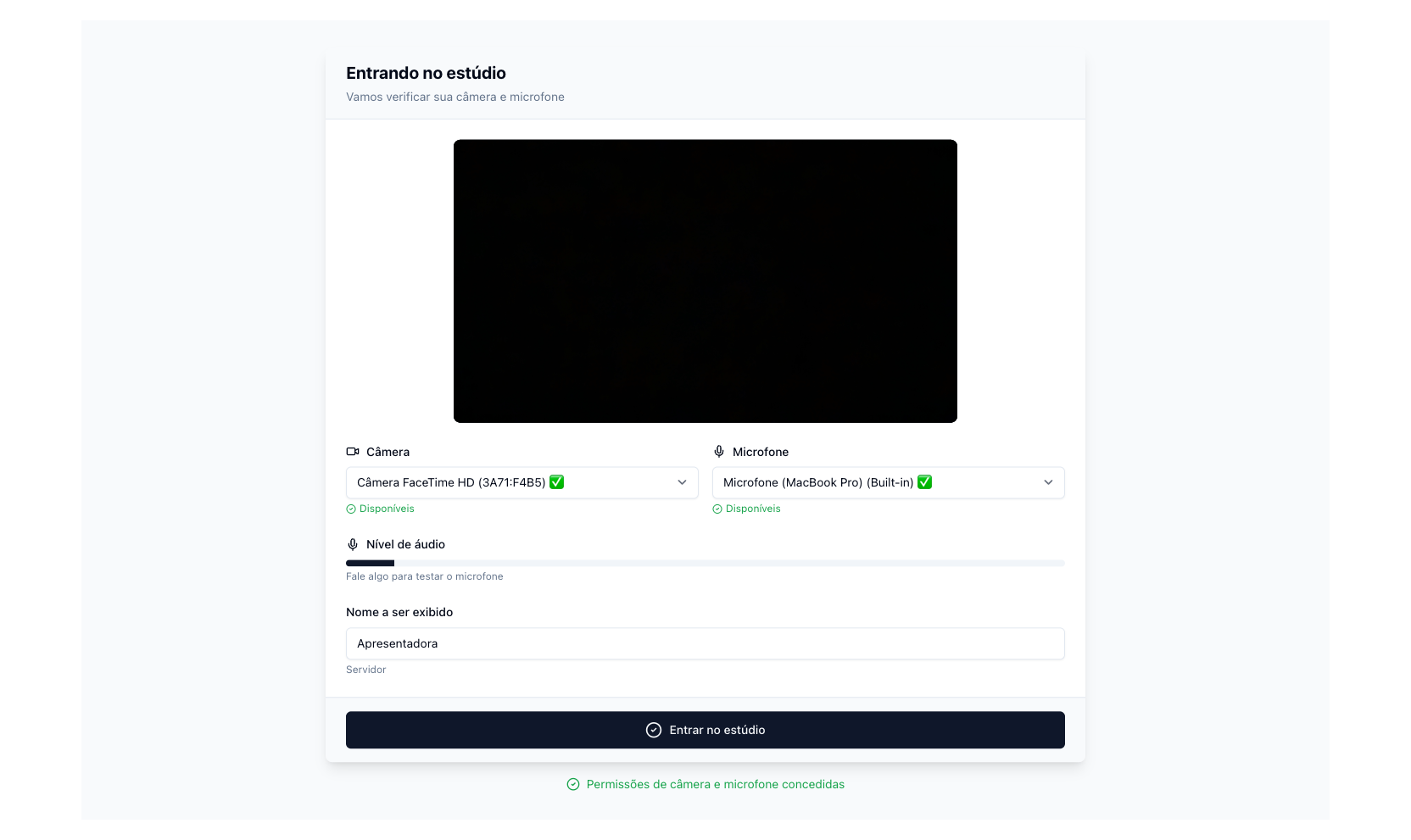
The numbers in parentheses refer to the image.
- The first time, the browser asks whether the site may use the camera and microphone. Allow. The message "Camera and microphone permissions granted" appears below the button.
- In Camera (2), pick the camera; the preview (1) switches right away. The detected resolution shows in the corner of the preview.
- In Microphone (3), pick the microphone and speak: the audio level bar (4) must move. If it does not, it is the wrong microphone or it is muted in the system.
- In Display name (5), type the name that appears on your camera label in the live (the presenter's name, not the station's).
- Click Enter the studio (6). The button only enables with camera, microphone and name filled in.
Changing devices inside the studio
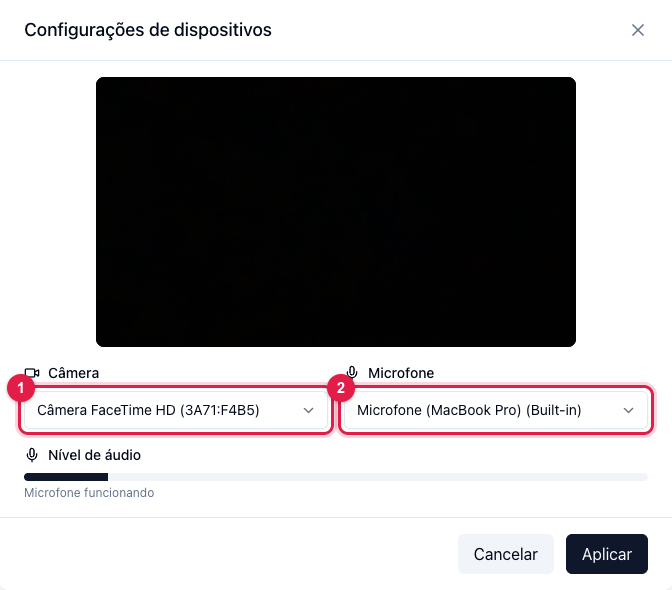
In the studio, the gear button in the controls bar (Device settings) opens the same choice: change the camera (1) or the microphone (2) and click Apply. The change applies to viewers too, without going off air.
"In use" and other problems
- Device marked "In use": another program (Zoom, Meet, OBS, Teams) has it. Close the other program and click Reload, or pick another device.
- "Could not access camera and microphone": permission was denied. In Chrome, click the padlock next to the address › Site permissions › Camera and Microphone › Allow, and reload.
- No camera found: the computer has no camera or the browser does not see it. A virtual camera (from OBS, for example) shows in the list like any other.
- Safari/iPhone: it enters, but without visual effects; camera and microphone only after a tap on the screen.