Live Studio problems: camera in use, permission denied and stuttering
What to do when Live Studio does not open, the camera shows as "in use", the browser denies permission, the image stutters or the live is on air in the studio but does not reach YouTube and Facebook. Each problem with its cause and fix.
Almost every Live Studio problem sits in one of four places: the device (camera or microphone busy or without permission), your internet (not enough upload), the destinations (channel unmarked or access expired) or the server. The list below goes from the most common to the rarest, with the cause and what to do.
Where it is: Live Studio › Entering the studio screen and controls bar › Device settings.
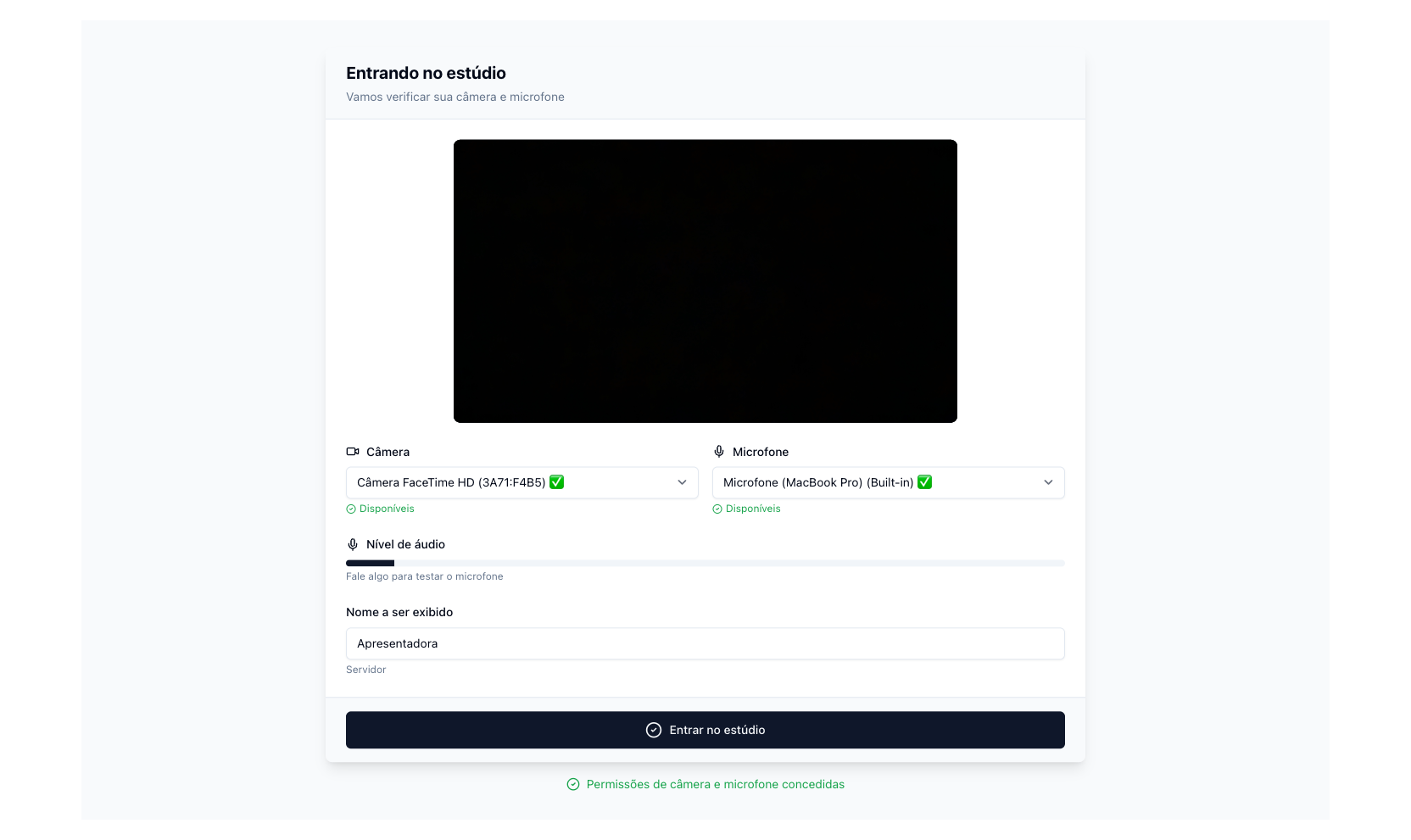
The numbers in parentheses refer to the image.
Before entering
- Camera "in use" or black preview (1) — another program has it (Zoom, Meet, OBS, another browser tab). Close the program, click Reload on the devices screen and pick the camera again in (2).
- Permission denied — the browser blocked the camera or microphone: click the padlock next to the address › Permissions › Camera and Microphone › Allow, and reload the page. On Mac, the browser must also be allowed in System Settings › Privacy & Security › Camera and Microphone; on Windows, in Settings › Privacy › Camera.
- The audio level does not move (4) — the microphone chosen in (3) is not the one you are using (Bluetooth headset, audio interface). Change it in (3) and speak: the bar has to rise.
- The Enter the studio button does not enable (6) — camera, microphone or the name (5) is missing.
During the live
- Stuttering image or choppy audio — not enough upload for the chosen quality. Go down to 720p or 480p when starting, turn off the visual effects (Effects tab), use a network cable instead of Wi-Fi and close parallel uploads and calls. The math is simple: 1080p needs about 6 Mbps of free upload; 720p, about 3 Mbps.
- Live in the studio, but nothing on YouTube or Facebook — the channel is not marked in Destinations, or the account access expired and needs reconnecting. The left panel shows how many channels are active among the marked ones; the reason for each failure is in Logs › Channels.
- Guest cannot enter — old browser or no camera permission; ask them to open the link in Chrome or Edge and allow camera and microphone. If they enter and stay "waiting", you still need to click Add to screen in the People tab.
- Echo or feedback — someone is listening to the live through speakers: the microphone picks up the broadcast's own audio. Everyone with headphones.
- Change camera or microphone without leaving — controls bar › Device settings: the change applies right away, without stopping the live.
- "Live Studio server not available" — instability on Ciclano's side. Wait a minute and reload the page; the room stays the same. If it persists, open a ticket in Help & Support with the time and what showed on screen.
- I closed the tab with the live on air — the broadcast drops. Go back to the studio from the panel and, if you are not continuing, end the live on the networks from Applications › Home › Stop Transmission.
If none of this solves it
Open a ticket in Help & Support with: the browser and the system (Chrome on Windows, Safari on Mac…), the time it happened, what showed on screen and whether the problem is only yours or the guests' too. The support team sees the state of the room, the output and the servers and answers where the failure came from.