The Live Studio screen: canvas, layouts, sources and controls
The canvas is what goes on air; below it the 13 layouts (solo, side by side, grid, spotlight, PiP, screen only…), the available sources and the controls bar: camera, microphone, share screen, participants, devices, diagnostics and exit.
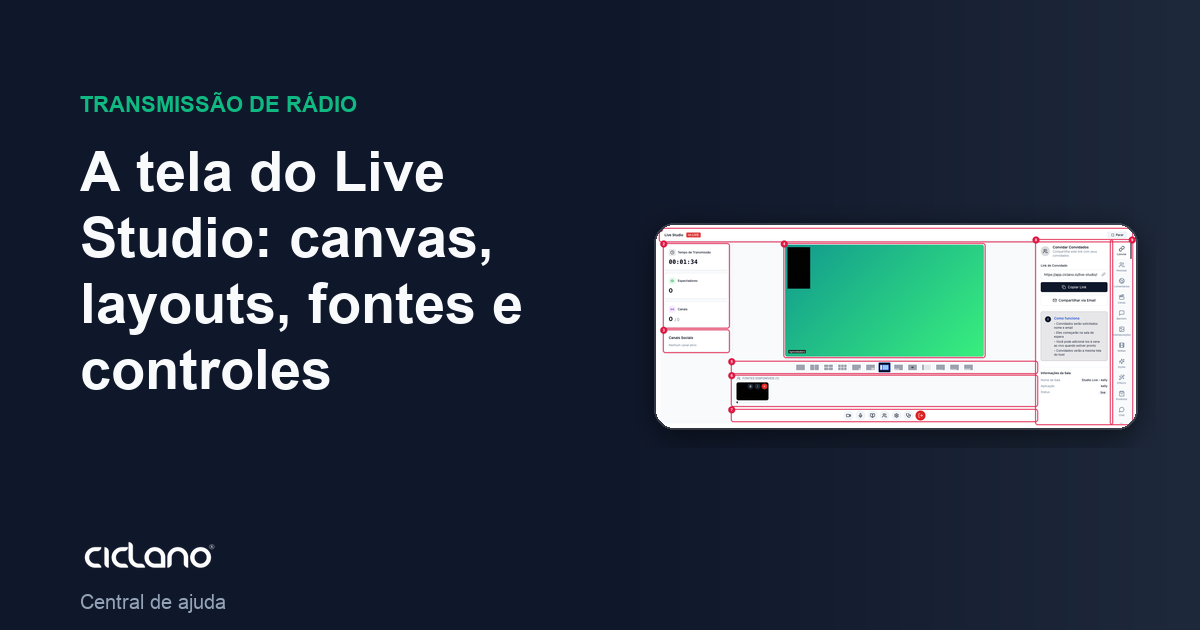
After entering, the studio is organized in three columns: metrics and channels on the left, the canvas in the middle and the feature tabs on the right. This article is about the middle column — where the live is built.
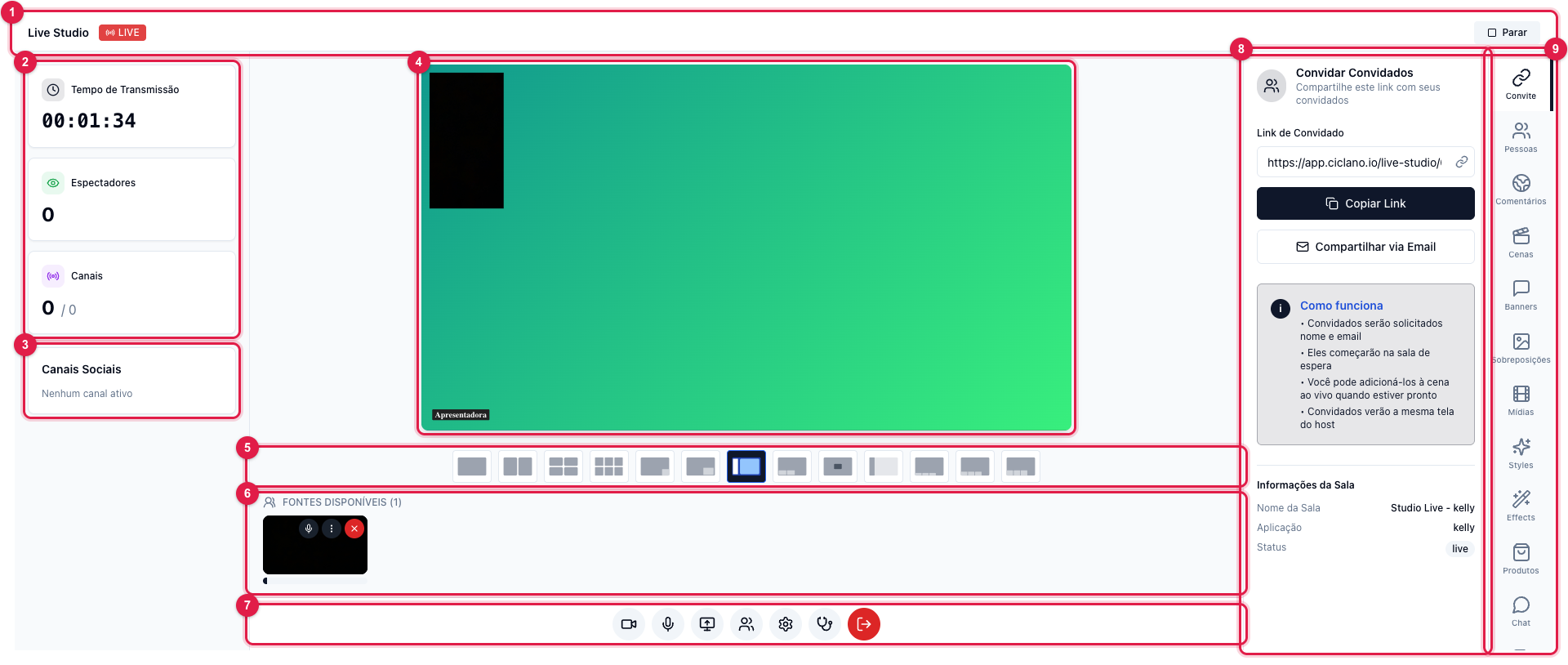
The numbers in parentheses refer to the image.
Canvas
The canvas (4) shows exactly what viewers see: the sources in the chosen layout, the background, the overlays and the active banners. What is not on the canvas does not go on air, even if the person is in the room.
Layouts

The layout decides how the sources on the canvas are arranged. The most used: Single (1) for the presenter alone, Side by Side (2) for interviews, Spotlight (5) for one person highlighted with the others small, Cam BL (8) and Screen Only (9) for slide presentations or demos. Switch as often as you want during the live; the change is immediate for viewers.
Available sources

Each camera, guest and shared screen is a source. The card shows who it is; Mute (1) cuts that source's audio in the live, More options (2) brings source adjustments and Remove from canvas (3) takes the source off screen without taking the person out of the room (they go back to the participants list and can be put back through the People tab).
Controls bar

- Camera (1) and Microphone (2) — turn off only your video or your audio; the live continues with the others.
- Share screen (3) — the browser asks which window or screen; it enters as a new source and the Screen Only or Cam BL layout shows it large. Click again to stop.
- Participants (4) — a shortcut to the People tab.
- Device settings (5) — change camera and microphone without leaving. See How to choose camera and microphone.
- The Technical diagnostics icon (6) belongs to Ciclano's support team and does not show on your screen. What to do when something fails is in Live Studio problems.
- Exit Live Studio (7) — ends your participation. If the live is on air, stop it first.