How to create a playlist in AutoDJ and add songs
The General playlist is your radio's music. See how to create it, choose the rotation order, add songs and folders, and sort the tracks.
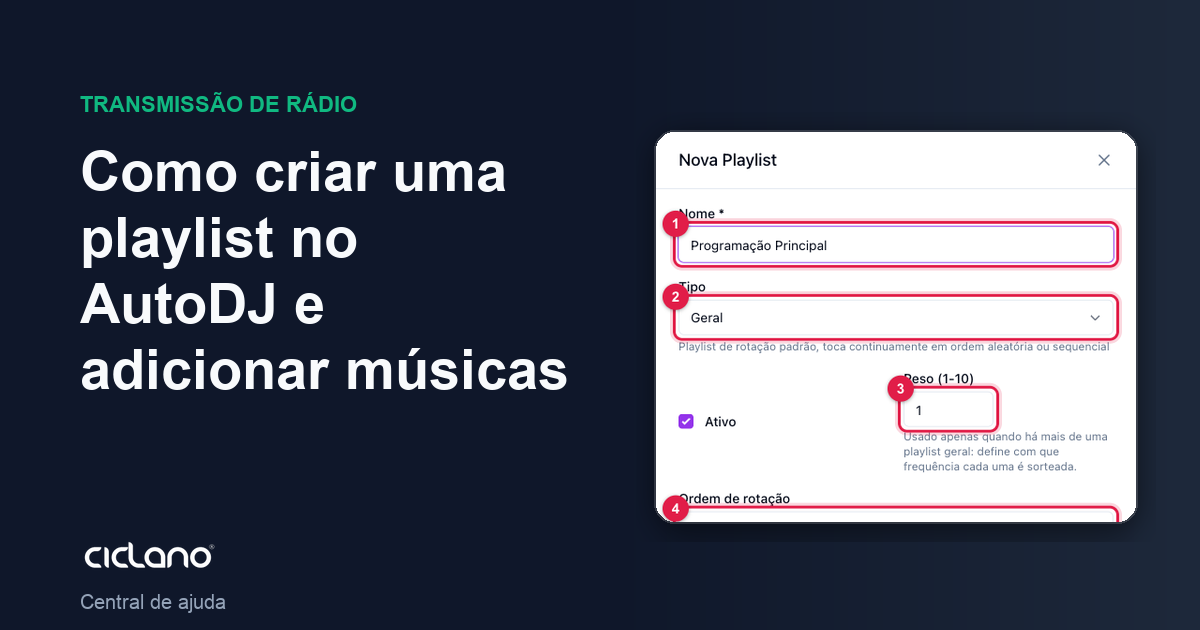
Every radio in AutoDJ needs at least one active General playlist with songs: it is where the engine takes what to play when no commercial, show or time announcement is due. Without it, the radio goes silent.
Where it is: Applications › your radio › AutoDJ › Playlists.
1. Create the playlist
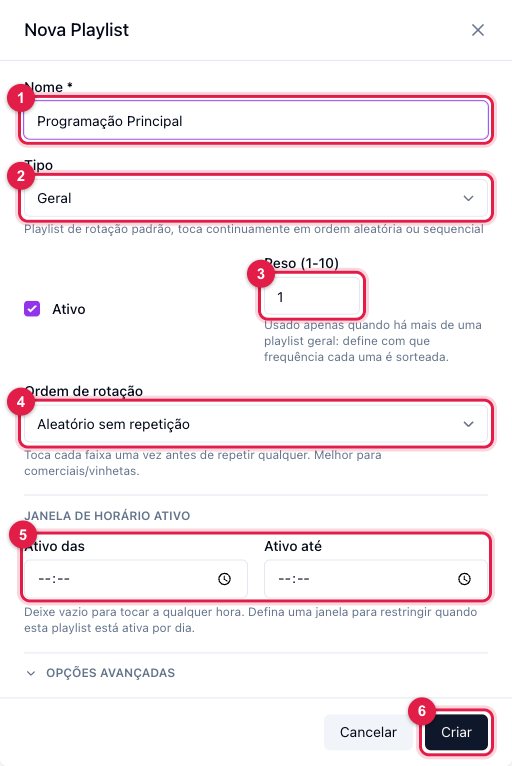
The numbers in parentheses refer to the image.
- In AutoDJ › Playlists, click New Playlist.
- Name (1): a name you will recognize in the schedule, like Main Programming or Music.
- Type (2): General.
- Leave Active checked.
- Weight (3): 1, unless you will have more than one General (then the weight sets how often each one is drawn).
- Rotation order (4): Random without repetition — plays every track before repeating any.
- Active Time Window (5): leave it blank for the playlist to apply all day.
- Click Create (6).
2. Add the songs
On creation, the playlist opens on the Tracks tab. The left column is the Library; the right one, the tracks already in the playlist.
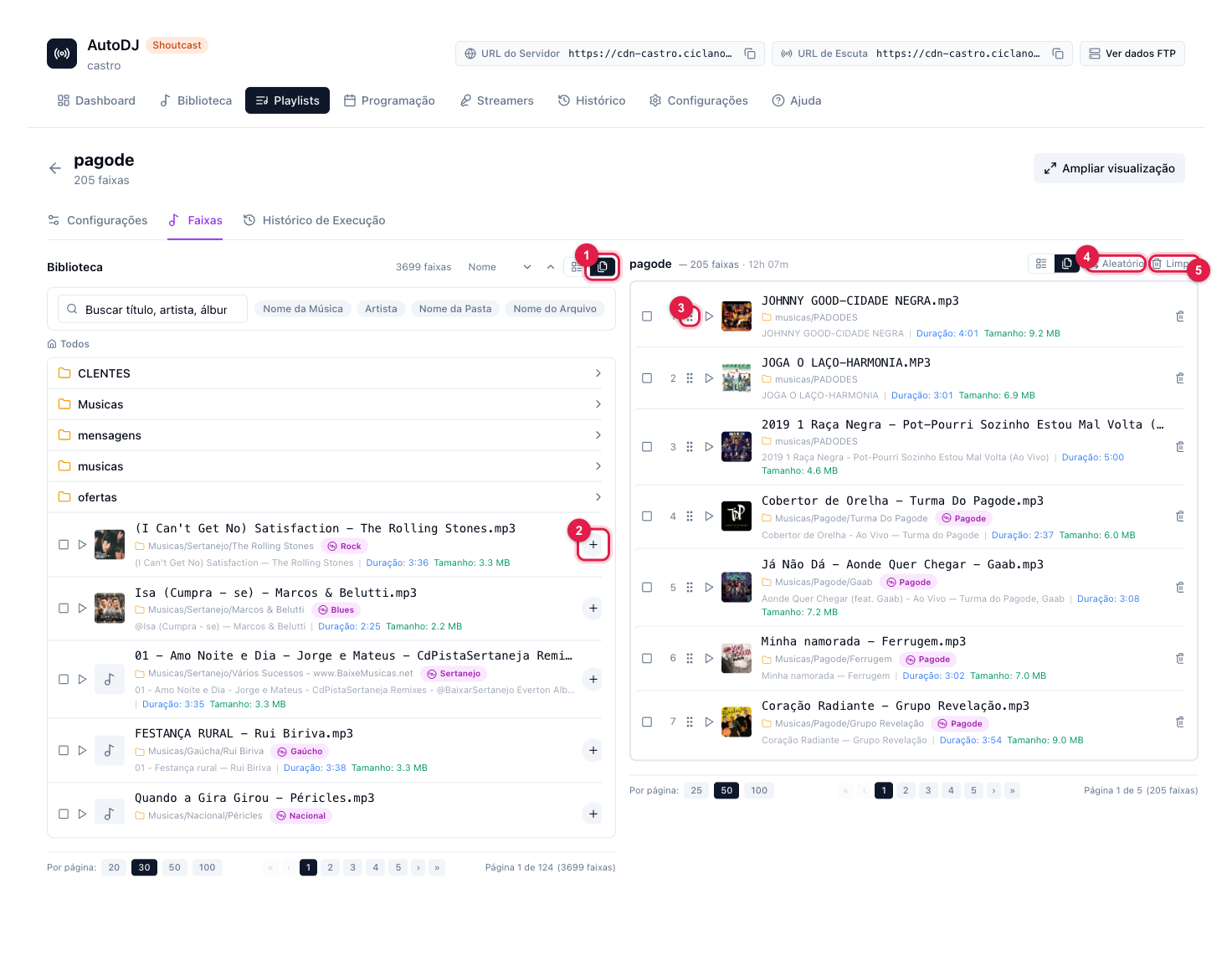
- To add by folder, switch the Library to the folder view (1), open the folder and use Add folder.
- To pick track by track, click each one's + (2), or check the boxes and click Add.
- Check Ignore tracks already used in other playlists if you do not want General's music to repeat another playlist's.
- Limit total duration builds the playlist up to a total time (useful for one-hour shows): tracks go in until the limit is reached.
3. Sort, if you want
In the list on the right you drag the tracks by the handle (3) to reorder (applies to the Sequential order), use Random (4) to shuffle for good, Remove selected to take some out and Clear (5) to empty the playlist.
One General or several?
One, with all the songs, solves most stations. Make more than one when you want to change the mood by time of day (a Morning from 6 to 12, a Night from 18 to 24) or balance styles with weight (Country weight 3, Pop weight 1). When using time windows, always leave one General without a window as a safety net.
What to do if…
- I created the playlist and the radio is still silent. Check that it is Active, has tracks and AutoDJ is running on the Dashboard.
- A song is playing too much. Check whether it is in more than one active playlist at the same time and whether the order is Random without repetition.
- I want to see what played. The playlist's Play History tab, or AutoDJ › History.