How to upload music to AutoDJ from the panel
Drag the files into the AutoDJ Library. Accepted formats, limits per file and per batch, upload queue and what to do when the file already exists.
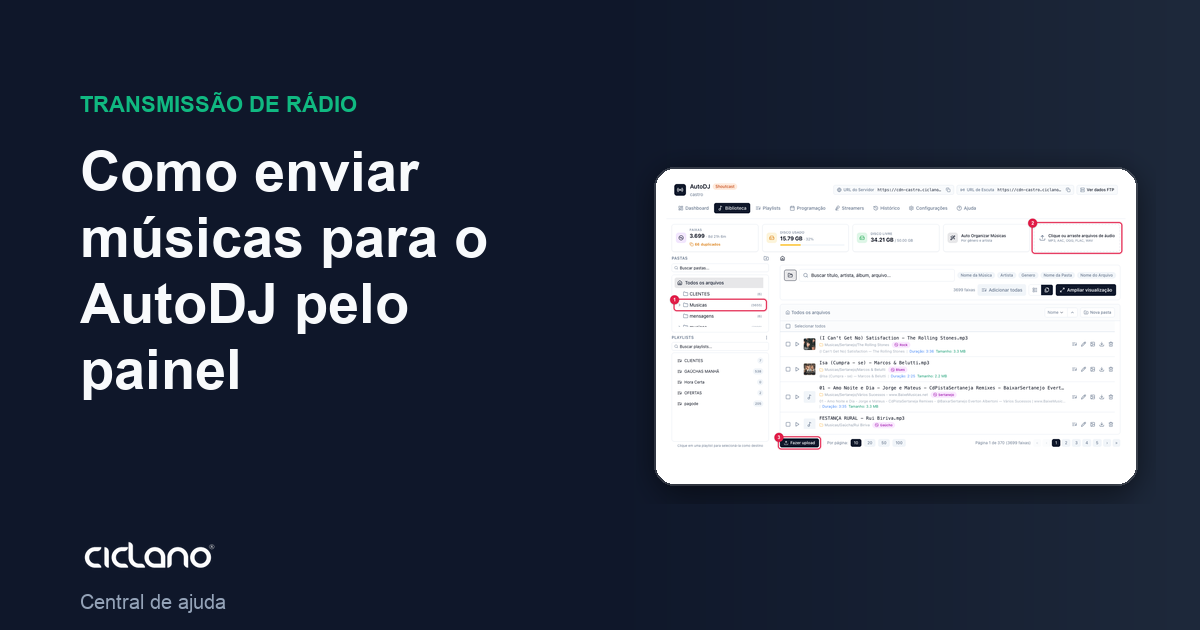
The simplest way to put music in AutoDJ is to upload it from the Library itself: drag the files onto the screen or pick them from your computer. For large collections (hundreds of songs at once), prefer the FTP upload.
Where it is: Applications › your radio › AutoDJ › Library.
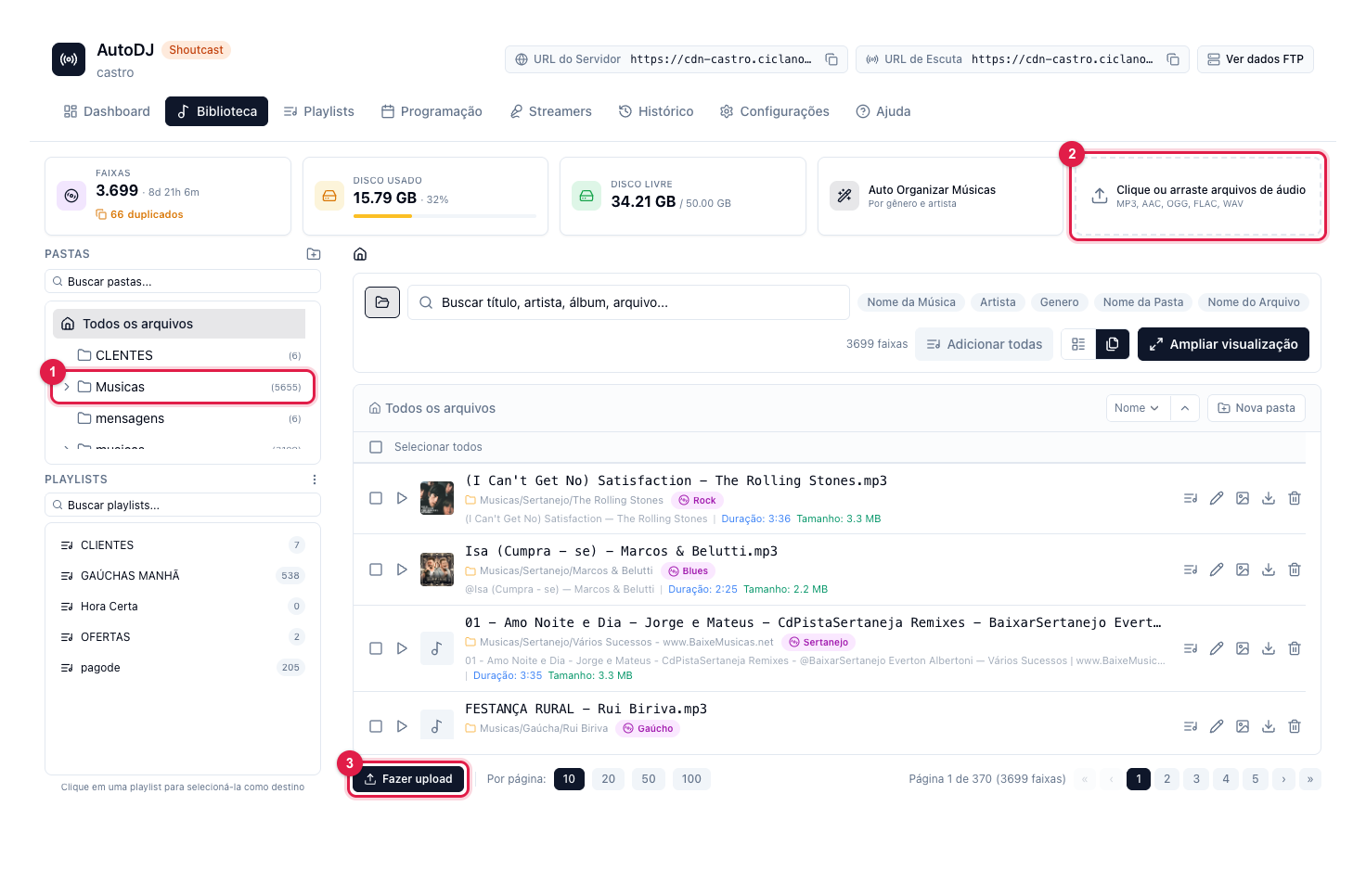
The numbers in parentheses refer to the image.
Step by step
- In your radio's panel, open AutoDJ › Library.
- If you want to keep the songs in a specific folder (for example Country or Commercials), click the folder on the left (1) before uploading. With no folder chosen, the files go to the root.
- Click the Click or drag audio files card (2) or the Upload button (3). You can also drag the files from your computer onto the screen.
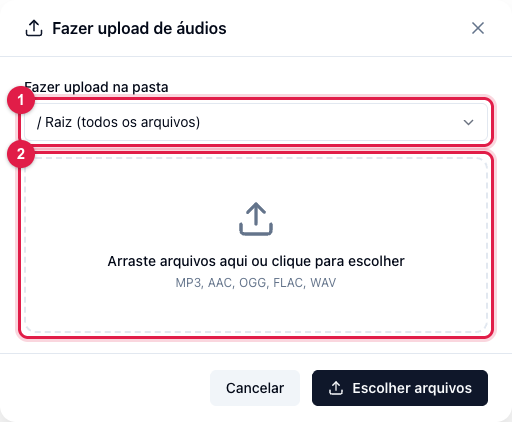
- In the Upload audio window (image below), check the destination folder (1) and drop the audio files in the dotted area (2) or click Choose files.
- Follow the Upload queue. Do not leave the page until it finishes: the upload happens through your browser.
Limits and formats
- Formats: MP3, AAC, OGG, FLAC and WAV.
- Size: up to 200 MB per file, and up to 20 files per batch. For more than that, upload in batches or use FTP.
- Space: the library counts toward your plan's disk quota. The top of the Library shows the disk used and free; with Quota exceeded the upload is refused until you delete something or upgrade the plan.
Tags, cover art and file name
Title, artist, album and genre come from the file's tags (ID3). That is what shows in the player and in "now playing" for the listener, so it is worth uploading files with the tags filled in. After uploading you can fix everything in Edit metadata and upload a cover (see How to organize the radio music library).
What to do if…
- "File already exists". There is already a file with the same name in the folder. Rename the file before uploading, or delete the old one in the Library (the playlists that used the old track need to receive the new one).
- "File too large". It went over 200 MB. Lower the file's bitrate or split the audio.
- The upload stopped halfway. When you return to the Library, the incomplete uploads notice shows; upload the missing files again.
- The song uploaded but does not play. It needs to be in some active playlist — uploading to the library does not put it in the rotation automatically. See how to add songs to the playlist.