How to register the radio program schedule in the panel (show grid)
The Program Schedule page is the radio's show grid for promotion: name, cover, description, days, times and presenter. It is what the Web Player uses to show "on air now". Do not confuse it with AutoDJ's Schedule.
The Program Schedule in the radio menu is the show grid you promote: the name of each show, the cover, the description, the days, the time and who presents it. It feeds the Web Player's "on air now" and serves as a showcase for the listener. It does not play anything: what goes on air is decided by AutoDJ or the encoder. To schedule playlists, the place is AutoDJ › Schedule.
Where it is: Applications › your radio › Program Schedule.
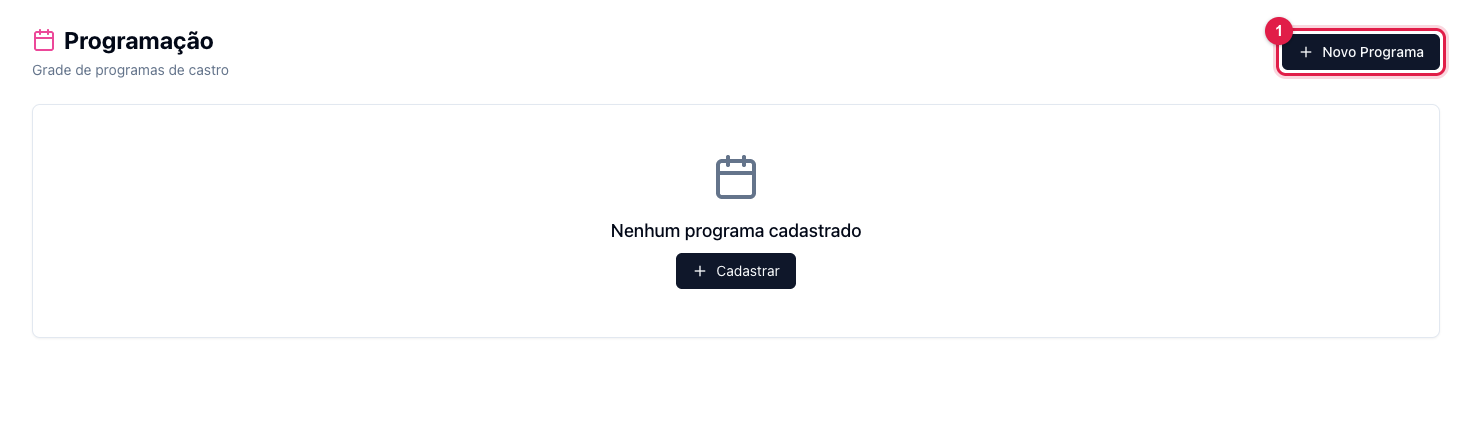
The numbers in parentheses refer to the image.
Register a show
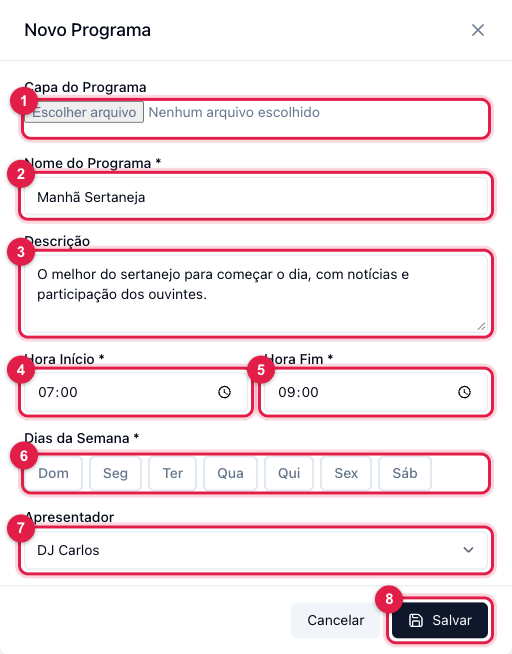
- Click New Show (1 in the first image).
- Show Cover (1): an image, preferably square. It shows in the grid and in the player.
- Show Name (2) and Description (3): how the listener will see it.
- Start Time (4) and End Time (5): the end must be after the start. For a show that crosses midnight, register it in two parts (until 23:59 and from 00:00).
- Weekdays (6): click the days. At least one.
- Presenter (7): pick from the list registered in Presenters (see how to register). It can stay "None".
- Save (8).
The grid
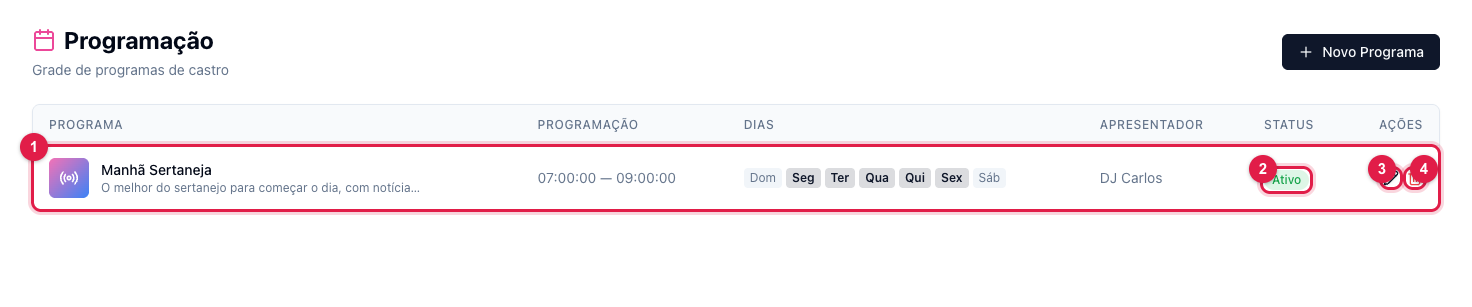
Each show becomes a row (1) with time, days, presenter and status (2). The pencil (3) edits; the trash icon (4) deletes. An Inactive show stays registered, but disappears from the showcase and from "on air now".
What to do if…
- I registered it and the Web Player does not show it. Turn on Show current program in the player's Content tab (see how), and check that the current time is within the show's slot.
- I want the playlist to change at the show's time. That is AutoDJ: create a Scheduled playlist with the same time (see how).
- "The end time must be after the start time". A show that crosses midnight needs two records.