How to configure AutoDJ: audio quality, crossfade, time zone and fallback music
Where to adjust AutoDJ's codec and bitrate, the crossfade, the time zone of the schedules, what plays when music runs out and what happens when the encoder drops.
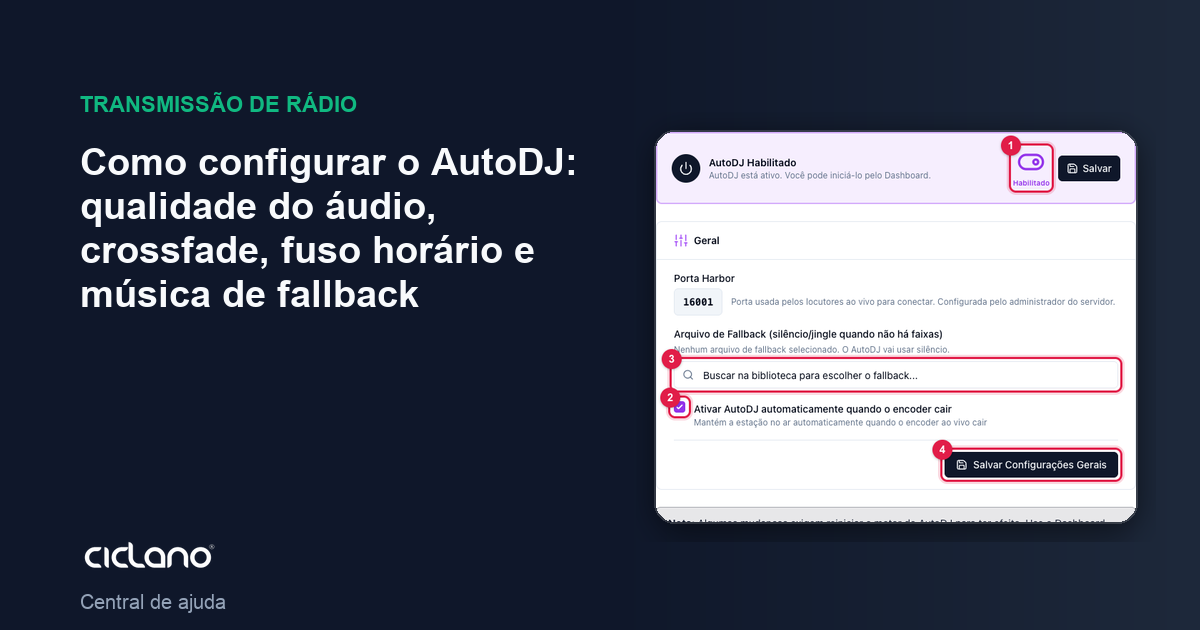
AutoDJ's settings define the quality of the audio that goes out to the listener, the behavior when music runs out or the encoder drops, and the time zone of every schedule. Changing codec, bitrate or crossfade only applies after restarting AutoDJ on the Dashboard.
Where it is: Applications › your radio › AutoDJ › Settings.
General: what happens when the encoder drops or music runs out
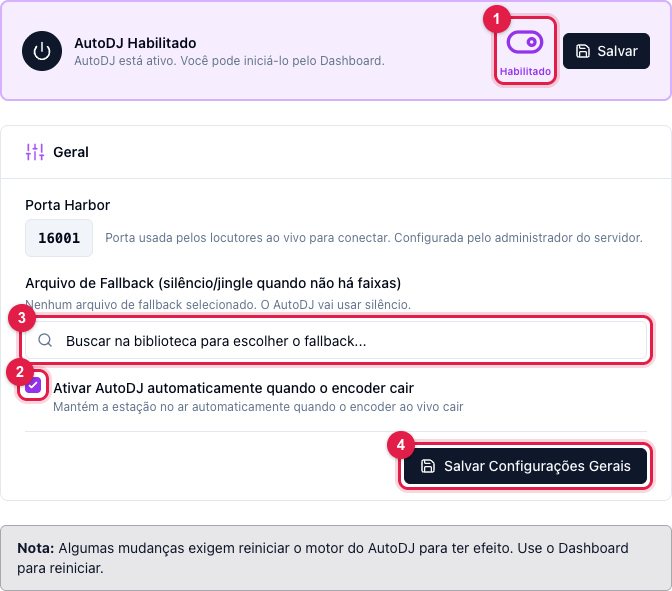
The numbers in parentheses refer to the image.
- AutoDJ Enabled (1) — the same ON switch as the Dashboard. It has its own Save button, next to it.
- Enable AutoDJ automatically when the encoder drops (2) — if you broadcast live with the main encoder and the connection drops, AutoDJ comes in on its own and the radio does not go silent. We recommend leaving it checked.
- Fallback File (3) — the track (a jingle, a notice) that plays when no playlist has music. With no file, AutoDJ plays silence. Type in the search and pick a track from the library.
- Harbor Port — the port DJs connect to in order to go live. It is set by the server; read-only.
- Click Save General Settings (4).
Encoding and Audio: sound quality and crossfade
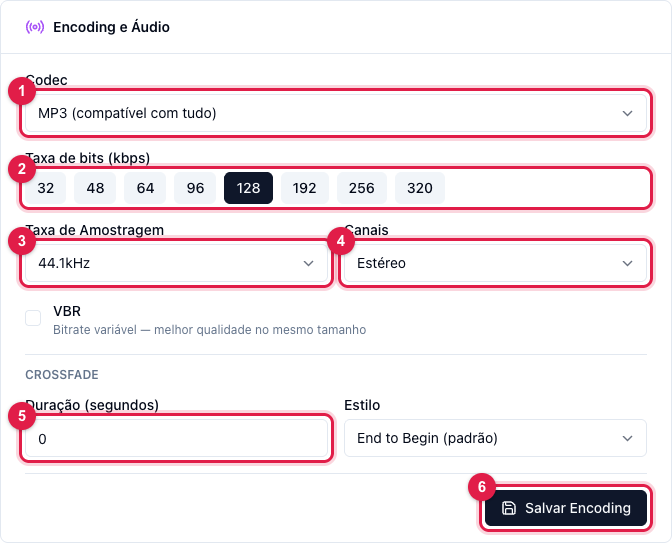
- Codec (1): MP3 (compatible with everything) or AAC+/HE-AAC (more quality at the same bitrate; not every old player plays it).
- Bitrate (kbps) (2): from 32 to 320, capped at your plan's maximum. 128 kbps is the radio standard; 64 kbps in AAC+ sounds good and uses half the traffic.
- Sample Rate (3) and Channels (4) (mono/stereo): leave 44.1 kHz stereo, unless the radio is voice only.
- VBR (variable bitrate): better quality at the same size; some players and Alexa prefer a fixed bitrate — when in doubt, uncheck it.
- Crossfade: the Duration in seconds (5) and the Style next to it — End to Begin (the next comes in when the current ends, with a fade) or Smart (beat-synced). 3 to 5 seconds is a good start.
- Click Save Encoding (6) and then Restart on the Dashboard.
Time Zone
Every schedule (Scheduled playlists, Schedule events, time windows, time announcement) is evaluated in this zone, on the radio's server. If the radio is in Manaus and the zone is set to São Paulo, everything comes in an hour off. Adjust it in the Time Zone section, between Encoding and General, and click Save time zone.
Audio processing (on the Dashboard)
In the top card of the Dashboard are three features that act on the outgoing sound — including the DJ's live:
- Level volume — keeps every song at the same volume (ReplayGain). Ends the "this song is louder".
- Suppressor — holds the peaks and makes the sound more even (compressor).
- Equalizer — bass, mids and treble.
They are plan add-ons: when they show with the ADD-ON label, the Request add-on button asks for the purchase. Enabling or adjusting restarts the engine right away, and the listener hears a few seconds of silence.
What to do if…
- I saved and nothing changed. Encoding and crossfade apply on the next start: go to the Dashboard and click Restart.
- The bitrate will not go above X. It is the plan limit. To raise it, change plan or talk to us.
- The sound got "muffled". Turn off the Equalizer and the Suppressor and compare; adjust one at a time.