How to stream live to Twitch and LinkedIn
Twitch and LinkedIn connect through the Add Account button of each network's card in Destinations. See what each one requires (Twitch accepts any account; LinkedIn needs approval for its live feature) and how to mark the channel.
Twitch and LinkedIn work like YouTube and Facebook: you connect the account once, mark the channel and Ciclano creates and relays the live. The differences are in what each network requires.
Where it is: Applications › your video application › Destinations › Twitch and LinkedIn cards.
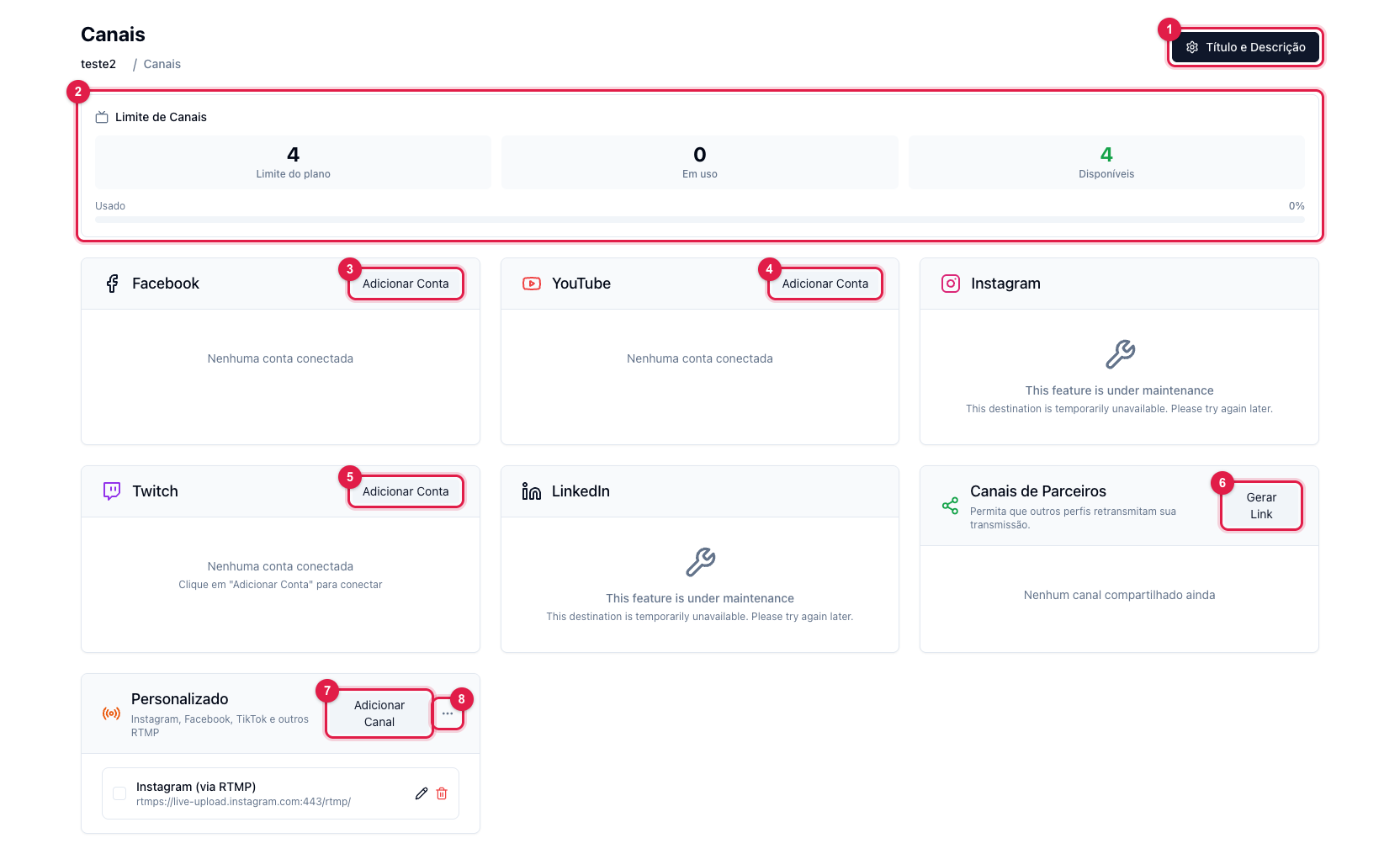
The numbers in parentheses refer to the image.
Twitch
- Click Add Account (5) in the Twitch card and authorize with your account.
- The channel shows in the card; check the box.
- Start the broadcast in the panel and in the encoder. Twitch shows the live on your channel in seconds.
Twitch does not use the panel's title: set the title and category in the Twitch Creator Dashboard. It also requires the bitrate to stay within what your channel accepts (up to 6 Mbps for most); above that, Twitch refuses the connection.
LinkedIn only accepts lives from profiles and pages approved for the LinkedIn Live feature. With access granted by LinkedIn:
- Click Add Account in the LinkedIn card and authorize.
- Mark the profile or page that will receive it.
- Title and description come from Title and Description.
If the LinkedIn card (or Instagram) shows the maintenance notice, the integration is temporarily turned off by Ciclano; use custom RTMP with the network's own credentials meanwhile.
Expired access
Both networks expire the access after a while. When the marked channel stops receiving, log out of the account in the card, connect again and mark once more. The reason is recorded in Logs › Channels.