How to stream live to YouTube
Connect the channel in Destinations › YouTube › Add Account, mark the channel, set title and thumbnail and start the broadcast. Also see how to use a YouTube schedule, what latency changes and why the account asks to reconnect.
To stream on YouTube you do not use the YouTube key in OBS: OBS sends to Ciclano and Ciclano creates the live on your channel and relays it. That way the same live goes to YouTube, Facebook and your website at the same time.
Where it is: Applications › your video application › Destinations › YouTube card.
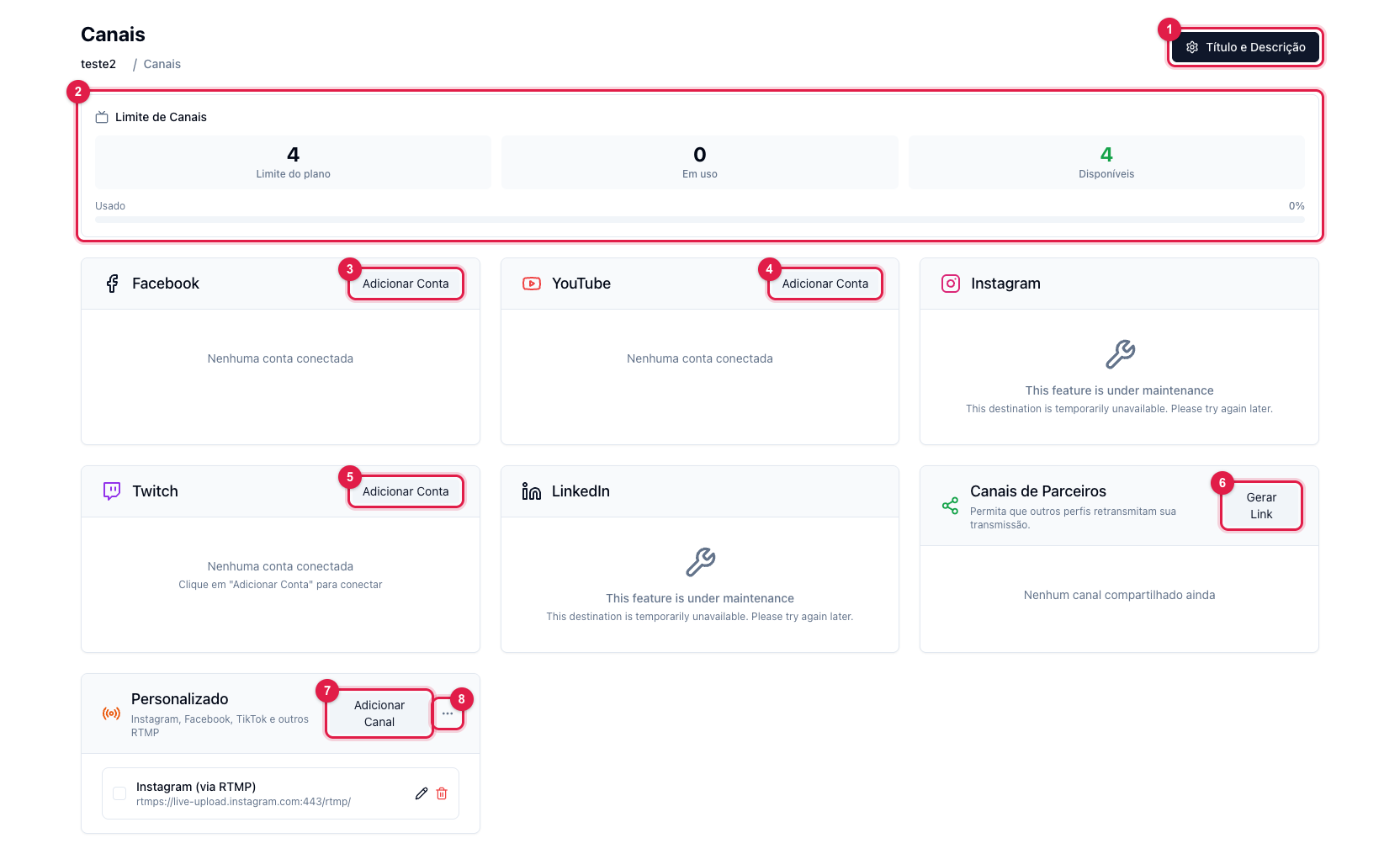
The numbers in parentheses refer to the image.
Before you start
The channel must be enabled for live streaming on YouTube (YouTube Studio › Create › Go live; the first time, YouTube asks for phone verification and enables it within 24 h). Without that, Ciclano cannot create the live.
1. Connect the channel
- In the YouTube card, click Add Account (4).
- Sign in to the Google account that owns the channel and authorize Ciclano to manage broadcasts. If the account has more than one channel, pick the right one.
- Back in the panel, the account shows in the card with the channel and a checkbox. Mark the channel.
2. Choose: new live or schedule
With the channel marked, the card offers two ways:
- Live without schedule — Ciclano creates a new live on YouTube when you click Start Transmission, using what is in Title and Description (1): title, description, privacy, category, latency, tags and thumbnail. See How to set the title, description and thumbnail.
- Use a schedule — if you already created the scheduled live on YouTube (or through the card's Schedules button), pick it in the list. The broadcast goes into that scheduled live, with the title, thumbnail and link you already announced. The Schedules button lists the channel's scheduled lives, lets you create a new one (title, description, privacy, date and time — at least 1 hour ahead — and thumbnail), resync with YouTube and choose which one to use. Step by step in How to schedule a live on YouTube from the panel.
3. Go on air
On the Home screen, click Start Transmission and start the encoder. Once the status is Live, YouTube takes 10 to 30 seconds to show the live on the channel. The YouTube card on Home shows the channel as Active and, when YouTube reports it, the views. When done, stop the encoder and click Stop Transmission: the YouTube live is ended and becomes a video on the channel (if YouTube's recording option is on).
Common problems
- "YouTube session expired" or the marked channel receives nothing: the access expired. In the card, click Logout and then Add Account again; mark the channel once more.
- The live shows on YouTube but with no video: the encoder is not connected (Pending status in the panel). See How to start and stop the broadcast.
- "Channel not enabled for live streaming": live streaming is not enabled in YouTube Studio.
- Wrong title: if you used a schedule, the title is the schedule's; if not, the one in Title and Description.