Destinations: how the channels page and the plan limit work
The Destinations (Channels) page gathers the connected accounts — YouTube, Facebook, Twitch, Instagram, LinkedIn —, the custom RTMP channels and the partner channels. See how to mark a channel, what counts toward the plan limit and what to do when it runs out.
A destination (or channel) is each place that receives your live at the same time: a YouTube channel, a Facebook page, a Twitch profile, an RTMP address of another platform. You connect the accounts once and, before each live, mark which channels will receive it.
Where it is: Applications › your video application › Destinations.
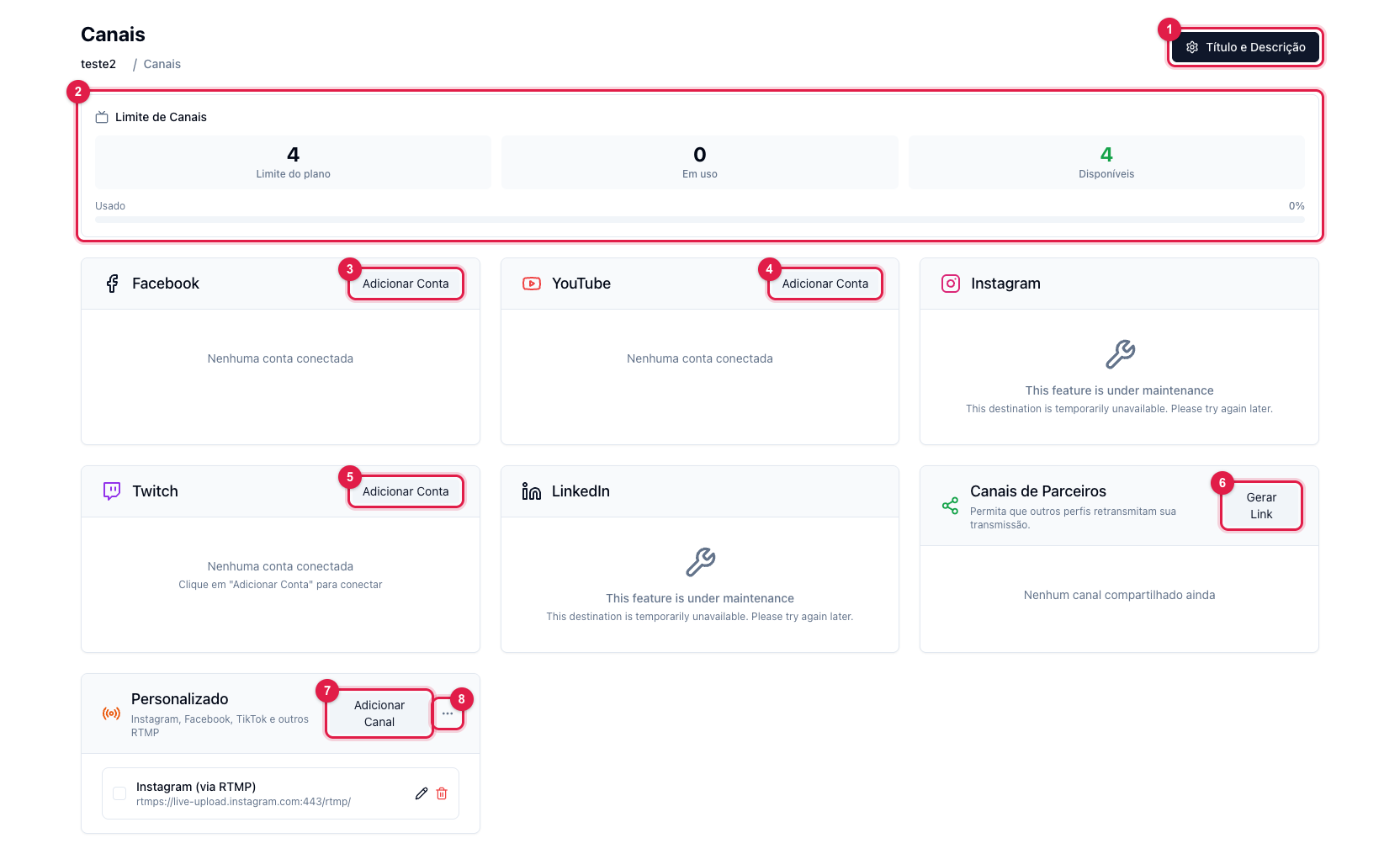
The numbers in parentheses refer to the image.
The cards
- Facebook (3), YouTube (4), Twitch (5), Instagram and LinkedIn — each has Add Account: it opens the network's login, you authorize and the account shows in the card with its channels (pages, groups, YouTube channel…). Check the channel's box for it to receive the live. A card marked "under maintenance" is temporarily turned off by Ciclano.
- Partner Channels (6) — generates a link for someone else to authorize their account as a destination of your live, without sharing passwords. See Partner channels.
- Custom (7) — any RTMP destination: Instagram, TikTok, Kick, another server. You enter server and key. See How to stream via custom RTMP. The menu (8) exports and imports the list of custom channels as JSON.
- Title and Description (1) — the same window as the Configure Title button on Home. See How to set the title, description and thumbnail.
The channel limit
The box (2) shows three numbers: Plan limit (how many channels can be marked at the same time), In use (how many are marked now) and Available. It counts what is marked, not what is connected: you can have five accounts connected and mark only two. When you hit the limit, the other channels' boxes will not check; unmark one or upgrade the plan.
Marking and unmarking
Marking a channel sends the destination to the streaming server right away — you can mark before starting or during the live. Unmarking removes the destination; if the live is on air, that network stops receiving. Every mark and every failure is recorded in Logs › Channels.
Expired access
Social networks grant access with a deadline. When it expires, the channel stays marked in the panel but the server cannot publish: the broadcast goes Live and the network receives nothing. The notice shows in Logs › Channels ("token expired"); the fix is to Logout of the account in the card and Add Account again, then mark the channel once more.