How to start and stop the live broadcast in the panel (Stopped, Pending and Live)
The Start Transmission button prepares the server and the destinations; the status goes from Stopped to Pending and, when the encoder connects, to Live. See what each status means, what the metrics show and the right order to end.
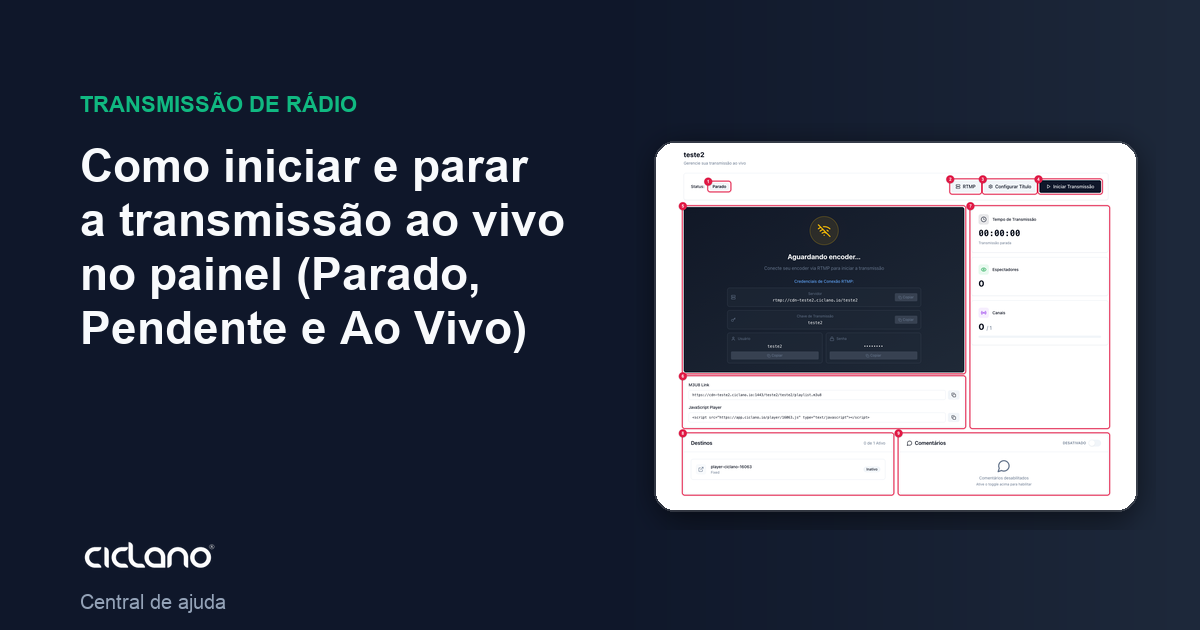
The Home screen has a single main button, which alternates between Start Transmission and Stop Transmission. It does not turn on the camera or the encoder: it tells the server the live is about to start and creates the marked destinations (YouTube, Facebook, RTMP…). The video itself comes from the encoder.
Where it is: Applications › your video application › Home.
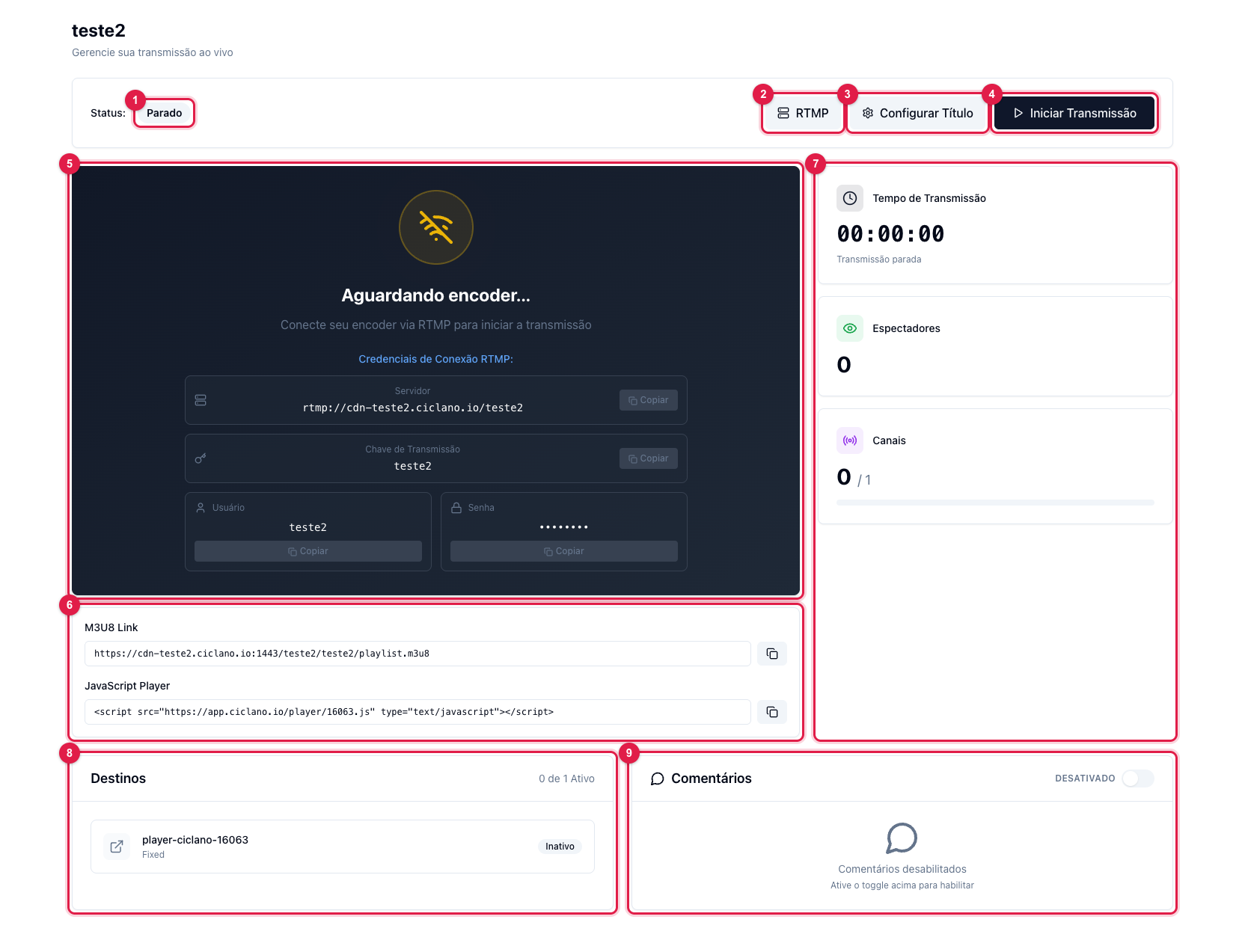
The numbers in parentheses refer to the image.
The three statuses
- Stopped (1) — nothing is happening. The player (5) shows the RTMP credentials for you to set up the encoder.
- Pending — you clicked Start Transmission (4) and the server is ready, but no encoder has connected ("Waiting for encoder…"). The destinations receive nothing yet.
- Live — broadcast started and encoder connected. It is the only status in which the player and the destinations receive video.
Start
- Check the Destinations (8): the list shows the marked channels and whether they are active. If it is empty, mark channels in Destinations first — you can still mark after starting, but the live will already be running.
- If you want, adjust the live title in Configure Title (3). See How to set the title, description and thumbnail.
- Click Start Transmission (4). The status becomes Pending.
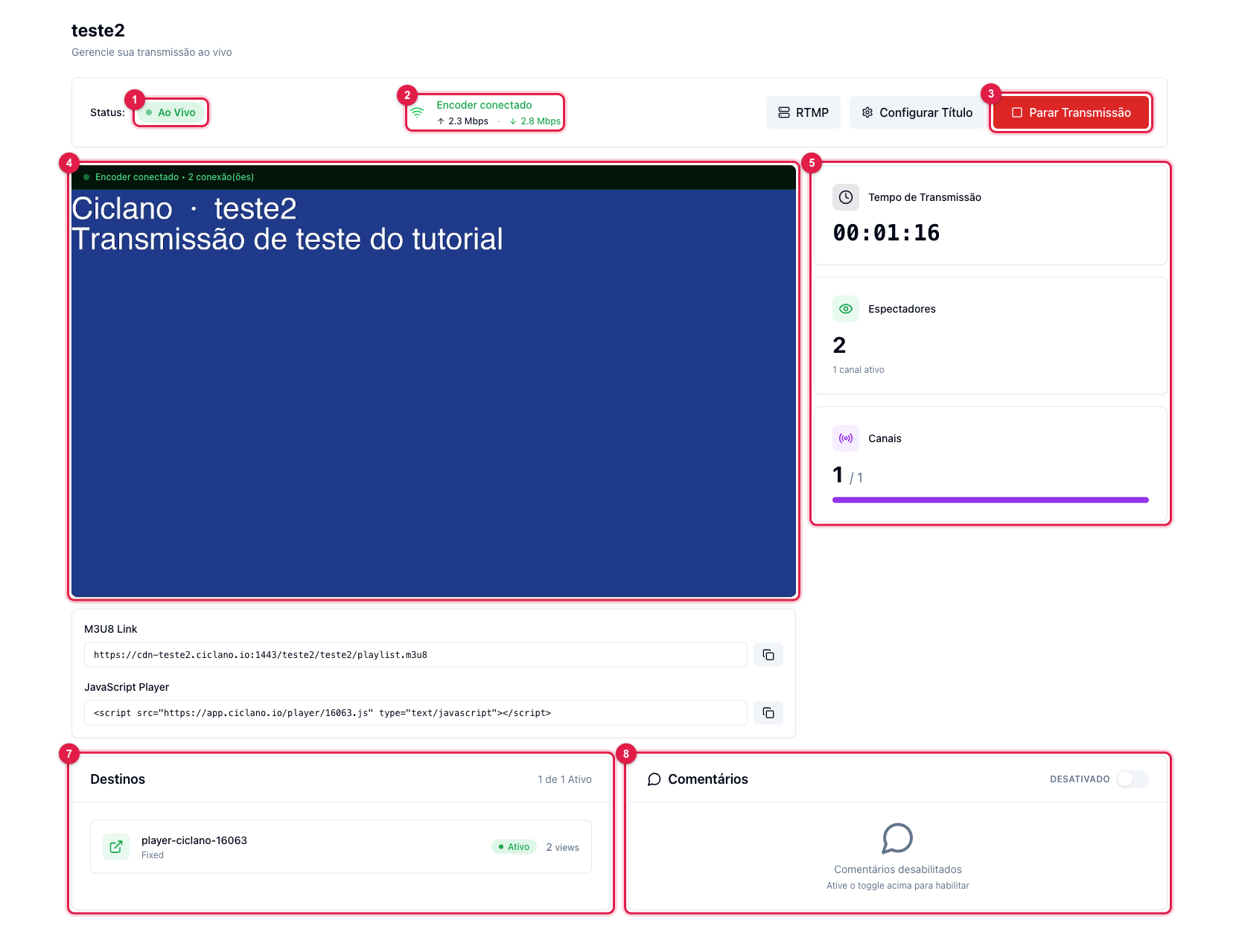
- Start the encoder (OBS: Start Streaming). When it connects, the status becomes Live:
What to watch during the live
- Encoder connected (2) — the up arrow is the rate arriving from the encoder; the down arrow, the rate going out to the destinations. If the incoming one fluctuates or drops to zero, the problem is between the encoder and the internet.
- Broadcast Time (5) — counts from Start. Viewers adds up whoever is watching on every channel that reports audience (player and networks). Channels shows active / marked; the number of marked channels is limited by the plan.
- Destinations (7) — each channel with Active or Pending and, when the network reports it, the views. A marked channel that does not show here was not created on the server: see Logs › Channels.
- Comments (8) — the comments from the networks, when the switch is on. See Live comments.
Stop (in the right order)
- Stop the encoder first (OBS: Stop Streaming). The status goes back to Pending.
- Click Stop Transmission (3). The destinations are ended (the YouTube/Facebook live finishes) and the broadcast goes to the history in Statistics.
If you stop only in the panel, the encoder keeps sending to the server with nobody receiving; if you stop only in the encoder, the broadcast stays Pending and the social networks show the live "frozen" until you click Stop Transmission.