How to go live and end in Live Studio (quality, destinations and metrics)
Choose the quality (1080p, 720p or 480p), click Go Live and follow time, viewers and channels in the left panel. When done, Stop and then Exit. See where the live goes and what each metric shows.
With the screen built and the guests in the room, going live is one click. Live Studio sends the canvas to the Ciclano server, which delivers it to the player and to the marked destinations — the same ones as in Destinations.
Where it is: Live Studio header.

The numbers in parentheses refer to the image.
Before: quality and destinations
- Quality (1): HD 1080p — 6 Mbps, SD 720p — 3.5 Mbps or Mobile 480p — 1 Mbps. The number is the upload your internet needs to keep up the whole time. When in doubt, 720p.
- Destinations: mark in Applications › Destinations the channels that will receive the live (YouTube, Facebook, RTMP…) before starting. With no channel marked the live goes only to the application's player.
- Title: the title and description of the live on the networks come from Title and Description.
Start
Click Go Live (2). If an opening video is set, it plays first. In a few seconds the header changes:

Follow
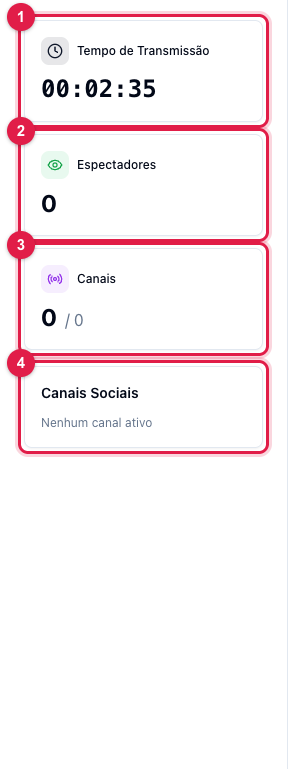
- Broadcast Time (1) counts from Go Live.
- Viewers (2) adds the player and the networks that report audience.
- Channels (3) shows how many destinations are active among the marked ones; Social Channels (4) lists each one with its status. A marked destination that does not show here was not created: see Logs › Channels.
During the live everything stays editable: layouts, scenes, banners, overlays, putting guests on and off screen, showing comments. Only the quality stays locked until you stop.
End
- Click Stop (2 in the second image). If a closing video is set, it plays before cutting. The lives on the networks are ended.
- Click Exit Live Studio in the controls bar. Guests are notified.
- The result is in Statistics › Live, like any broadcast. See Live statistics.
If you close the browser tab without stopping, the broadcast drops in a few seconds and the live on the networks stays "frozen" until it is ended from the panel (Home › Stop Transmission).