Active sessions, password change and two-factor authentication of your account
See from which devices your account is connected and end the ones you do not recognize, change the password and turn on two-factor authentication by Google Authenticator, WhatsApp or e-mail.
Account security lives in two places: Active Sessions, which shows the connected devices, and the profile's Passwords & Security tab, where you change the password and turn on two-factor authentication.
Where it is: menu under your name › Active Sessions and My Profile › Passwords & Security.
Active sessions
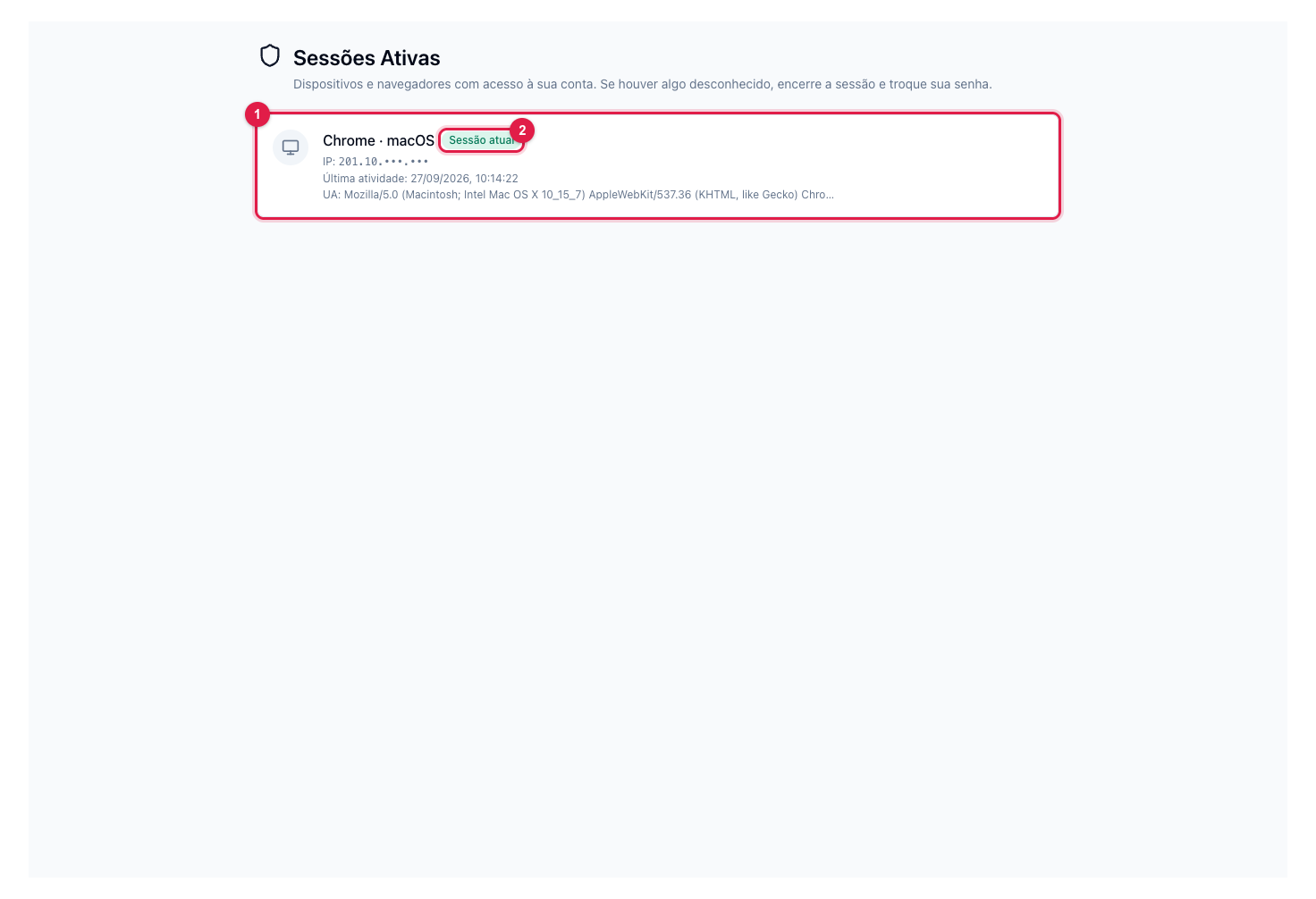
The numbers in parentheses refer to the image.
Each card (1) is a browser or device with access to your account, with the IP and the last activity. Yours is marked as Current session (2). If something you do not recognize shows, click end on that session and change the password right after.
Change the password
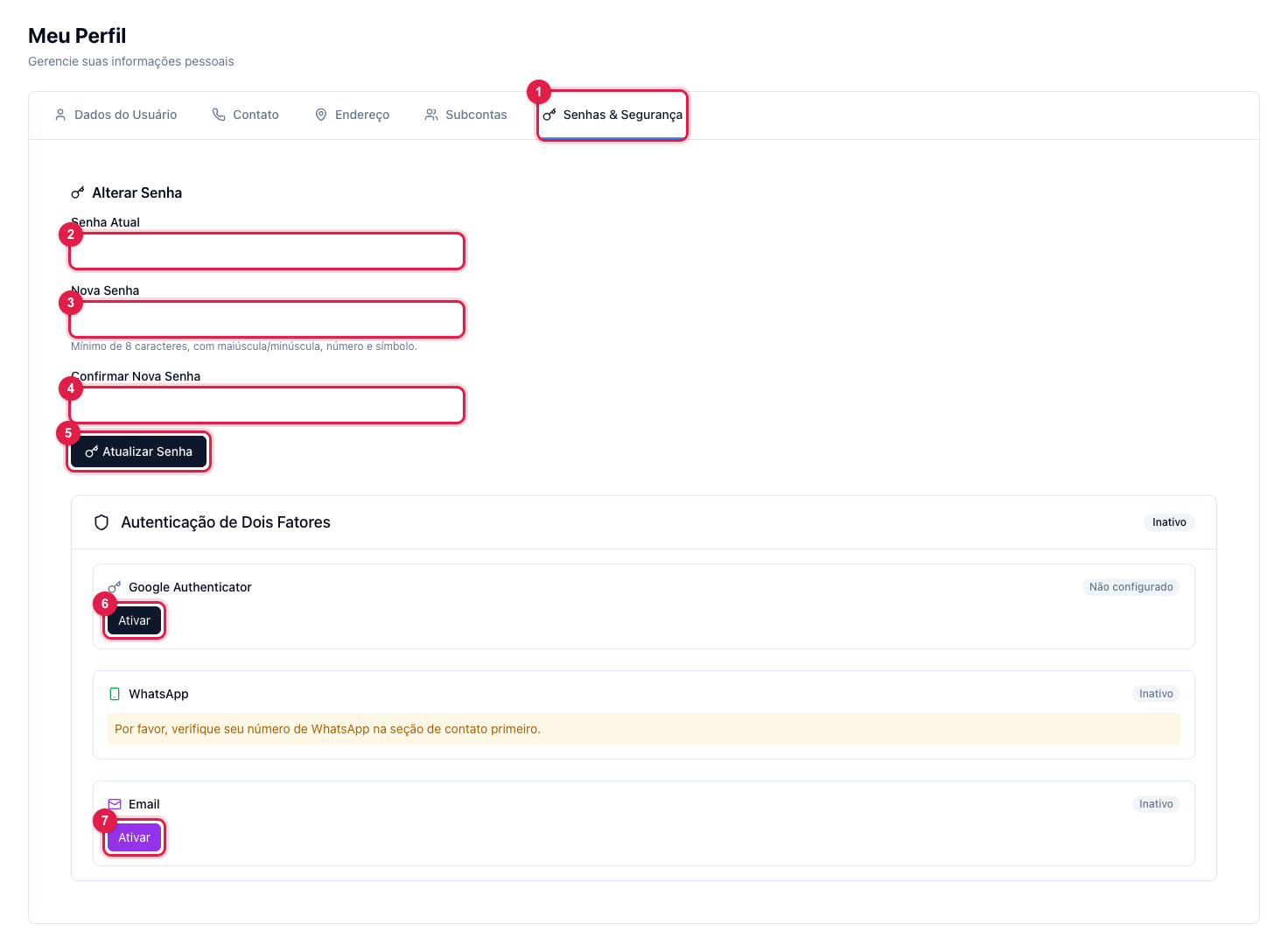
- In My Profile, open the Passwords & Security tab (1).
- Type the current password (2), the new password (3) and the confirmation (4). The new password needs 8 characters or more, with uppercase, lowercase, number and symbol.
- Click Update Password (5).
The panel password is unrelated to the encoder password and the FTP password: each one is changed in its own place (encoder connection details).
Two-factor authentication
With the second factor on, signing in requires the password and a code. There are three options:
- Google Authenticator (6): click Enable, scan the QR code in the app and confirm with the generated code. It works with any code app (Authy, Microsoft Authenticator).
- WhatsApp: the code arrives on your WhatsApp. It needs the number verified in the profile's Contact tab first.
- E-mail (7): the code arrives at the login e-mail.
Keep the recovery codes shown when enabling: they are the way out if you lose the phone.
What to do if…
- I lost the phone with the authenticator. Use a recovery code to sign in and set it up again. Without the codes, open a ticket with the account e-mail.
- I do not receive the code on WhatsApp. Verify the number in the Contact tab (Verify button) and try again.