Where the radio encoder connection details are (server, port and password)
Server, port, encoder password, admin user and password: where to see them, how to copy and how to change the password without taking the radio down.
Everything an encoder needs to go live on your radio is in the Connection Information block of the Home screen. It is where you copy the details for Ciclano Air or any other encoder, and where you change the password when needed.
Where it is: Applications › your radio › Home › Connection Information.
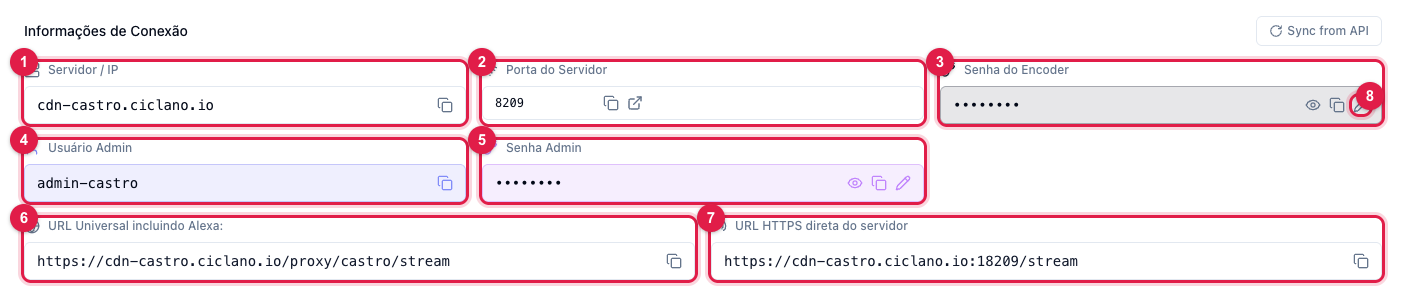
The numbers in parentheses refer to the image.
What each detail is
- Server / IP (1) — your radio's server address. It goes in the encoder's "server" or "host" field.
- Server Port (2) — the port the encoder connects to. The icon next to it copies; the other one opens the server address in the browser.
- Encoder Password (3) — the password the encoder uses to broadcast. It shows masked: the eye reveals it, the copy icon copies without revealing, and the pencil (8) changes it.
- Admin User (4) and Admin Password (5) — the administrative access of the streaming server (Shoutcast/Icecast's own internal panel). You only use it if you open the server's own panel; day to day the Ciclano panel does everything for you.
- Universal URL including Alexa (6) and Direct HTTPS URL of the server (7) — the listening links, for websites, apps, TuneIn and Alexa. Which one to use is in Which radio link to use.
Copy into the encoder
- Click the copy icon next to each detail: server (1), port (2) and encoder password (3).
- Paste them in the encoder's matching fields. In Shoutcast-compatible encoders, the user is left blank (or "source"); the password is the encoder's, not the panel's.
- See the full step by step in How to go live with Ciclano Air.
Change the encoder password
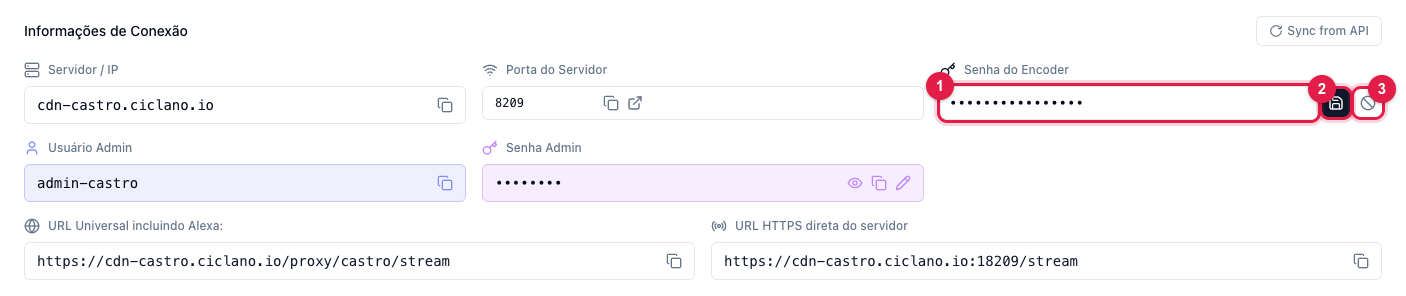
- Click the pencil (8 in the first image). The field opens for editing (1).
- Type the new password and click save (2). To give up, cancel (3).
- The panel warns Restart required: the server only accepts the new password after restarting the port. Click Restart to apply now (listeners drop for a few seconds) or Later.
- Update the password in the encoder of everyone who broadcasts with that access. Until the restart, the old password keeps working.
The admin password (5) is changed the same way, with its own pencil.
Sync from API
The button in the corner of the block re-reads the details straight from the radio's server. Use it if some information looks outdated (for example, after a maintenance on our side).
What to do if…
- The encoder says "incorrect password". Copy the password with the copy icon (avoids extra spaces) and check that you are not using the panel password. If you just changed the password, restart the port.
- I changed the password and nobody can connect anymore. That is expected: every encoder needs the new password. If it was by mistake, change it back to the previous one.
- I want a password just for one announcer, without giving out the main one. Use AutoDJ's Streamers: each DJ has their own user and password (see how).