How to open a support ticket and follow the reply
In Help & Support › Open ticket you pick the department, type and priority, describe the problem, point to the radio and attach screenshots. See what to write to be served faster and how to follow and reply to the ticket.
When the knowledge base does not solve it, the way is the ticket: it is recorded, goes to the right team and you follow the reply in the panel and by e-mail.
Where it is: side menu › Help & Support (My Tickets).
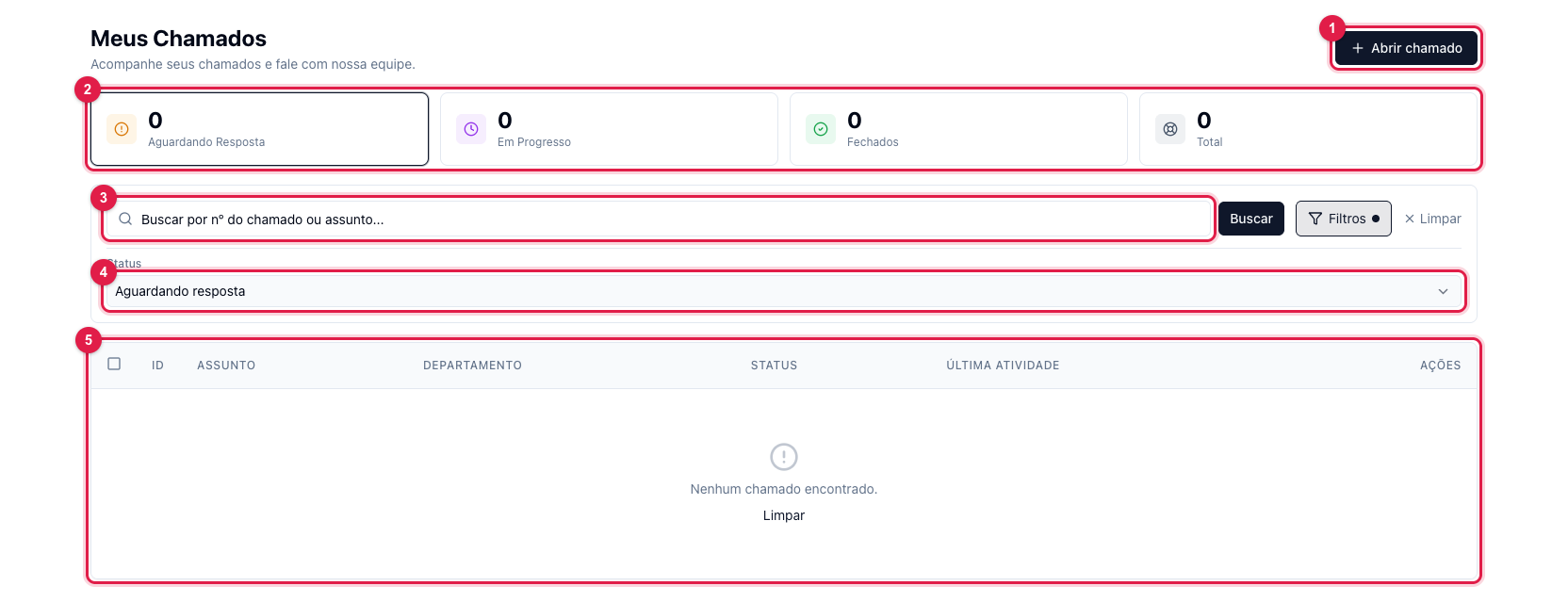
The numbers in parentheses refer to the image.
Open a ticket
- Click Open ticket (1 in the first image).
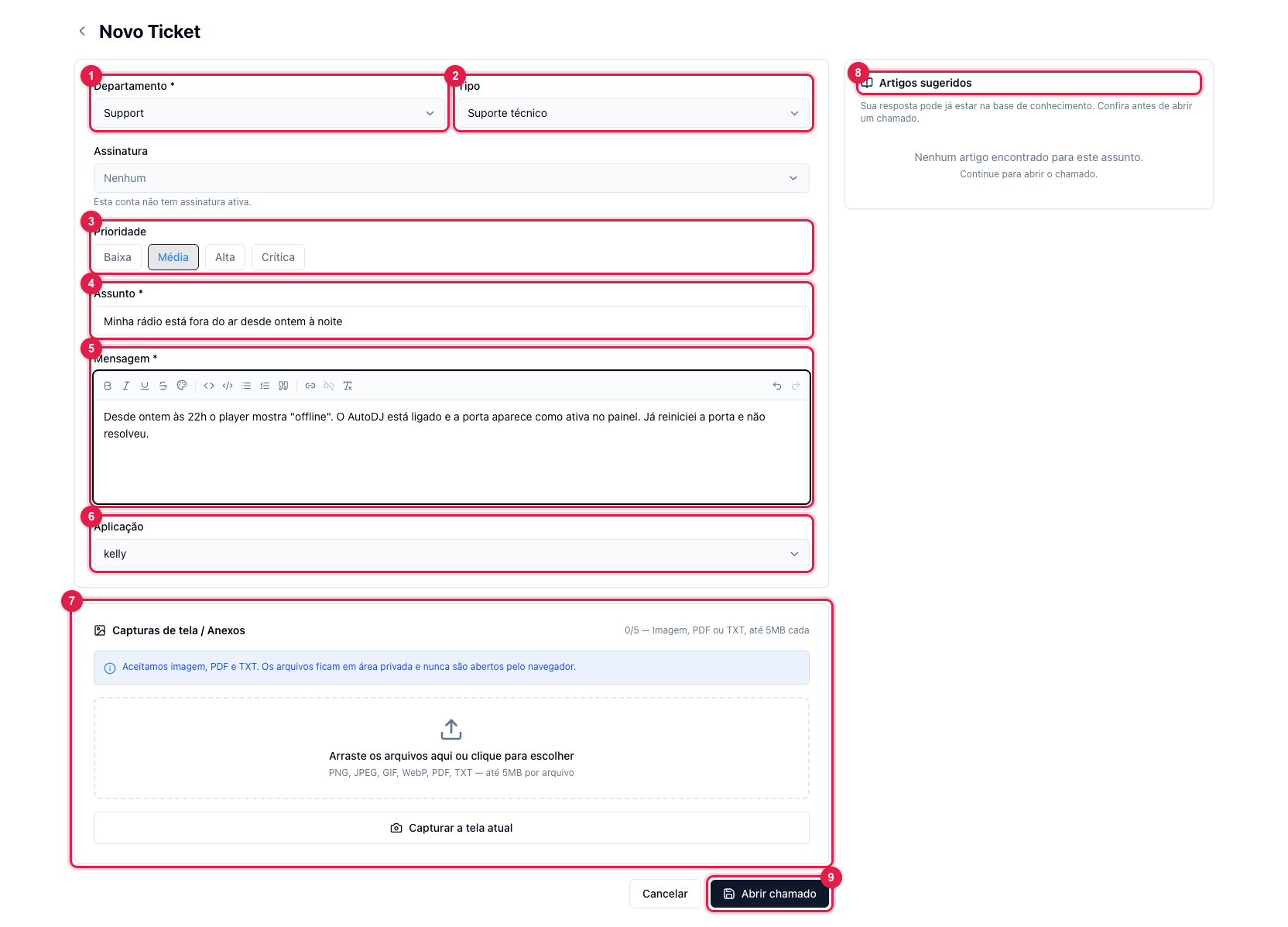
- Department (1): Support for a technical problem (radio off air, AutoDJ, broadcast, panel); Commercial for plan, billing, invoice and cancellation; Development to request a feature or report a system error.
- Type (2): technical support, bug/error, new feature or billing. It helps the triage.
- Subscription: if the matter is billing, pick the subscription of the radio in question.
- Priority (3): Medium for day-to-day; High when the radio is off air; Critical only when there is a live broadcast happening right now and it is down. Marking everything as critical delays whoever is really down.
- Subject (4): one sentence that says the problem, not "help" or "urgent". As you type, the panel shows in Suggested articles (8) knowledge-base articles that may solve it on the spot — worth a look before sending.
- Message (5): what happens, since when, what you already tried and the exact error message, if any. The editor accepts bold, lists and links.
- Application (6): pick the radio or the video application of the problem. With it set, support opens the ticket already looking at the right server.
- Attachments (7): up to 5 files — screenshot, PDF or TXT, up to 5 MB each. A screenshot of the error saves a round of questions.
- Click Open ticket (9). You receive the ticket number by e-mail.
What to write to be served faster
- Radio off air: the radio's name, whether AutoDJ is on or it streams by encoder, since what time, and what the Home screen shows. First, check My radio shows as inactive.
- Live that did not reach the social network: the destination (YouTube, Facebook…), the time and what shows in Logs › Channels.
- Billing: the invoice number and what happened (paid and not settled, expired boleto, different amount).
- Error on screen: the exact message and a screenshot. "It gave an error" tells nothing to whoever will investigate.
Follow and reply
- Each reply from support arrives by e-mail and shows in the ticket. To reply, open the ticket in the list and write at the bottom of the page — do not reply to the e-mail.
- The statuses: Awaiting reply (the ball is with support), Answered (the ball is with you), In progress (the team is working on it) and Closed.
- A ticket without your reply for a few days is closed on its own. If the problem comes back, open another and quote the old number.
- The counters (2) and the filter (4) help when there are many tickets; the search (3) finds by number or subject.
Chat
If the chat bubble is visible in the corner of the screen, it is the fastest way for short questions: the assistant answers right away, checks your account once you confirm your identity and, when it cannot solve it, hands over to a person and records a ticket with the conversation. A problem that needs investigation is still a ticket.
What to do if…
- I cannot enter the panel to open the ticket. Recover the password by e-mail (see how); if even that does not work, use the chat or the site's contact giving the radio's name and the account e-mail.
- The radio does not show in Application. You are in a subaccount without access to it, or the radio is in another account. Say the radio's name in the message.
- The attachment is refused. Only image, PDF and TXT, up to 5 MB. Video: upload it to Drive or YouTube as unlisted and paste the link.