Videos and audio in the live: opening, closing and background music (Live Studio)
The Media tab keeps the MP4/WebM clips and the audio of the live: opening bumper, institutional video to play in the middle, closing, background music. Add them, set volume and loop, and activate with one click.
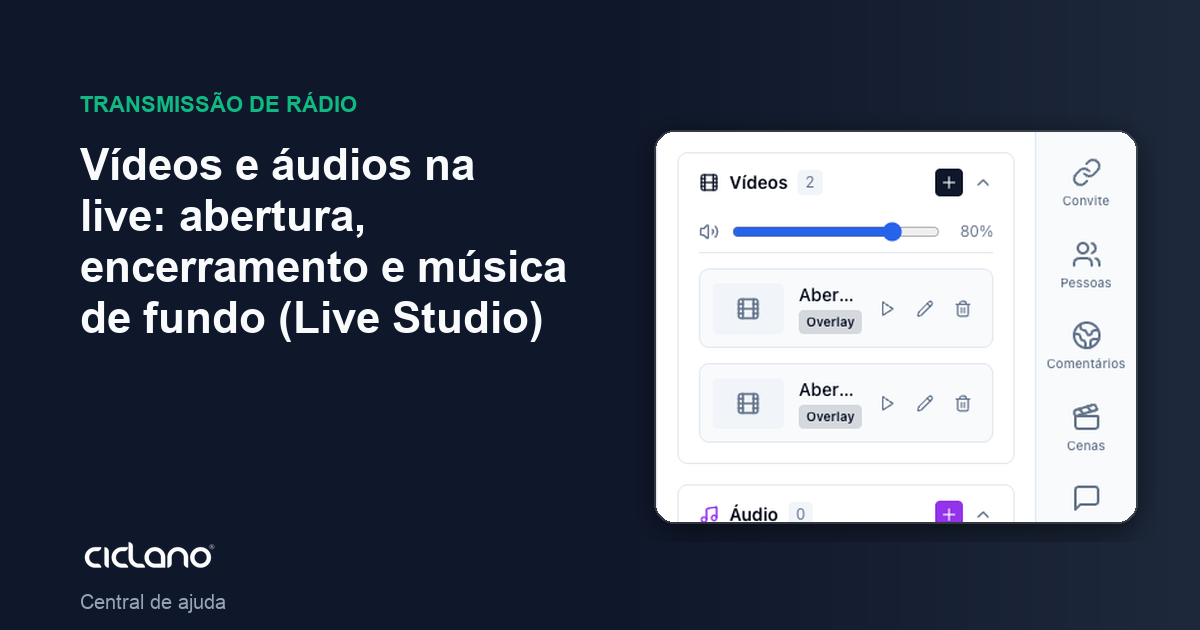
A video playing in the live without OBS: the Media tab plays clips and audio inside the canvas, with volume and looping, and it is where the opening and closing videos come from.
Where it is: Live Studio › Media tab.
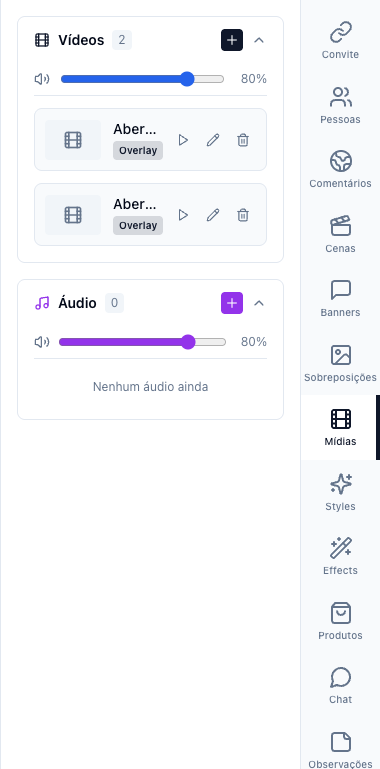
The numbers in parentheses refer to the image.
Add a video
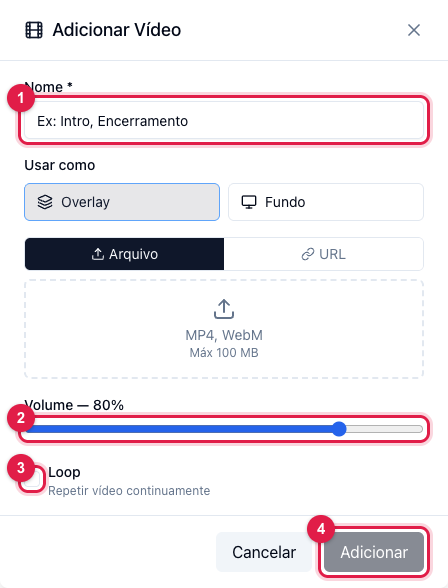
- Click Add video.
- Name (1) — "Intro", "Institutional", "Closing".
- Use as — Overlay (the video over the cameras, filling the screen) or Background (behind the cameras, as a moving backdrop).
- File (2) — MP4 or WebM up to 100 MB, or a direct file URL.
- Volume (3) and Loop (4) — loop repeats endlessly, for animated backgrounds and countdowns.
- Add (5).
Play in the live
In the list, Activate starts playing on the canvas right away; click again to stop. The section's general volume applies to all videos. For automatic opening and closing, choose the video in Overlays › Video clips — see Background, overlays and opening and closing videos.
Audio
The Audio section works the same, for MP3: background music on loop at low volume, applause effect, sound bumper. The audio enters the live mixed with your microphone.
Besides your files, Ciclano provides platform media (ready-made bumpers and backgrounds) in the same tab. Everything you upload also shows in Storage.