How to put your radio on Alexa: create and publish the skill from the panel
Connect your Amazon account, fill in name, invocation name, description and logo, check and submit. The panel builds the skill, follows the certification and tells you when it is live.
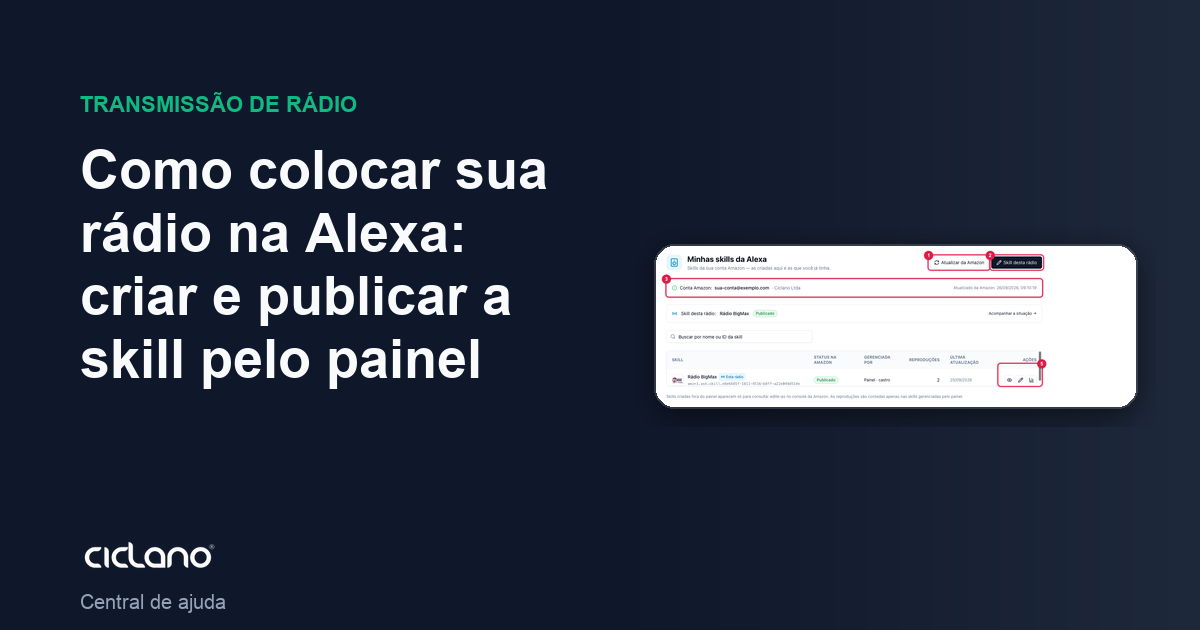
With the Alexa skill, the listener says "Alexa, open your radio" and your stream plays on the Echo, on the phone with the Alexa app or on any Alexa device. You create and publish the skill from inside the panel, with no programming. The skill is published on your Amazon account, as your radio's official skill — the Amazon developer account is free.
Where it is: Applications › your radio › Integrations › Alexa.
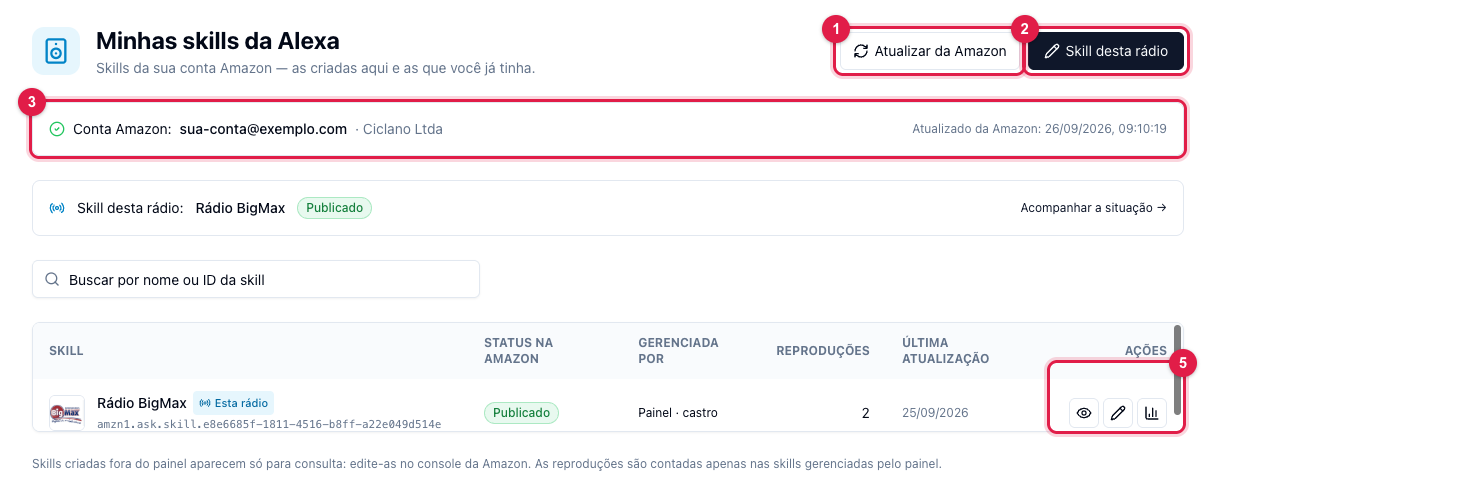
The numbers in parentheses refer to the image.
Before you start
- The radio must be on air (AutoDJ or encoder) throughout the whole process: Amazon tests the skill by listening to your stream. A silent radio is a sure rejection.
- Have the radio's logo in PNG or JPG (preferably square, in good resolution).
- Have an Amazon account (the same shopping account works). If you do not have a developer profile yet, sign in once at developer.amazon.com with that account, accept the terms and come back.
1. Connect the Amazon account

- In Integrations › Alexa, click This radio's skill (2 in the first image).
- In the 1. Amazon developer account section, click Connect with Amazon (2). An Amazon window asks for the login and the permission for the panel to manage your skills. Accept.
- Back in the panel, the account shows as connected with the name and e-mail. If Amazon says the account has no developer profile, use Create an account (1), accept the terms on Amazon's site and click Reconnect (2).
2. Fill in the skill details
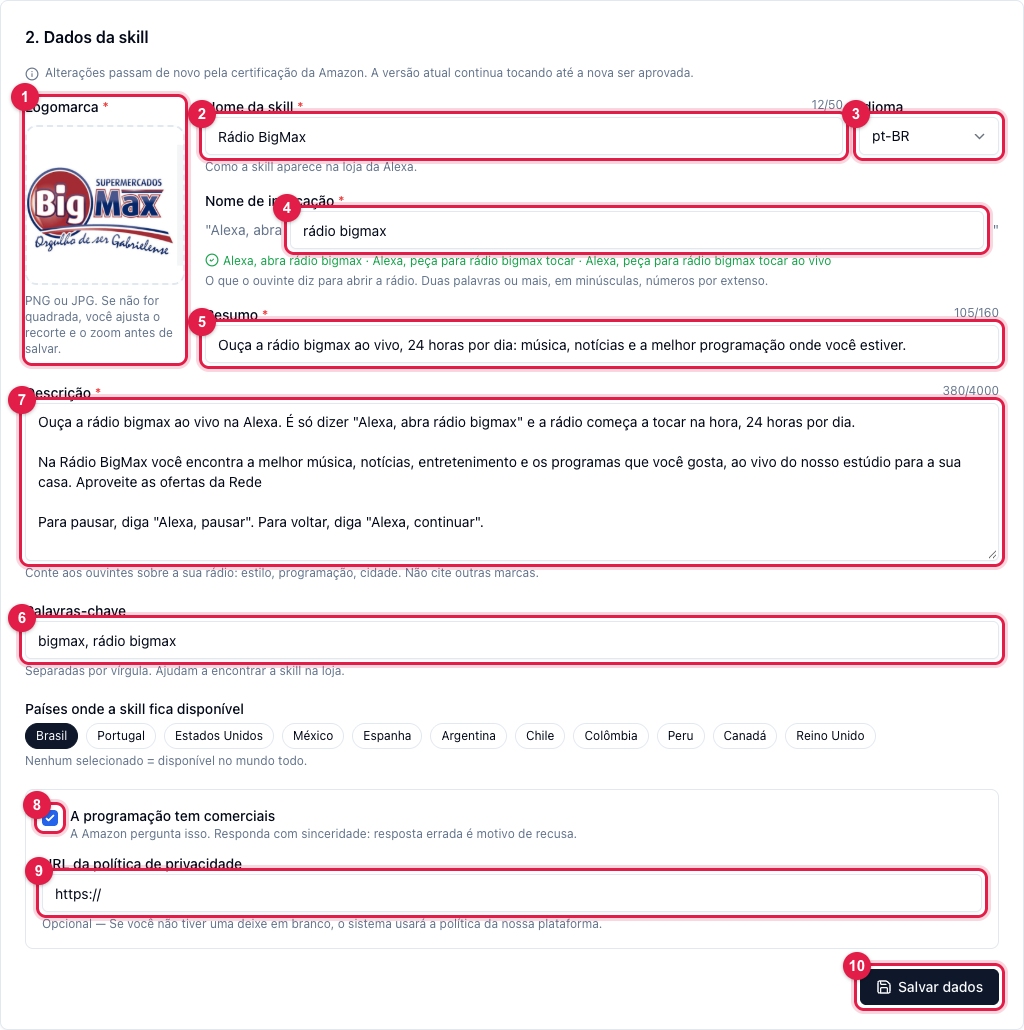
- Logo (1): upload the file. If it is not square, the panel opens the crop for you to adjust the framing and zoom.
- Skill name (2): how it shows in the Alexa store, for example Radio BigMax. Up to 50 characters.
- Language (3): pt-BR for Brazil. English and Spanish are also available.
- Invocation name (4): what the listener says after "Alexa, open". Amazon's rules: two words or more, all lowercase, numbers spelled out, no third-party brands. Example: radio bigmax. The panel shows just below the phrases listeners will use, and warns if the name is not allowed.
- Summary (5): one sentence of up to 160 characters for the store.
- Keywords (6): comma-separated; they help find the skill (style, city, radio name).
- Description (7): the full store text. Tell the style, the programming and the city. Do not mention other brands — it is a reason for rejection.
- Countries: check where the skill is available. None checked = worldwide.
- The programming has commercials (8): Amazon asks this and checks; answer honestly.
- Privacy policy URL (9): optional. If your radio does not have one, leave it blank and the panel uses the platform's policy.
- Click Save details (10).
3. Check and submit

- Click Check (1). The panel validates everything before talking to Amazon: invocation name, logo, privacy policy when there are commercials and, above all, whether the radio is on air in MP3 or AAC within the accepted bitrate range. If something fails, the list shows on screen; fix it and check again.
- With "All checked", click Submit to Amazon (2). The panel builds the skill package, submits it, runs Amazon's validation and requests certification.
- Keep the radio on air. Certification takes from a few hours to a few days; the panel polls Amazon on its own and you follow on screen.
The stream Alexa plays is your radio's universal link (shown in that section). It is not recorded in the skill: if the radio changes server, Alexa keeps playing without resubmitting anything.
4. Follow the status
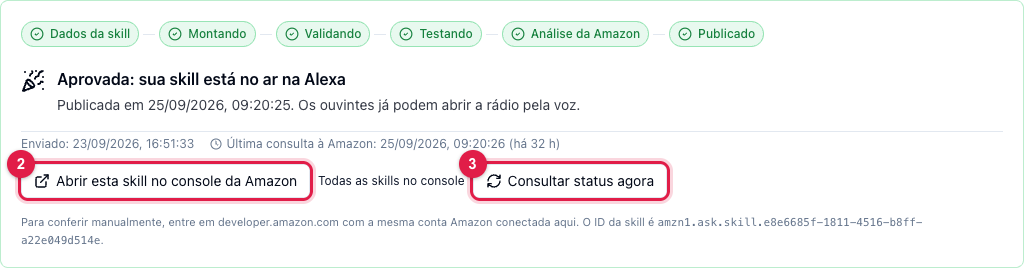
The steps line (1) shows where the skill is: Skill details → Building → Validating → Testing → Amazon review → Published. Check status now (3) forces a reading from Amazon; Open this skill in the console (2) leads to developer.amazon.com, with the same connected account, if you want to see it from there. When Approved: your skill is live on Alexa shows, it is done: listeners can already use it. In My skills, Refresh from Amazon (1 in the first image) re-reads the list of skills on your account, including the ones you created outside the panel.
If Amazon rejects it
The screen shows Amazon review with the summarized reason and an Amazon report field: Amazon sends the details by e-mail to the connected account; paste the text there and save, so our support can help. The most common reasons: radio off air at test time, invocation name outside the rules, description mentioning another brand, and a wrong answer about commercials. Fix, check and submit again. While the skill is being processed, editing is locked; Withdraw takes the skill out of certification if you need to change something first.
Changing a published skill
Change whatever you want in Skill details, save and click Submit update to Amazon. The change goes through certification again, and the current version keeps playing until the new one is approved.
Statistics
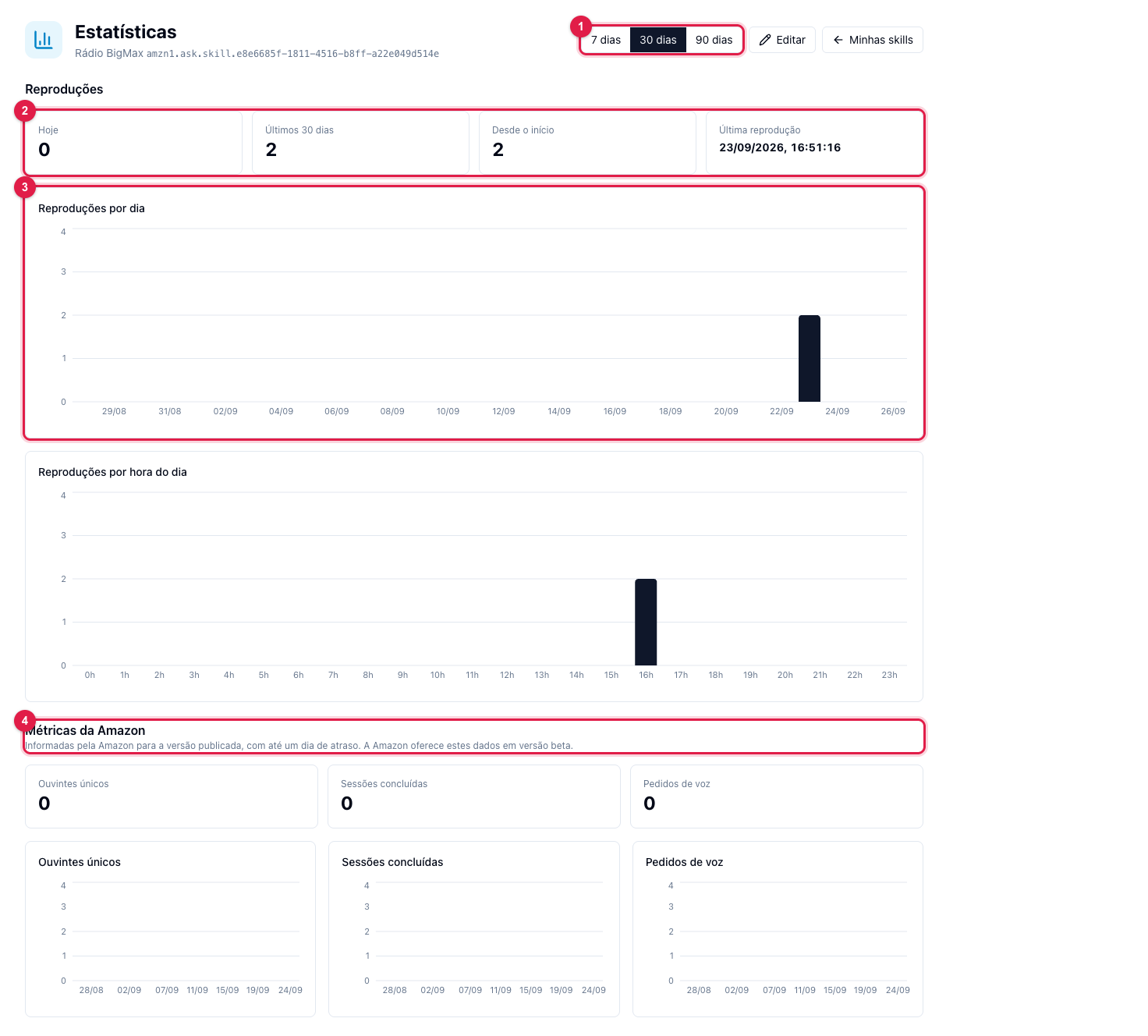
In My skills, the statistics icon opens the Plays counted by our server (2 and 3) — each time Alexa opened the radio — and Amazon's Metrics (4): unique listeners, sessions and voice requests of the published version, with up to a day's delay.
What to do if…
- "Connect with Amazon" comes back with a profile error. The account is not a developer account yet: sign in at developer.amazon.com once, accept the terms and reconnect.
- The check fails the stream. See whether the radio is on air and whether AutoDJ or the encoder is in MP3 or AAC (How to configure AutoDJ).
- It stayed days in "Amazon review". It is normal to take a few days. If it goes past a week, click Check status now and, if nothing changes, open a ticket.
- I want to disconnect the Amazon account. Disconnect (3 in the account image) only unlinks the panel from the account; the published skill keeps playing.