How to go live on the radio with Ciclano Air (encoder)
Download Ciclano Air in Downloads, enter the connection details from the Home screen and go live. How to know it connected, what happens to AutoDJ and how to use another encoder.
To speak live, play music from your computer or broadcast a show, you need an encoder: the program that takes the audio from your computer and sends it to the radio's server. Ours is Ciclano Air, and it is ready to download in your panel.
Where it is: Applications › your radio › Downloads.
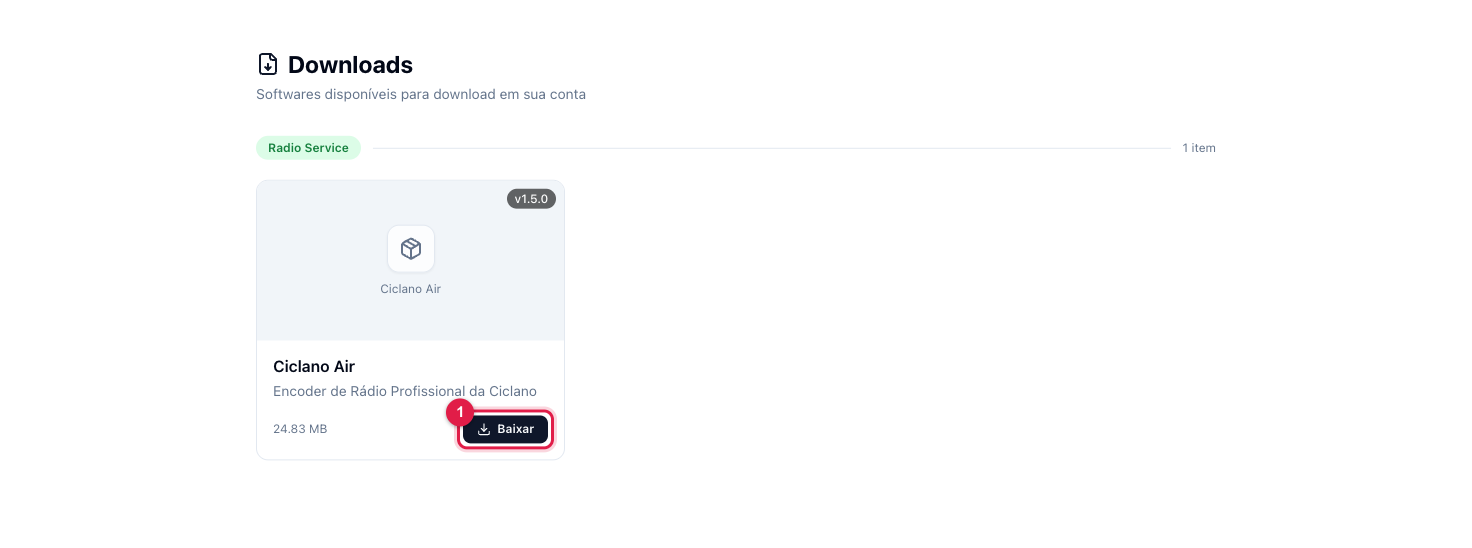
The numbers in parentheses refer to the image.
1. Download and install
- In the radio menu, open Downloads.
- In the Ciclano Air card, click Download (1) and install it like any program.
- Open Ciclano Air.
2. Enter the radio details
The details are on the Home screen, Connection Information block (see where). Copy each one with its copy icon and paste into the encoder:
- Server — the Server / IP field.
- Port — the Server Port.
- Password — the Encoder Password (not the panel password).
- Server type — the same as shown on your radio's badge on the Home screen (Shoutcast or Icecast).
- Quality — your plan's bitrate (128 kbps is the radio standard) in MP3. A bitrate above the plan is refused by the server.
3. Go live
- In the encoder, choose the audio input (the microphone or the mixer) and click connect.
- Back in the panel: in seconds the Home screen badge changes to Encoder Connected, the Encoder uptime card starts counting and, in Server Monitoring, Connected encoders shows 1.
- Listen through the panel's player to check the sound.
Live and AutoDJ
If your radio uses AutoDJ, you have two ways to go live:
- With the encoder password (the details above): the encoder takes over the port. If AutoDJ is on, it goes on standby and comes back when you disconnect, as long as Enable AutoDJ automatically when the encoder drops is checked in the AutoDJ Settings.
- As an AutoDJ Streamer: each announcer has their own user and password, and connects to AutoDJ's harbor port. AutoDJ pauses on its own and resumes when the announcer leaves. It is the recommended way for stations with several announcers (see how).
Other encoders
Any Shoutcast- or Icecast-compatible encoder works with the same details: server, port, password and server type. The field names change from program to program, but the information is the same as on the Home screen.
What to do if…
- "Connection refused" or "incorrect password". Check port and password by copying them again from the Home screen. If the password was changed recently, the port needs a restart (see how).
- It connected, but the listener hears nothing. See whether the badge changed to Encoder Connected and whether the bitrate shows in Monitoring. If the encoder is connected and no audio comes out, the audio input chosen in the encoder is wrong or muted.
- It drops from time to time. It is usually the broadcaster's internet. Lower the bitrate in the encoder and prefer a cable over Wi-Fi. The reasons for each drop are in Logs › Encoder.
- AutoDJ did not come back when I disconnected. Check Enable AutoDJ automatically when the encoder drops in How to configure AutoDJ.