How your radio panel works: what each part of the Home screen shows
The Home screen is the center of your radio: the status badges, the port buttons, the listener numbers, the encoder connection details, the player and the server monitoring. See what each block means.
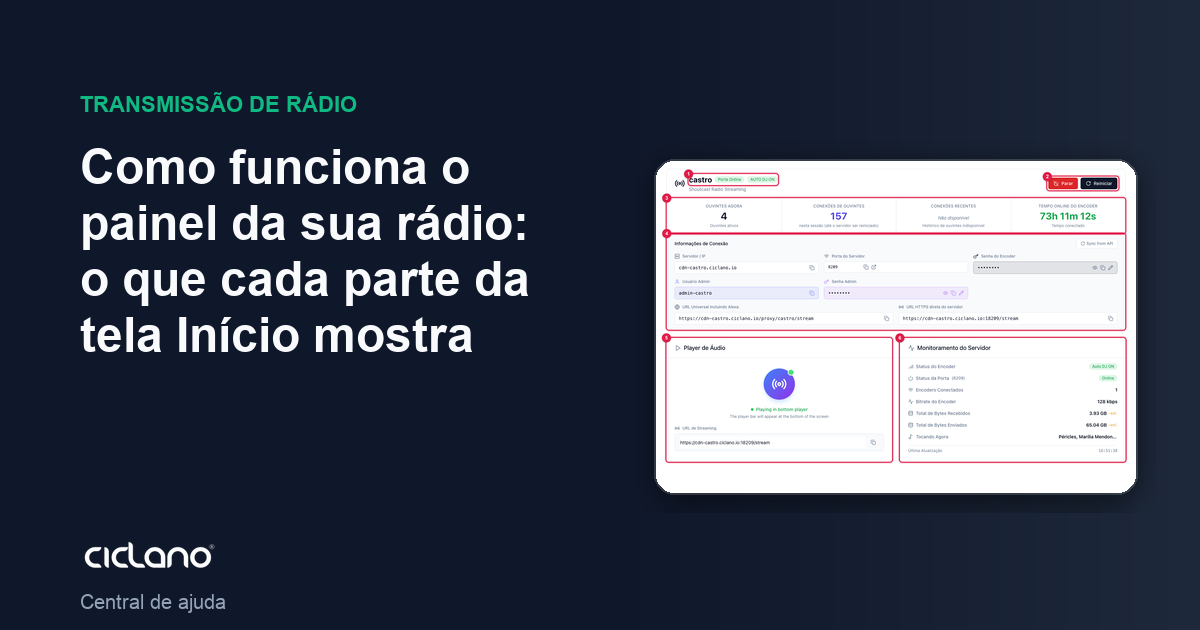
When you open your radio in the panel, you land on the Home screen. It gathers, on a single page, everything you need to look at day to day: whether the radio is on air, who is listening, the details that go in the encoder and what the server is doing right now.
Where it is: Applications › your radio › Home.
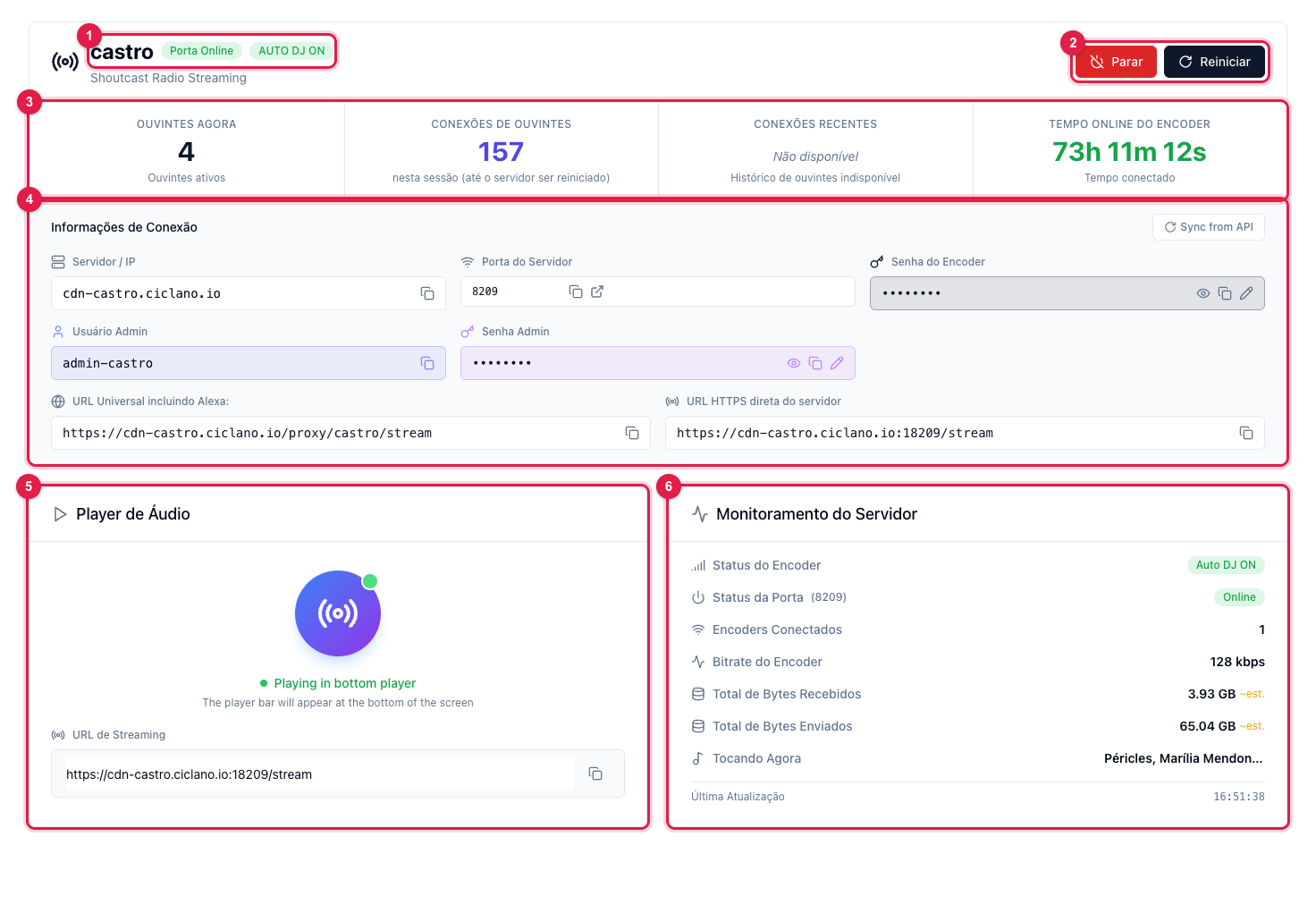
The numbers in parentheses refer to the image.
1. Name and status badges
Next to the radio name (1) are two badges. Port Online means the radio's server is on and accepting listeners. The second badge says where the audio comes from: AUTO DJ ON when AutoDJ is playing, Encoder Connected when someone is live through the encoder, or Encoder Disconnected when no audio is coming in — and then the radio goes silent. Right after opening the page the badges show "Checking..." for a few seconds, until the first reading from the server.
2. Port buttons
Stop and Restart (2) act on the server's port, not on AutoDJ. Stop takes the radio off air for everyone; Restart drops and brings it back in seconds. When the port is stopped, the button becomes Start. The details are in How to stop, start and restart the radio port.
3. Listeners and uptime
The four cards (3) are the audience summary:
- Listeners now — how many people are connected at this instant.
- Listener connections — how many connections the port received in this session, that is, since the last time the server was restarted. Restarting resets this number.
- Recent connections — the listener history, when your radio's server provides that data. On Shoutcast servers it may show "Not available"; in that case use Statistics › Listener History.
- Encoder uptime — how long the current audio source (AutoDJ or encoder) has been connected without dropping.
4. Connection Information
Block (4) has what goes in the encoder and in the players: server, port, encoder password, admin user and password, and the two listening links (universal and direct). Passwords show masked; the eye icon reveals, the copy icon copies and the pencil changes. All explained in Encoder connection details and Which radio link to use.
5. Audio Player
Card (5) plays your radio inside the panel. It shows "Playing in bottom player": the audio comes out of the player bar fixed at the bottom of the screen, which keeps playing while you browse the other pages. Below it is the Streaming URL with the copy button.
6. Server Monitoring
Card (6) is the live reading of the server: encoder and port status, how many encoders are connected, the bitrate, the bytes in and out, the song playing now and the time of the last update. Each line is explained in Server monitoring: what each line means.
The radio menu
On the left are the other areas: Statistics (real time, listener and music history), Logs (encoder and channels), Links & Widgets, Web Player, Integrations (Alexa), Program Schedule, Presenters, Downloads, AutoDJ and Access Control. If you have more than one radio, the selector at the end of the menu switches between them.
What to do if…
- It shows "Checking..." and does not change. The panel could not talk to the radio's server. Wait a minute and reload; if it persists, open a ticket.
- Port Online, but Encoder Disconnected. The server is on, but nobody is sending audio. Turn on AutoDJ (see how) or connect the encoder (How to go live).
- The page shows "Inactive radio". See My radio shows as inactive.